Term
Multi-step form
A multi-step form divides one form into several screens or pages, each covering related questions before the final submission. Moving to the next step does not, by itself, mean an enquiry has been received or an unfinished draft has been saved.
 Daria Lisovenko11 October 2026≈ 9 min.
What is a multi-step form?
A multi-step form divides one form into several screens or pages. Each step contains a group of related questions: what the person needs, the arrangements and their contact details, for example. They move through the groups and submit the completed enquiry at the end.
The route can stay linear, with everyone seeing the same questions in the same order, or use conditional logic to change what appears next. Separate screens do not automatically create branching, a quiz result or a saved draft.
Nor does each step need a new web address: a builder may change the questions within the same page, so the visible screens and the browser's pages are not necessarily the same thing. What matters is whether people can follow the route and correct an answer.
In brief: several steps can belong to one enquiry. “Next” moves the person through the form. “Send enquiry” requests submission. Neither a page transition nor a button click proves that the system has received the enquiry.
How questions become steps
Group the information you need before choosing how many screens to build. Two closely related questions may belong together, while contact details can form a separate step even if that group contains more fields than another. One question per page is an option, not a target.
The W3C tutorial on multi-page forms recommends dividing a long form into logical groups and indicating progress. It also advises preserving entered information when people return to completed steps. These are design recommendations, not guarantees about every form builder.
Split a name and telephone number across separate screens in a short callback form and you add another transition without separating two meaningful tasks. Keeping them together may be simpler. For a longer enquiry, groups can show which part the person is working on without putting every question on screen at once.
Example: a corporate training enquiry
Consider a fictional corporate training enquiry with nine fields in three steps. This is a structure to discuss, not a working template or a customer case. There are no measured conversion results.
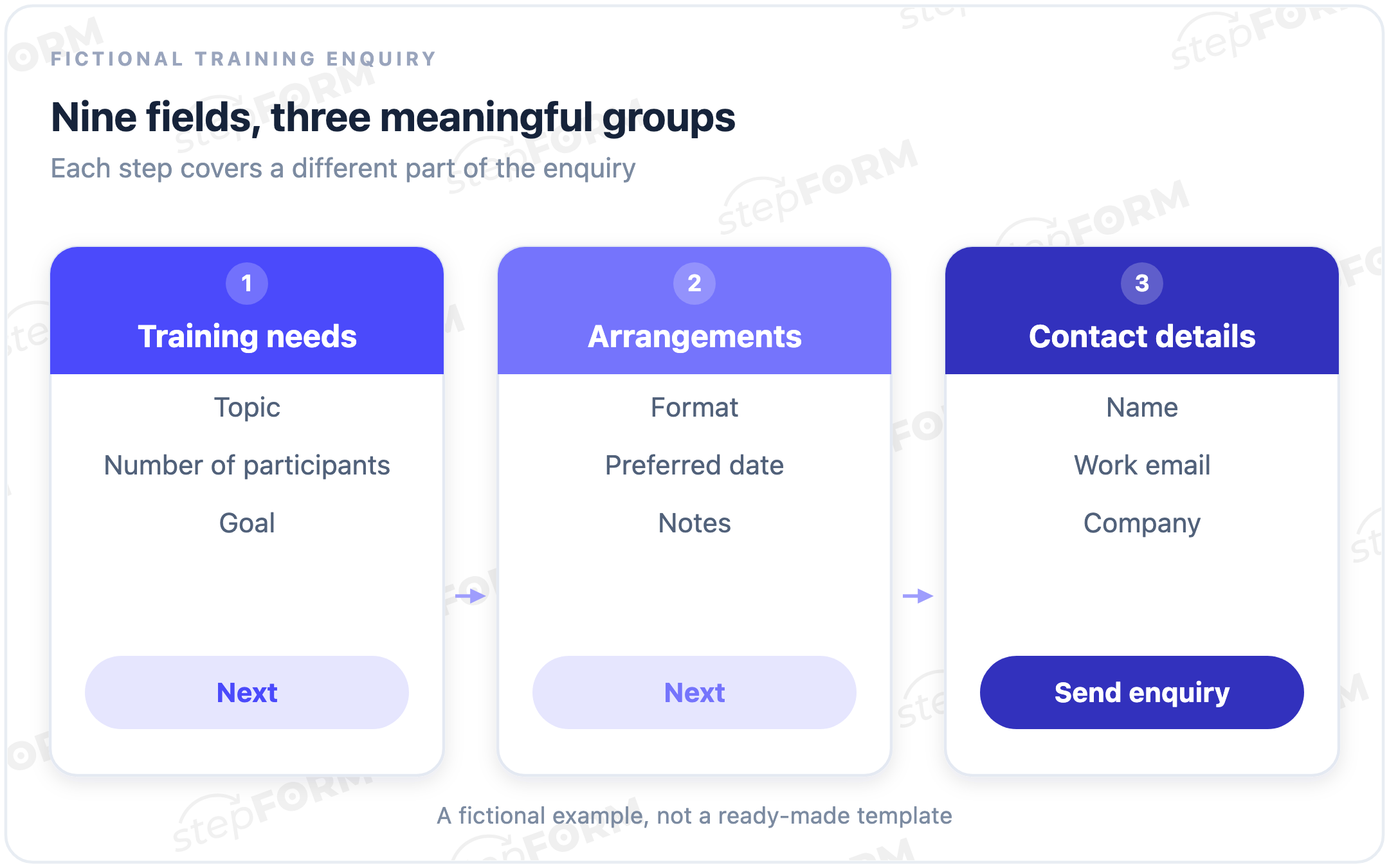
“Training needs” asks for the topic, number of participants and goal: the customer might choose sales training, enter the team size and explain that staff need to learn how to conduct a first meeting. These answers describe whom to train and what to teach.
“Arrangements” asks for the format, preferred date and notes. The format is required in this example, but the date and notes are optional, so someone who has not chosen a date should be able to continue without inventing one.
“Contact details” collects a name, work email and company. Before the final button, the design could show earlier answers for the person to check, although this suggested summary is part of our example and does not establish that stepFORM creates it automatically.
Nine fields remain nine fields. Three steps change when the questions appear, not how much information the company asks for. If a field is not needed to discuss training, consider removing it before finding another screen to put it on.
Navigation, progress and going back
“Arrangements, step 2 of 3” tells the person where they are and what this group covers, whereas an unlabelled bar leaves them to guess its meaning. The next action needs to be clear too. On the last step, distinguish sending the enquiry from moving to another page.
Progress should describe the route ahead. Equal segments can show the current step, but they do not measure time or effort: entering contact details and completing a lengthy document section can take different amounts of work even when each counts as one step. If conditional logic changes the route, check what the display does with skipped pages.
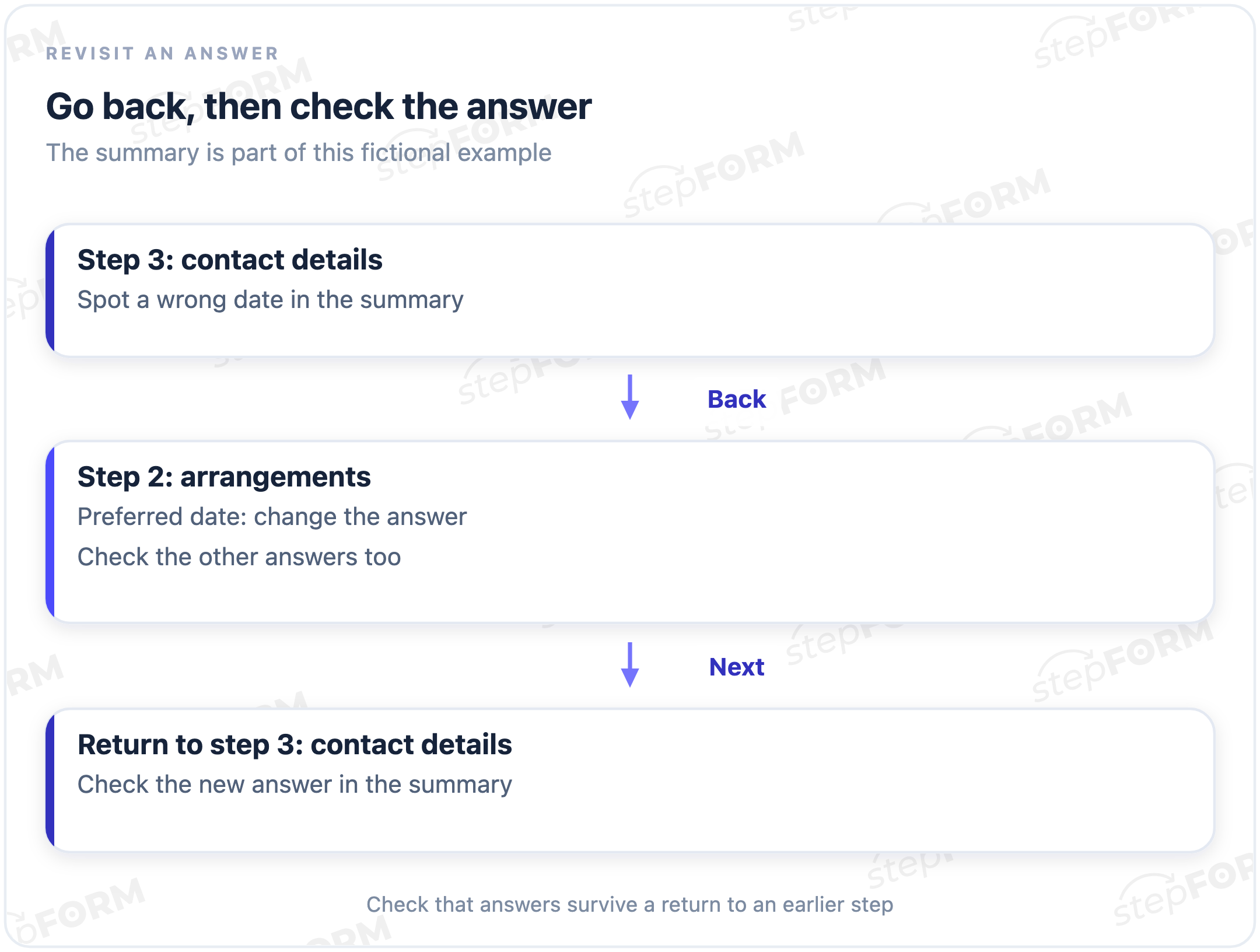
Someone reaches “Contact details” and notices the wrong date. They go back to “Arrangements”, change it and continue. Test this with fields filled in: check earlier answers and the updated date before submission, then inspect the received enquiry to see whether the changed value reached the company. An empty form has nothing to lose.
Going back within an open form, refreshing the page and returning after closing the browser are different cases, so preserved answers on the way back do not prove that the person can resume tomorrow. Check continuing on another device separately too. Verify the capability the task actually needs.
A step transition is not a submitted enquiry
Moving between pages, saving an unfinished draft and receiving a submitted enquiry are different events. A form can support one without the others. “Next” describes the immediate action, but the label does not tell you whether unfinished answers stay in the open browser session or are stored so the person can return later.
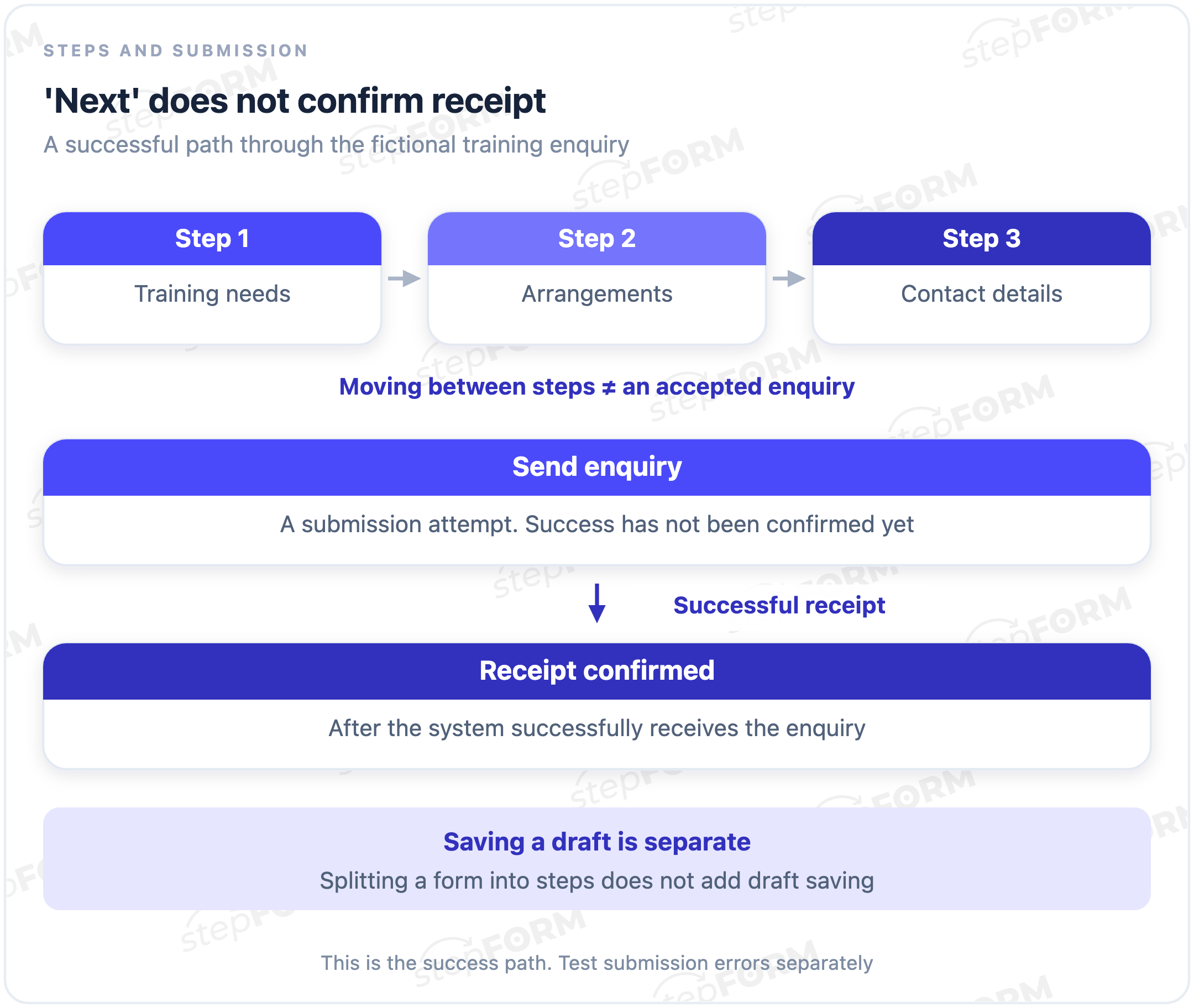
“Enquiry received” should mean that the system successfully received it. A click is not enough. The confirmation can explain what happens next, for example that the training company's manager will reply to the work email provided. If sending fails, explain the error and let the person retry without entering the whole enquiry again. Test this separately from the successful route shown above.
Do not count each completed page as a separate lead in your reports. Page transitions can help you investigate where people stop, but even successfully receiving an enquiry does not prove that it is a qualified lead or a sale.
Do not promise “Your answers are saved” unless you have checked what is stored, for how long and how the person can return to it. Multi-step layout alone says nothing about these capabilities.
How it differs from a quiz and conditional logic
| Term | What it describes | In the training example |
|---|---|---|
| Multi-step form | How questions are divided between screens | Training needs, Arrangements, Contact details |
| Conditional logic | How an answer changes the questions or route | A separate rule could ask for an address only for in-person training; the current example stays linear |
| Quiz | Questions and rules that link answers to a result, such as an assessment or recommendation | Several pages alone do not create a training recommendation |
| Saving a draft | The ability to restore unfinished answers | A separate capability to check, irrespective of the navigation buttons |
These terms can describe the same form from different angles. A quiz can be multi-step and use conditional logic, while the training enquiry can simply use a linear sequence. The layout does not define the purpose or result.
When the format helps, and when it adds work
Meaningful groups are a reason to consider multiple steps: a service enquiry may need the task first and arrangements later. The separation lets the person concentrate on one group, while progress information explains what remains. It can also hide the overall workload, however, if the form never shows how many steps follow.
An extra screen may be unnecessary for a brief request with closely related fields. In a long request, more screens cannot fix unclear labels, irrelevant questions or a requirement the person cannot meet. There is no step count that guarantees higher conversion.
Compare successfully received enquiries and whether they are suitable for the task, using a consistent audience and measurement method. If you change the questions as well as the layout, the result cannot be attributed to the number of steps alone.
What to check before using the form
- Leave a required field empty. The problem should be explained where the person can correct it, rather than appear as a silent refusal to continue.
- Leave the optional preferred date and notes empty in this example. The route should still reach contact details.
- Go back with answers entered, change the date and continue. Check that the final enquiry contains the changed value.
- On a phone, inspect the questions and navigation together. The next action should remain understandable without a desktop-width layout.
- Check successful receipt and a submission error separately. Reaching the last screen is not an end-to-end test.
These are checks for the intended design. They are not a report of tests already completed in a working training form.
Multi-step forms in stepFORM
In stepFORM, multiple pages provide the steps. Pages can be reordered, duplicated and deleted, and adding a page displays a page number and progress bar at the top, with a page switcher at the bottom. The upper block can be hidden.
Sent responses appear in the “Responses” tab, according to the documentation on receiving responses. The page settings do not establish that visiting every step saves an unfinished enquiry, and autosave, return after closing and an automatic answer summary have not been confirmed for this article.
To try the format, create the groups in the stepFORM form builder and check the route with a test enquiry. Choose the fields because they are needed, then decide which should appear together.
Frequently asked questions
How many steps should a form have?
There is no universal ideal. Start with the groups the task needs, then check how people move through them. The three steps in our example are Training needs, Arrangements and Contact details. A separate screen needs a reason beyond making the form look shorter.
Is one question per screen the same as a multi-step form?
It is one possible layout. A step can contain several related fields. In the fictional example, each group has three. Choose according to whether the person needs to see those answers together.
Can a form work without a progress bar?
Yes. A step number and group name can explain where the person is. For a long route with a known number of steps, explain the total as well. An unlabelled bar does not replace that information.
Do you need a separate review screen before submission?
No. In the example, a summary is suggested on the final contact step. A separate review screen may help when there are many answers or a mistake would be costly, but it needs a reason beyond adding another transition.
Should contact details always come last?
No. That is the arrangement in our example, not a rule for multi-step forms. If contact details are needed earlier, explain why. Entering them does not, by itself, mean consent to later messages or prove that an enquiry has been received.
Further reading
- Pages and navigation in stepFORM: adding and organising pages and displaying progress.
- Form, quiz or calculator?: choosing a format for the task.