
How to create an event registration form: fields, emails, payments
How to create an event registration form online: which fields to ask for, how to confirm a place by email, take ticket payments and close sign-ups. Step by step in stepFORM.
How-to  Daria Lisovenko
28 September 2026
Reading time ≈ 11 min.
Daria Lisovenko
28 September 2026
Reading time ≈ 11 min.

An event registration form is the page or block where people sign up for an event: they leave a name and contact details, choose how they will attend, and sometimes pay for a ticket straight away. You can build one for free in a form builder, in Google Forms or in Microsoft Forms. The difference starts after the button: some forms just collect answers in a spreadsheet, others confirm the place by email, notify the organiser and take payment.
Registrations are easy to lose after the button. People get no confirmation and a week later cannot remember what they signed up for. The organiser spots the entry in a spreadsheet three days late. Nobody sends a reminder on the day. All of this is set up once, before the invitation goes out.
Which fields an event registration form needs
Ask for what you will need on the day and nothing more. Every extra field is another reason to put registration off "until later", and later rarely comes. This matters most on phones: for a typical lead form on stepFORM, more than half of all opens happen on mobile.
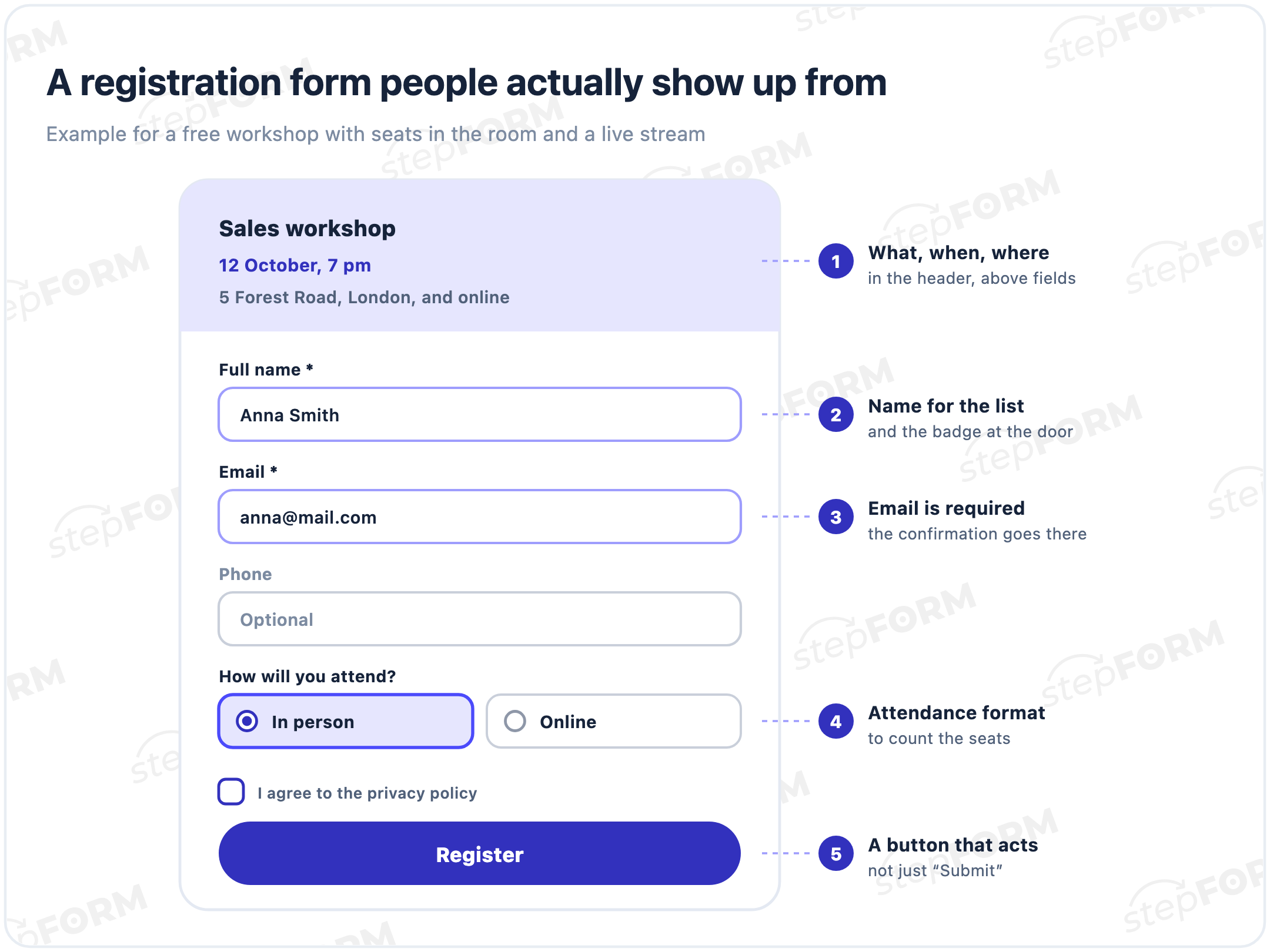
- Full name. For the attendee list and the badge at the door.
- Email. Required: the confirmation goes there, and for online events the stream link too.
- Phone. Optional, if you may need to warn people about a change or reach them on the day.
- Attendance format. "In person" or "online", so you can count seats and chairs.
- Consent to data processing. A checkbox with a link to your privacy policy, turned on in the submit button settings. See our guide to contact forms for how to set it up.
Which fields to add for different events:
| Event | Required | Optional | Button |
|---|---|---|---|
| Webinar | Name, email | A question for the speaker | Get the link |
| Workshop | Name, email, attendance format | Phone, experience level | Register |
| Conference | Name, email, company, job title | Phone, sessions to attend | Book my place |
| Competition | Name, date of birth, category | Team, T-shirt size | Enter |
| Children's event | Child's name, age, parent's contact | Allergies, who collects | Sign up my child |
| Company party | Name, department | Dietary needs, transport | I'm coming |
Company and job title belong at business events only: they help you print badges and understand who is in the room. At an open workshop these fields put more people off than they help.
What to put in the form header
People often open the form from an invitation a week after they first saw it. The header should remind them of everything that brought them there before the first field.
- The event name in plain words: "Sales workshop", not "WS-2026/10"
- Date and time, with the time zone for online events: "12 October, 7 pm UK time"
- The place: an address with a landmark, or "online, the link arrives by email"
- The price, or the word "free" if there is nothing to pay
- The closing date for registration, and how many seats there are if they are limited
What happens after sign-up
A registration is only a promise to come. Two things make it stick, and both should happen the moment the button is pressed: the attendee sees a confirmation and the organiser gets a notification.
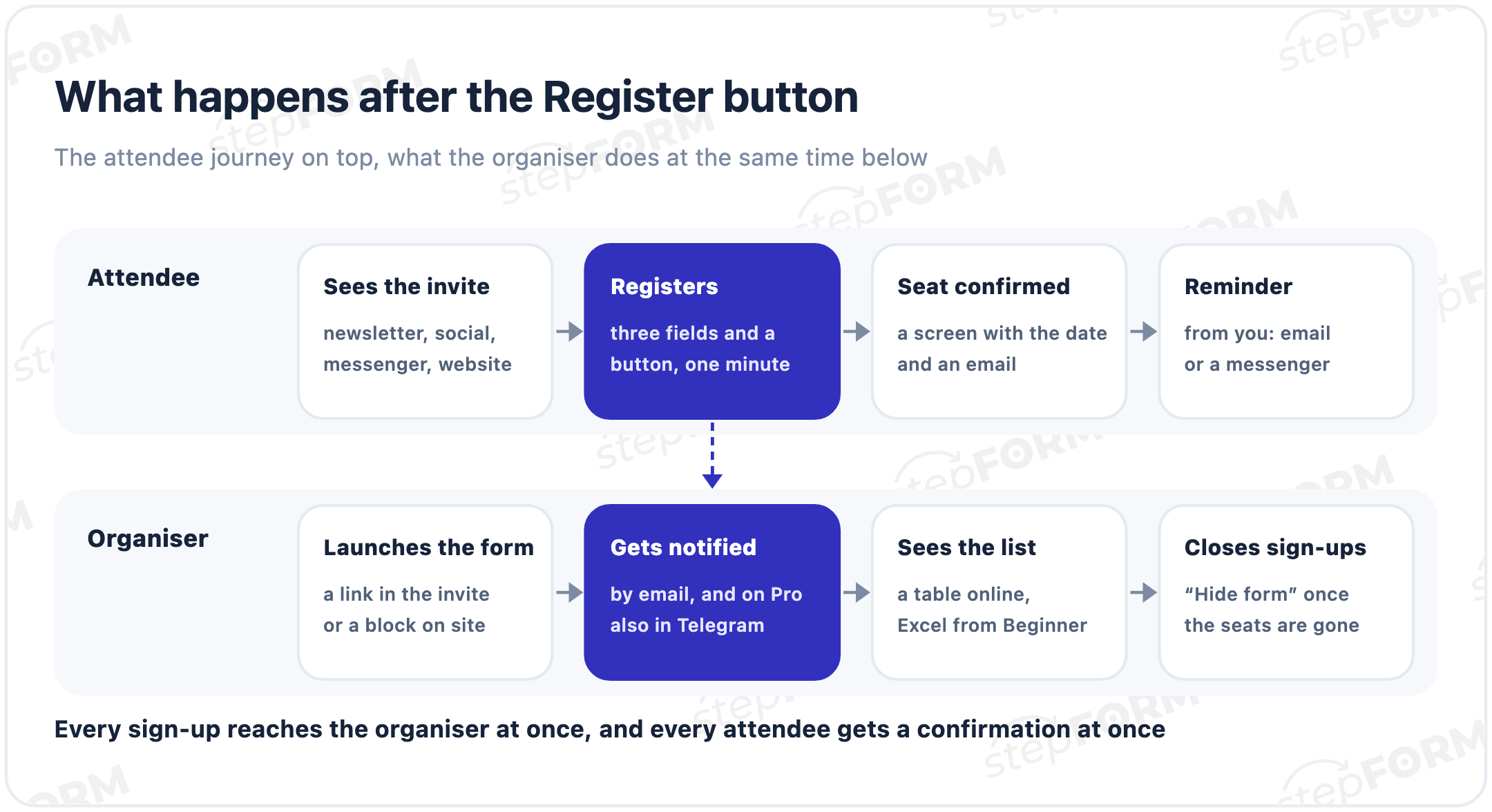
- A confirmation screen. "Your seat is saved, see you on 12 October at 7 pm". What to put on it is covered in our guide to thank-you pages.
- An email to the attendee. An auto-reply with the date, the address and their answers. It is set up in the form's email settings and takes the address from the email field. Auto-replies work on paid plans.
- A notification to the organiser. An email for every sign-up works on the Free plan, Telegram alerts on Pro.
- The attendee list. All answers are visible in the dashboard and can be printed. CSV and Excel export comes with Beginner.
stepFORM does not send reminders itself. Export the list and send a reminder through your email tool or a messenger a day and an hour before the start. Without one, some people simply forget, especially if they signed up a couple of weeks ahead.
Registration for an online event
Webinars work differently. Seats are not scarce, attention is: people sign up in a minute and forget by the evening. The form can shrink to two fields, while emails and reminders matter more than for an in-person event.
- Put the time with the time zone in the header, or some people will turn up an hour early or late
- Ask for one required field besides the name: the email, where the stream link will go
- Put an "Add to calendar" button on the thank-you screen, or at least show the date in large type
- Repeat the stream link in a reminder an hour before the start, because people look for it at the last minute
- If there will be a recording, say so in the header: people who cannot make the live session will register too
Seat limits and closing registration
When the seats are gone, close registration, or on the day there will be more people at the door than chairs. In stepFORM you do it with the "Hide form" switch in the Settings tab: a placeholder saying the form is unavailable replaces it, while the link and the code on your site stay the same.
The documentation does not mention closing automatically after a number of sign-ups, so keep an eye on the list yourself. It helps to open 10 to 15% more places than you have: someone always drops out, falls ill or gets stuck in traffic. For an online stream you do not need a cap at all.
Paid registration
If the ticket is paid, take the payment in the form itself: people choose a ticket, see the total and pay without leaving the page. A jump to someone else's payment page is one more fork where some buyers change their mind.
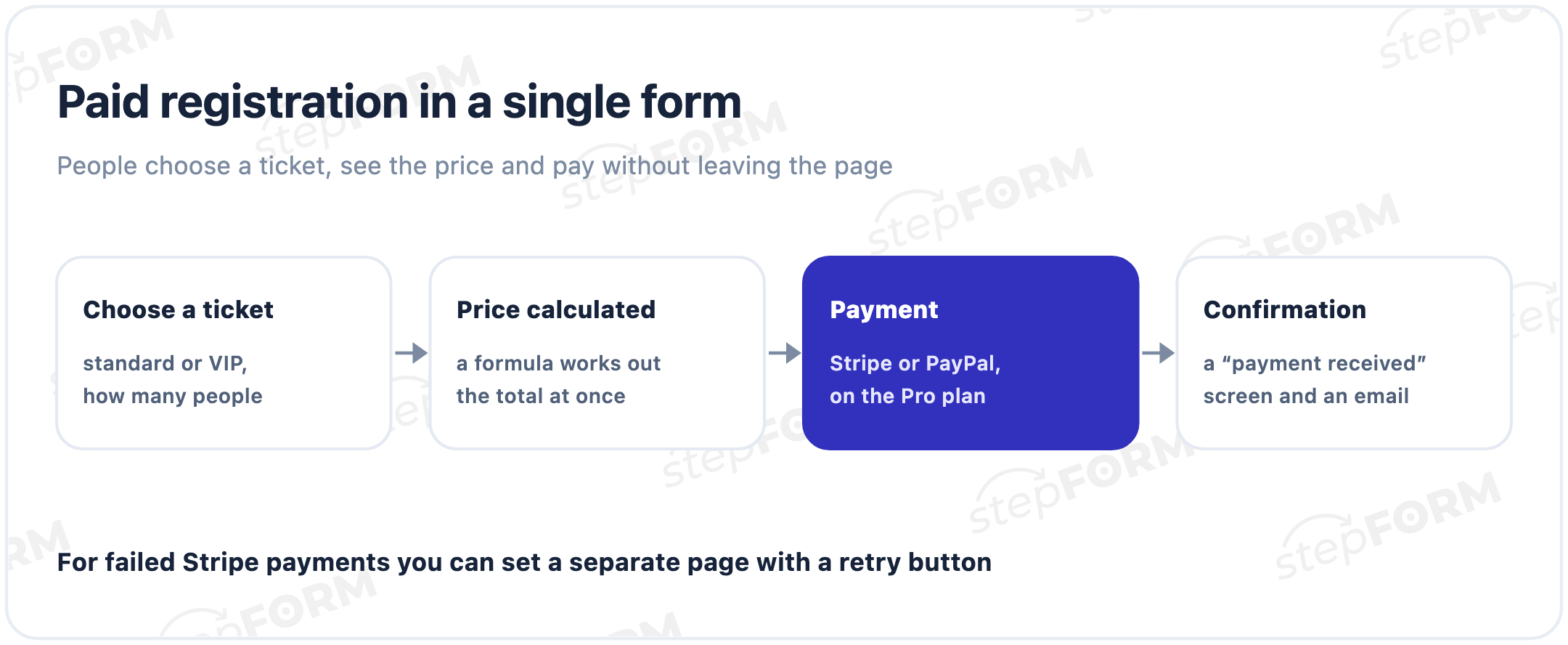
- Ticket options. A list or cards: standard, VIP, group. Next to it, a "How many people" field.
- The total. A formula works it out instantly; see our guide to quizzes with price calculation for how it works.
- Payment. Connect a payment system in the form Settings, for example Stripe or PayPal. Payments are available on the Pro plan.
- Confirmation. A "payment received" screen and an email with the details. With Stripe you can set separate pages for successful and unsuccessful payment.
How many sign-ups each plan handles
First thing to check: is the Free plan enough? Count sign-ups per month across the whole account, since all forms share one limit.
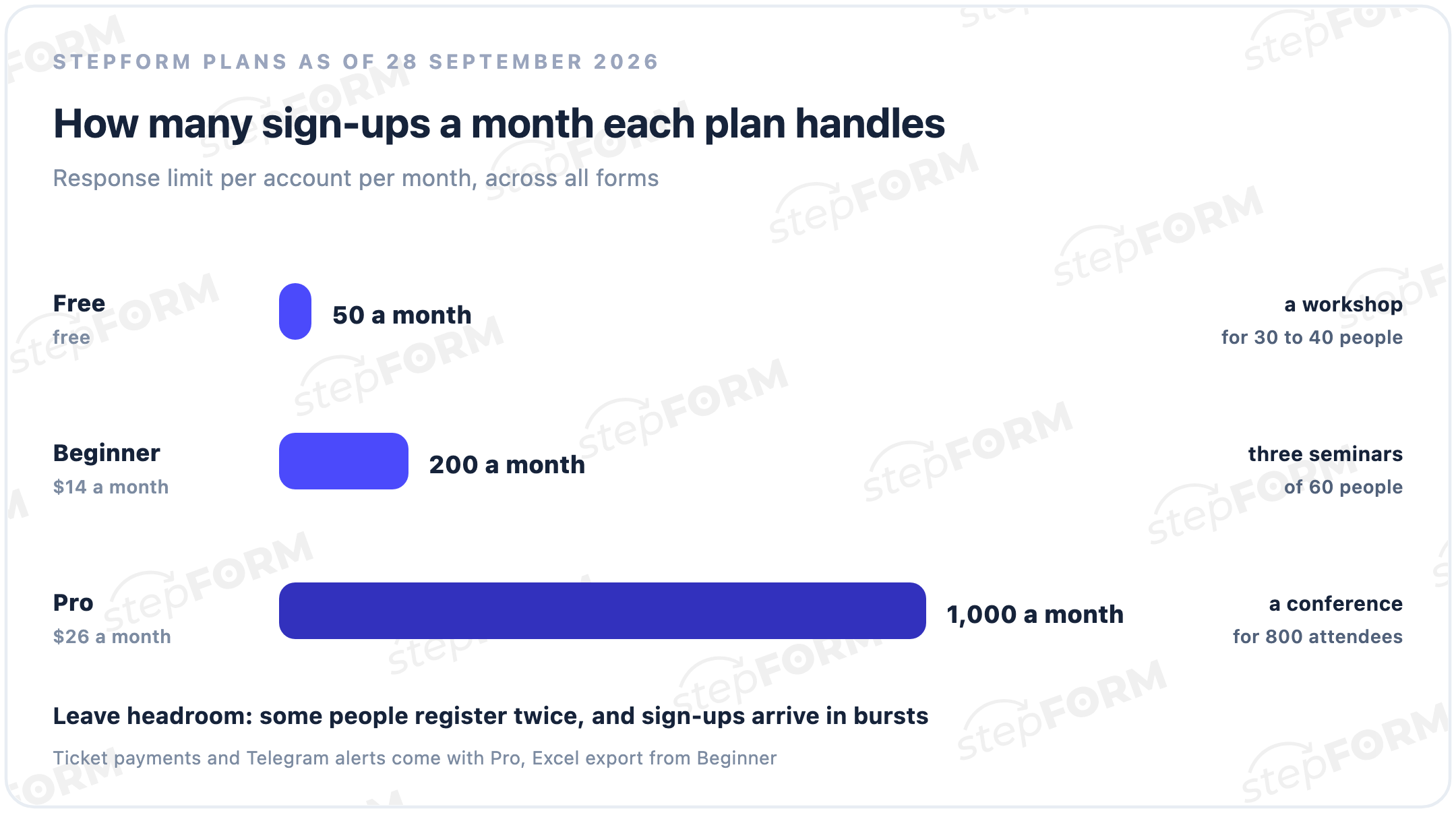
- Free. 50 responses a month: a workshop or a small meet-up.
- Beginner, $14 a month. 200 responses, Excel export, auto-replies to attendees, Google Analytics.
- Pro, $26 a month. 1,000 responses, ticket payments, Telegram and SMS.
Annual billing brings the price down to $11.20 and $20.80 a month, and every new account gets seven days of Beginner. All limits are on the pricing page. For a one-off event you can take a plan for the month of registration and not renew it.
Google Forms, Microsoft Forms or a form builder
For simple free registration, Google Forms and Microsoft Forms are enough: fields, a response table and a link for the invitation. Pick them if all you need is an attendee list and there is nothing to pay.
A form builder is handier when registration becomes part of a sale: you need to take ticket payments, work out the price for several people, get alerts in a messenger, show the form as a pop-up on your site or put it on your own domain. In stepFORM all of that fits in one form, with no separate checkout or landing page.
How to collect sign-ups
- A link in the invitation. Newsletters, social media, messengers, community chats. A direct link to the form works without a website.
- A block on your site. The form on the event page, plus a pop-up when people try to leave, set up as a pop-up in the Publication tab.
- UTM tags. Different links for different channels, so Google Analytics shows where attendees came from. Analytics comes with Beginner.
- A QR code on posters. Make one from the form's direct link in any QR code generator.
After the event: a feedback form
The last step of registration comes the day after the event, when you ask attendees to rate it. You already have their emails, so a feedback form only needs a link in the thank-you email. Two or three ratings and one open question, "What should we improve?", give more than a long survey. See our guide to creating a feedback form.
Common mistakes
- No date or place in the header. People open the form a week later and no longer remember what they are signing up for.
- A required phone number for a webinar. An email is enough online; a phone field only turns some people away.
- No confirmation. Without a screen and an email, people are not sure they registered and sign up again.
- No reminder. They signed up two weeks ahead and forgot three days before.
- Registration left open. The seats are gone, but the form keeps taking people.
- The plan limit counted per form. The limit is shared across the account, and a second form uses it up too.
Frequently asked questions
How do I create an event registration form?
Build it in a form builder: a header with the date and place, fields for name, email and attendance format, and consent to data processing. Turn on notifications and an email to attendees, then publish the form as a direct link or embed it on your site.
Which fields should a registration form have?
For most events, a name, an email and the attendance format are enough. Make the phone optional, and ask for company and job title only at business events.
Can I create a registration form for free?
Yes. The stepFORM Free plan includes 5 forms and 50 responses a month, enough for a small event. Excel export and emails to attendees come with Beginner, ticket payments with Pro.
How do I send attendees a confirmation?
Show a confirmation screen with the date and place, and turn on an auto-reply: an email with their answers goes to the address from the email field. In stepFORM auto-replies work on paid plans.
How do I take ticket payments in a registration form?
Connect a payment system in the form settings, for example Stripe or PayPal. The total can be worked out by a formula from the chosen ticket and the number of people. Payments are available on the Pro plan.
How do I close registration when the seats run out?
Turn on the "Hide form" switch in the Settings tab. A placeholder saying the form is unavailable replaces it, while the link and the code on your site stay the same.
How do I export the attendee list?
All answers are visible in the form dashboard and can be printed. CSV and Excel export is available from the Beginner plan.
Google Forms or a form builder for event registration?
For simple free registration without payments, Google Forms or Microsoft Forms is enough. A form builder is handier when you need ticket payments, price calculation, messenger alerts or a pop-up form on your site.