
How to accept payments on your website without an online store
How to take card payments on your website without an online store: a form that works out the total, Stripe or PayPal, and what to show after payment.
Forms  Daria Lisovenko
30 September 2026
Reading time ≈ 10 min.
Daria Lisovenko
30 September 2026
Reading time ≈ 10 min.
You can take payments on your website without building an online store. A form collects the order, works out the total and opens the payment provider's checkout page, where the customer pays by card. The money reaches you under your agreement with the provider. This setup suits services and consultations, deposits for a site visit, event tickets and small product ranges where a full store would be overkill.
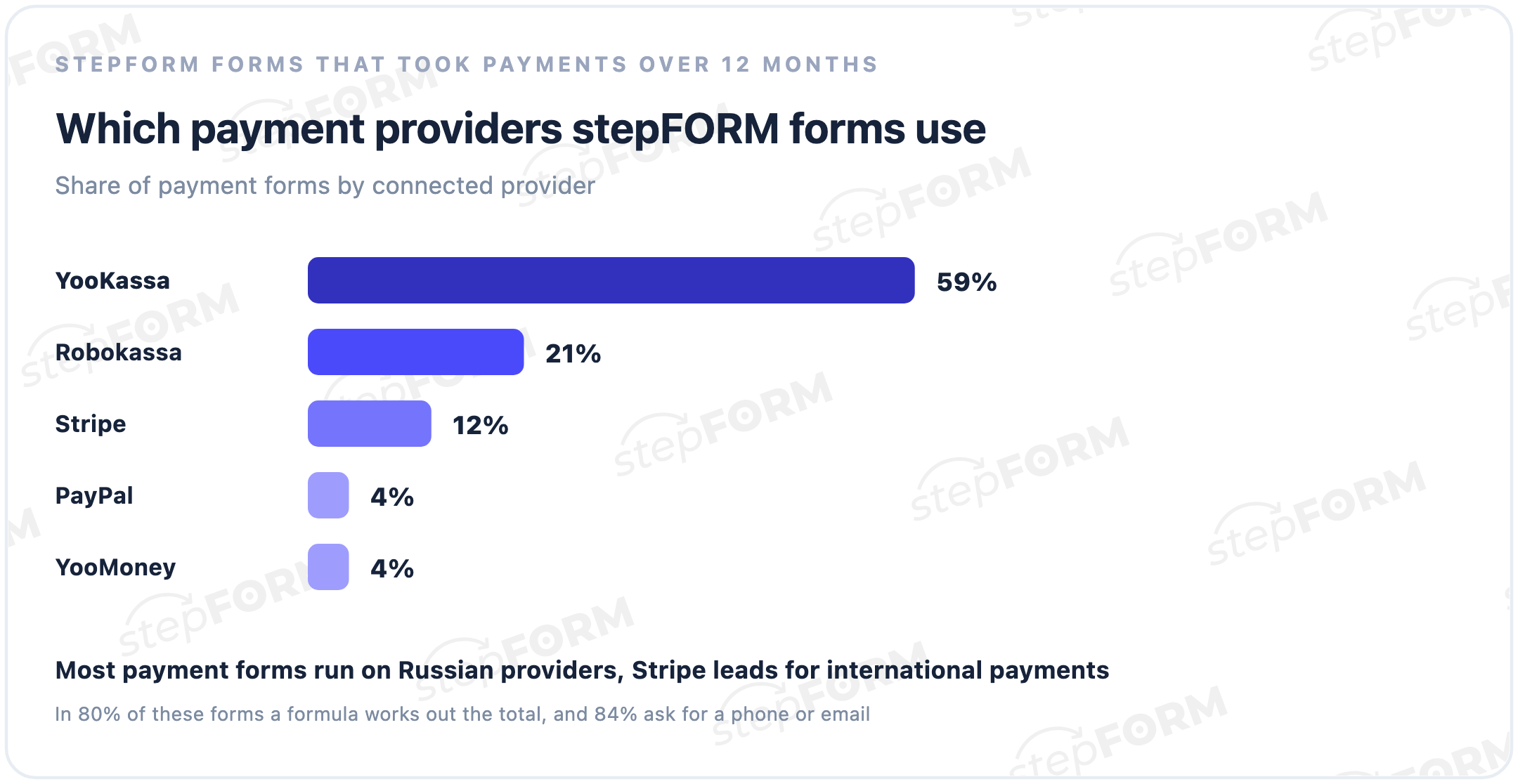
We looked at stepFORM forms that took payments over the last year. 59% of them run on YooKassa, 21% on Robokassa and 12% on Stripe, so outside Russia Stripe is the main choice. In 80% of these forms a formula works out the total from the customer's answers, and 84% ask for a phone number or email.
What you need to take payments on your website
There are three pieces, and a form builder provides only one of them.
- An account with a payment provider. It takes the money from cards and pays it out to you. Providers usually check your business and website before you go live, so have your prices, contact details and terms ready.
- A form that works out the total and sends people to checkout. In stepFORM, payments come with the Pro plan and work through Stripe, PayPal, YooKassa, Robokassa or YooMoney.
- Receipts and tax rules. These depend on your country and business type. Check your provider's receipt settings and ask an accountant what you need to issue.
The provider charges a fee on each payment, so look up its current pricing before you choose.
A payment form or an online store
| What you need | A payment form is enough | You need an online store |
|---|---|---|
| Range | A few services or products | Hundreds of products with filters and search |
| Price | Worked out from answers: area, quantity, extras | Fixed on each product page |
| Stock | Not needed | Has to be tracked and shown |
| Delivery | One price or agreed with a manager | Calculated by address and carrier |
| Customer account | Not needed | Order history and repeat purchases |
If the middle column fits almost every row, a store is more than you need: it takes longer to build and costs more to run. A form goes into any website with embed code, including WordPress, Wix and Squarespace.
What people sell through a payment form
| What you sell | What the form asks | How the total works | What happens after payment |
|---|---|---|---|
| An expert consultation | Format, length, preferred time | The price of the chosen option | A time confirmation and a call |
| A site visit or survey | Address, date, what to measure | A fixed deposit | The specialist confirms the visit |
| A workshop or webinar | Ticket type and number of seats | Ticket price times seats | An email with the details |
| Cleaning or repairs | Area, type of work, extras | Area times rate, plus extras | A call from a manager |
| A pre-order | Model, quantity, delivery | Price times quantity | A delivery date on screen and by email |
A deposit for a site visit works as a confirmation: someone who has paid $20 for a survey is unlikely to forget that the specialist is coming. The balance is paid after the job the way you are used to: by invoice, by card or in cash.
What payment looks like for the customer
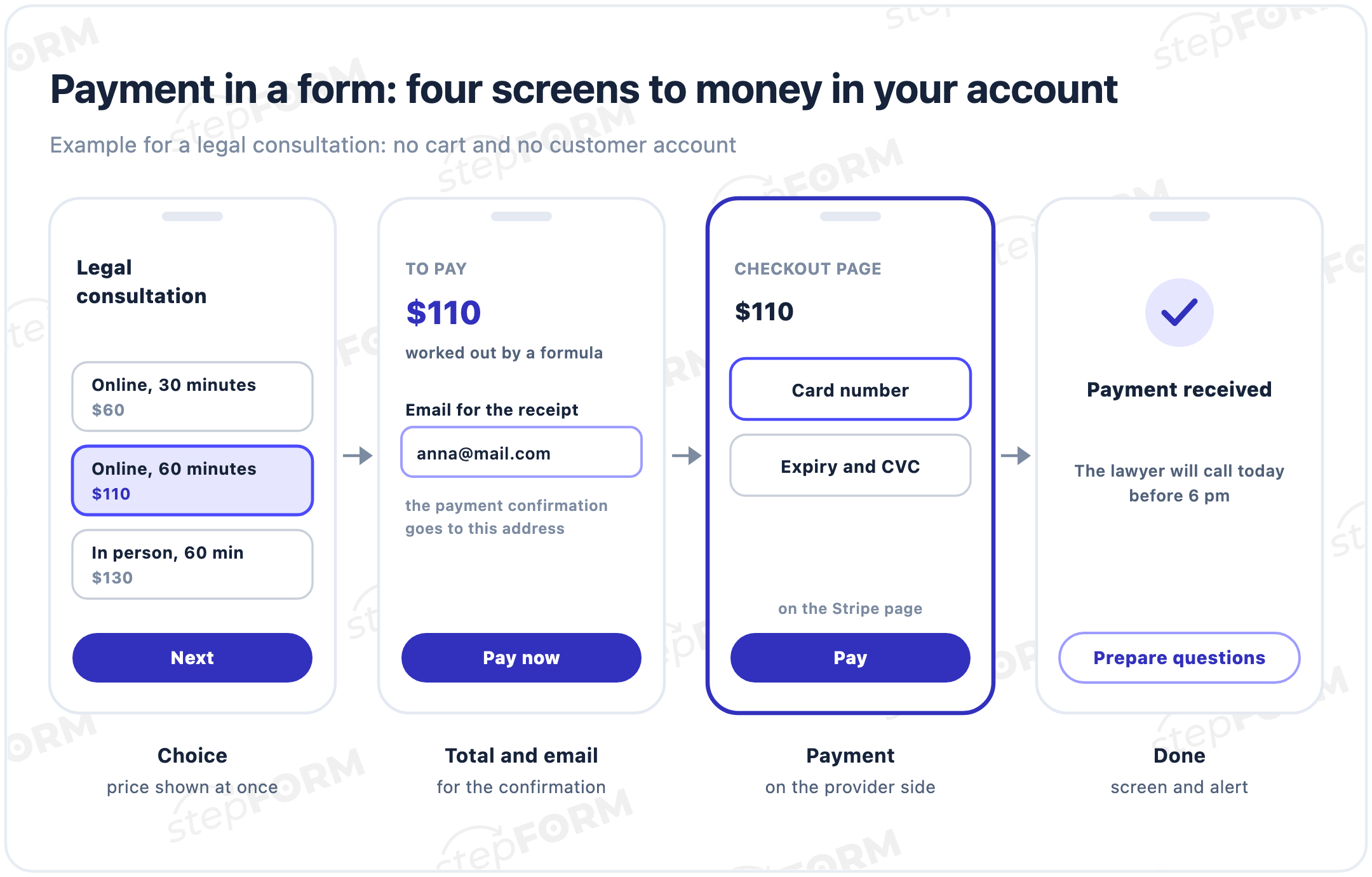
The customer picks a service or options and sees the price at once. On the next step they leave an email or phone number, which you need anyway to confirm the booking and send the details. The Pay button opens the provider's checkout page, and after paying they come back to a screen that says what happens next.
The flow is close to a quiz with payment, which we covered in our guide to a website quiz with price calculation, only with fewer questions.
How to work out the total
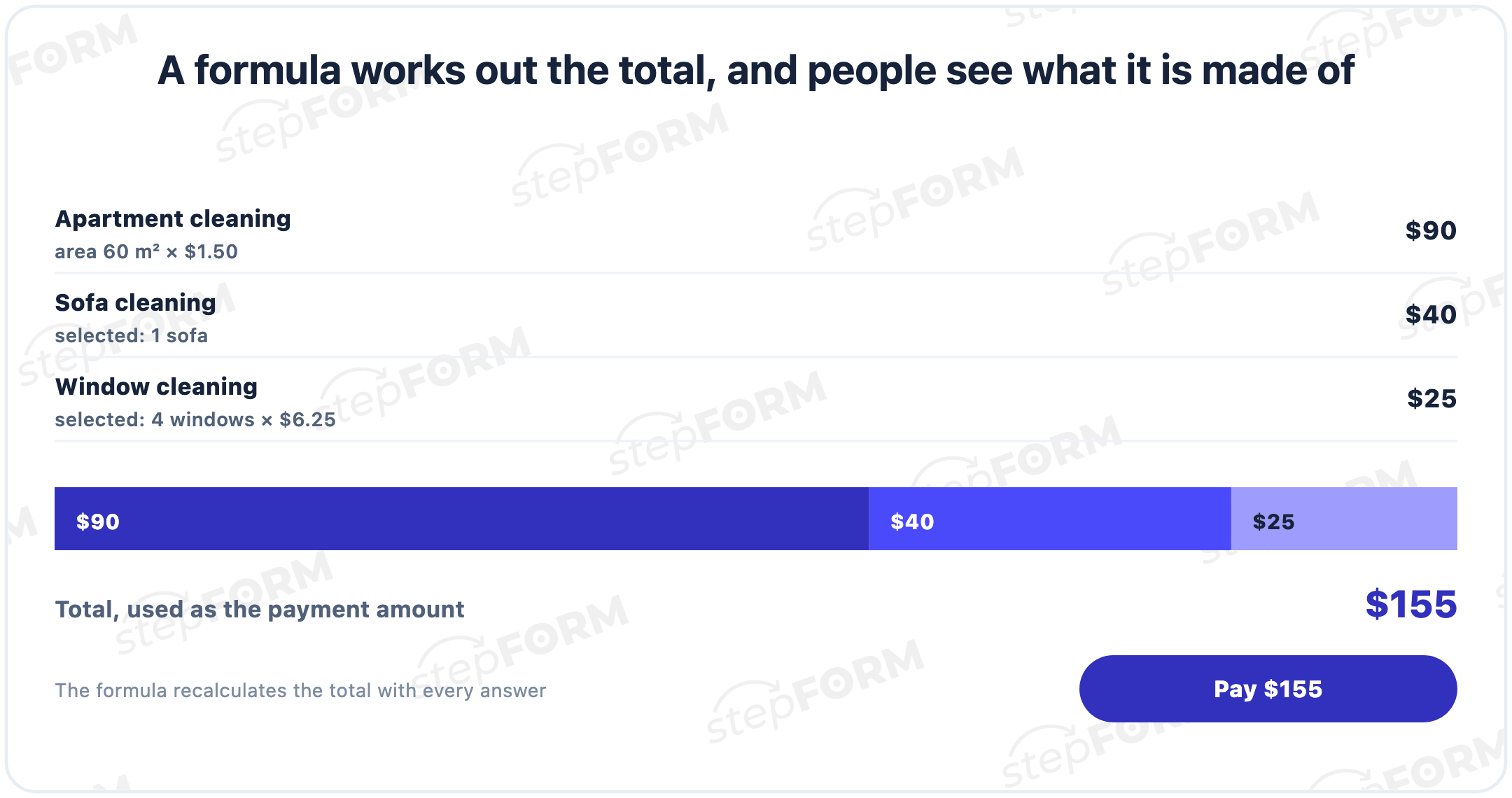
The amount to charge comes from a formula. The settings of every payment provider in stepFORM have an amount source, and you pick the formula's total there. The formula recalculates with every answer.
- A fixed price. A $110 consultation: the formula returns the price of the chosen option.
- A deposit. $20 for a site visit, with the rest paid after the job.
- Quantity. A standard or VIP ticket times the number of attendees, as in our guide to an event registration form.
- Parameters. Area times the rate per square metre, plus extras. Our guide to a website price calculator shows how to build such formulas.
Show the total before the Pay button and break down what it consists of. If "$155" first appears on the checkout page, people may close it without working out what they are paying for.
Which payment provider to choose
| Provider | Who it suits | How people pay | Receipts | What to enter in stepFORM |
|---|---|---|---|---|
| Stripe | Businesses in countries where Stripe operates | Cards | In your Stripe settings | Publishable key, secret key, currency, amount source, pages after payment |
| PayPal | Anyone with a PayPal account | Through PayPal | In your PayPal settings | Receiving account, payment name, currency, amount source |
| YooKassa | Businesses in Russia | Cards, SBP and local wallets | Its own receipt service | Shop ID, secret key, amount source, receipts |
| Robokassa | Businesses in Russia | Cards, SBP by QR code | Its own receipt service | Shop ID, password 1, currency, amount source |
| YooMoney | YooMoney wallet holders | Transfer to the wallet | Check with YooMoney | Form type, wallet number, amount source |
For most businesses outside Russia the choice is between Stripe and PayPal. YooKassa and Robokassa cover Russian cards and the SBP instant payment system.
A website quiz with price calculationHow to set up payments in stepFORM
Here is the order for Stripe, and the other providers work much the same way:
- Open a Stripe account, complete its checks and find your publishable and secret keys in the API keys section of the dashboard.
- Build the form: the choice of service or options, a formula for the total and an email or phone field.
- In the form's Settings tab, turn on Stripe and open its settings with the gear icon.
- Enter the publishable and secret keys, pick the amount source and the currency, and set how the items appear at checkout.
- If needed, add the pages people see after a successful and a failed payment.
- Run a test payment in Stripe's test mode and check everything at once: the amount matches, the confirmation screen appears and the response shows up in your account.
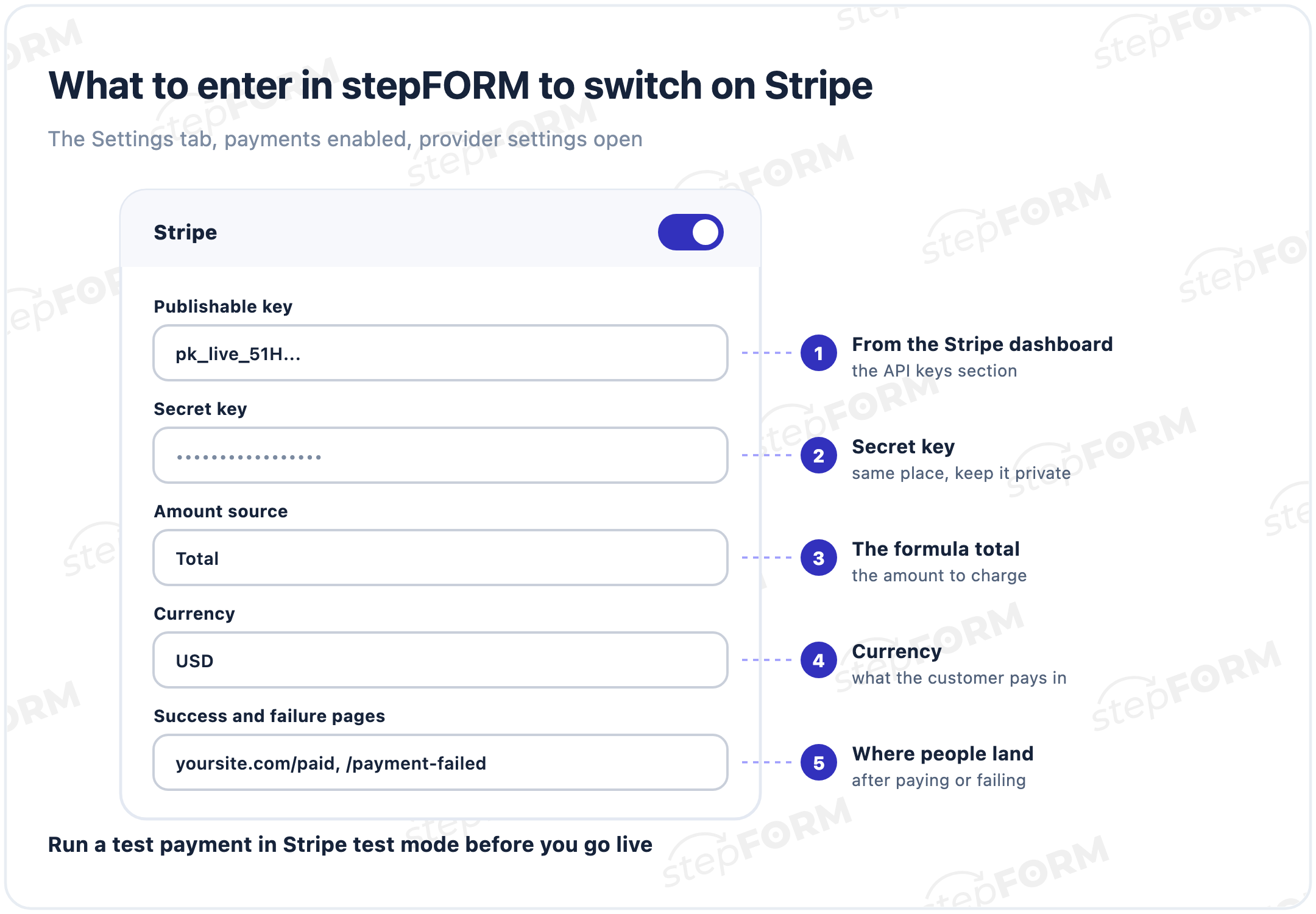
PayPal needs even less: the receiving account, a payment name, the currency and the amount source, as described in the PayPal guide. The Stripe steps are in the Stripe guide.
The finished form goes into your website with the embed code. Pro costs $26 a month, or $20.80 a month billed annually, and all the details are on the pricing page.
Where to put a payment form
- As a block on the service page. Where people read the description and the price, payment is one button away.
- In a pop-up from a button. "Book and pay" next to the price opens the form on top of the page. We explained the setup in our guide to pop-up forms.
- As a direct link in a chat. Instead of sending bank details, send the customer a link to the form: they choose the service and pay by card.
If a refund is needed, you make it in the payment provider's dashboard, and the money goes back the way the customer paid.
What to show after payment
- A payment received screen. The order number, what happens next and when, and where the confirmation went. Our guide to thank-you pages covers what else belongs there.
- A page for failed payments. Say briefly that the payment did not go through and no money was taken, and add a "Try again" button. With Stripe you set these pages in the stepFORM settings.
- Notifications. An email about each new response reaches you on every plan, and on Pro it can go to Telegram too. An auto-reply sends the customer an email with their answers.
Common mistakes
- The total appears only at checkout. People do not understand what they are paying for and close the page.
- No email or phone field. There is nowhere to send the confirmation and no way to reach the customer after payment.
- The first payment came from a customer. Without a test payment, the first person to hit a wrong key or formula will be a buyer.
- No page for failed payments. People see an error and leave, although they might have paid on a second try.
- The form's price differs from the website's. You changed the price list and forgot the formula. Check both after every price change.
- Silence after payment. A payment received screen with no timing and no next step raises more questions than the payment itself.
Frequently asked questions
How can I accept payments on my website without an online store?
Connect a payment provider such as Stripe or PayPal and build a form that works out the total and sends people to checkout. In stepFORM you turn on the provider in the form's Settings tab and take the amount from a formula. Payments come with the Pro plan.
Can I take card payments on a landing page?
Yes. Embed a payment form on the landing page: the customer chooses a service, sees the total, pays on the provider's checkout page and comes back to your confirmation screen.
Can the payment amount be calculated automatically?
Yes. A formula works out the total from the answers: the price of an option, quantity, area, extras. In the payment provider's settings in stepFORM you choose that formula's total as the amount source.
Which payment providers does stepFORM support?
Stripe, PayPal, YooKassa, Robokassa and YooMoney. For businesses outside Russia the usual choice is Stripe or PayPal, while YooKassa and Robokassa cover Russian cards and SBP.
How much does it cost to accept payments through a form?
Payments in stepFORM come with the Pro plan at $26 a month, or $20.80 a month billed annually. The payment provider also charges a fee on each payment under its own pricing.
Do I need to issue receipts?
It depends on your country and business type. Check your payment provider's receipt settings and ask an accountant which documents you need to give customers.
How do I test payments before going live?
Use the provider's test mode: Stripe has one, and Robokassa offers a sandbox. Make a test payment and check the amount, the confirmation screen and the response in your stepFORM account.
Can I send a payment link in a chat?
Yes. Share the direct link to your payment form in a messenger or an email. The customer opens it, chooses the service and pays by card, and you get the response with their details.


 Dmitry Molchanov