
How to build a price calculator for your website in one evening
How a website price calculator works: which fields to ask, how to build the formula, whether to show a range or an exact sum, and how the result reaches your CRM.
Guides  Dmitry Molchanov
14 September 2026
Reading time ≈ 17 min.
Dmitry Molchanov
14 September 2026
Reading time ≈ 17 min.

"How much does it cost" is the first question a visitor asks and the last one they get answered. First a form, then a callback, then a site visit, and only a day later an actual number. Half of those people leave for a competitor who shows the figure right away. A calculator closes that gap: the visitor enters their own numbers, sees the price range in twenty seconds and leaves a contact to lock the quote in.
You can put one together in an evening, and below is how. Plus the mistakes that turn a calculator into a toy: it calculates fine, but no leads come out of it.
Who needs a calculator and who is better off without one
Good tool, not a universal one. The test is simple: a calculator earns its place where the price depends on order parameters and follows rates you can write down.
Those niches are easy to spot. Renovation and finishing, windows and ceilings, moving and freight, printing, equipment rental, cleaning, metalwork, insurance, outdoor advertising. They share one thing: the sales manager already calculates the price from a formula, just in a notebook after the call. A calculator moves that same arithmetic onto the website and saves the manager dozens of identical conversations a week.
Where it gets in the way:
- A price list with three items. Easier to show a table than to make someone click through to a result they already know.
- One-off projects with no standard rates. Architecture, software, complex consulting. Any number on screen would be a lie, and an honest "we quote per project" works better.
- Large tender purchases. A committee decides from documents, not a person on your site with a slider.
One borderline case: the price does depend on parameters, but the spread is enormous. A calculator still helps there, it just has to show a range and a delivery window instead of a single sum.
Hire a developer, use a ready widget, or build it yourself
Three routes, and the choice matters less for how it looks today than for what happens in six months.
Hire a contractor. A developer writes the calculator to your logic and it comes out exactly as specified. The downside shows up later: materials go up, coefficients change, a service is added, and every edit goes through them. Your price list lives its own life while the calculator belongs to someone else's schedule.
Install a ready industry widget. Fast, but the logic inside is not yours. It fits while your maths looks typical and breaks on the first quirk, like a minimum order value or a volume discount.
Build it in a form builder. You set the fields, write the formula and change it when the price list changes, not when the contractor has a free slot. The entry barrier is low: a working six-field calculator takes an evening, and editing the rate per square metre later takes a minute.
The rest of this article is about the third route. Full disclosure: stepFORM is our product, so there is a section about it at the end. The mechanics, formulas and mistakes below apply to any tool, including one written by hand.
What a calculator is made of
Any price calculation has four parts, and mixing them up causes trouble.
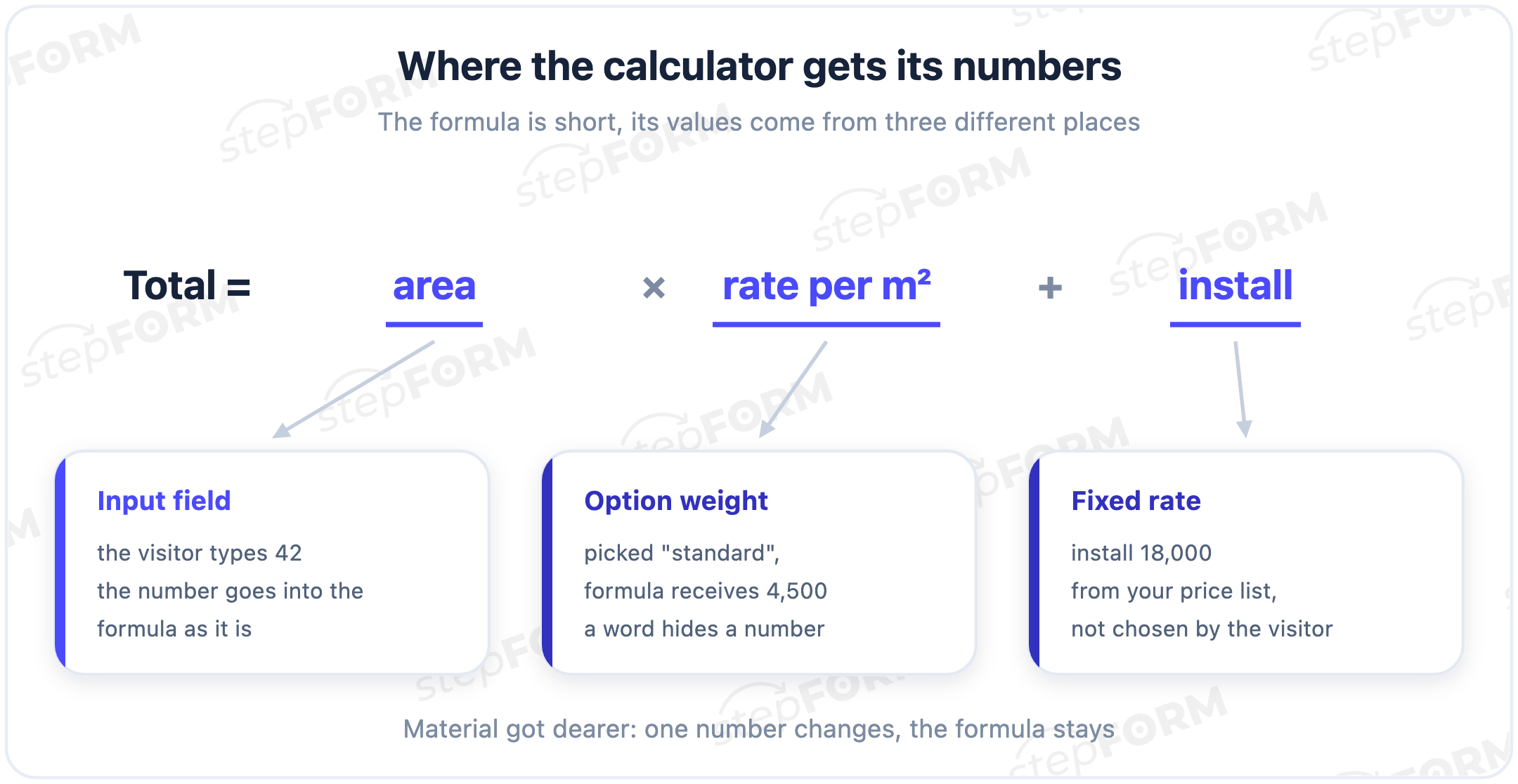
Input fields. What the visitor fills in: area, quantity, distance, choice of material. Every field is a variable that ends up in the formula.
Variables and weights. A choice of "basic, standard, premium" calculates nothing on its own. Behind each option sits a number: a rate per metre, a coefficient, a surcharge. The visitor picks a word, the formula receives a figure.
The formula. The arithmetic that turns variables into a sum. Multiplication, addition, coefficients, discounts, rounding.
The result and the next step. A screen with the number and one clear action: leave a phone number, book a site visit, pay. Without that step a calculator works as a reference book, it counts and lets go.
A roofing quote looks like this: the visitor enters the area and picks a material, the material carries a rate per square metre, the formula multiplies one by the other and adds installation, and the screen shows a sum with a "book a measurement" button.
Which fields to ask for so the formula adds up
This is where most calculators go wrong: every question a manager would ask on the phone gets dragged in. The result is a twenty-item survey that almost nobody finishes.
The working rule is simple. A field stays if the formula cannot calculate without it. Everything else the manager clarifies on the call, that is what the call is for.
Input comes in three kinds, and each enters the formula differently:
- Numbers. Area, quantity, kilometres, floor, print run. They go straight in and provide the main multiplier.
- Weighted choices. Finish class, profile type, metal thickness. The visitor sees a name, the formula substitutes a rate or a coefficient.
- Toggles. Rush job or not, carrying up the stairs, waste removal. Each adds a fixed amount or a percentage.
Order matters too. Easy things first, heavy ones last. An image choice works well as the opening screen: clicking is easier than typing, and the first step builds momentum. Move the area input and especially the contact details towards the end, when the visitor has already invested effort and would rather not abandon it.
Length to aim for: five to eight fields. Fewer than four usually means the estimate is too crude and the number comes out of thin air. More than ten means you are collecting a technical brief instead of helping someone size up a budget.
Why a site needs a calculatorBuilding the formula without pulling numbers from thin air
The base structure is the same in almost every niche: volume times rate, plus fixed work, then apply coefficients. The details are where calculations drift away from reality.
Coefficients instead of separate prices. A rush order does not require rewriting the whole price list, it multiplies the total by 1.2. Weekend work, travel outside the city, a non-standard size, all of these are easier to keep as multipliers. The price list changes in one place, coefficients live separately.
A volume discount. A print run over a thousand, an area over a hundred metres, a second window in the order. Thresholds like these are easy to express as a condition inside the formula and they noticeably raise the average order, because the visitor sees the benefit on screen and adds items.
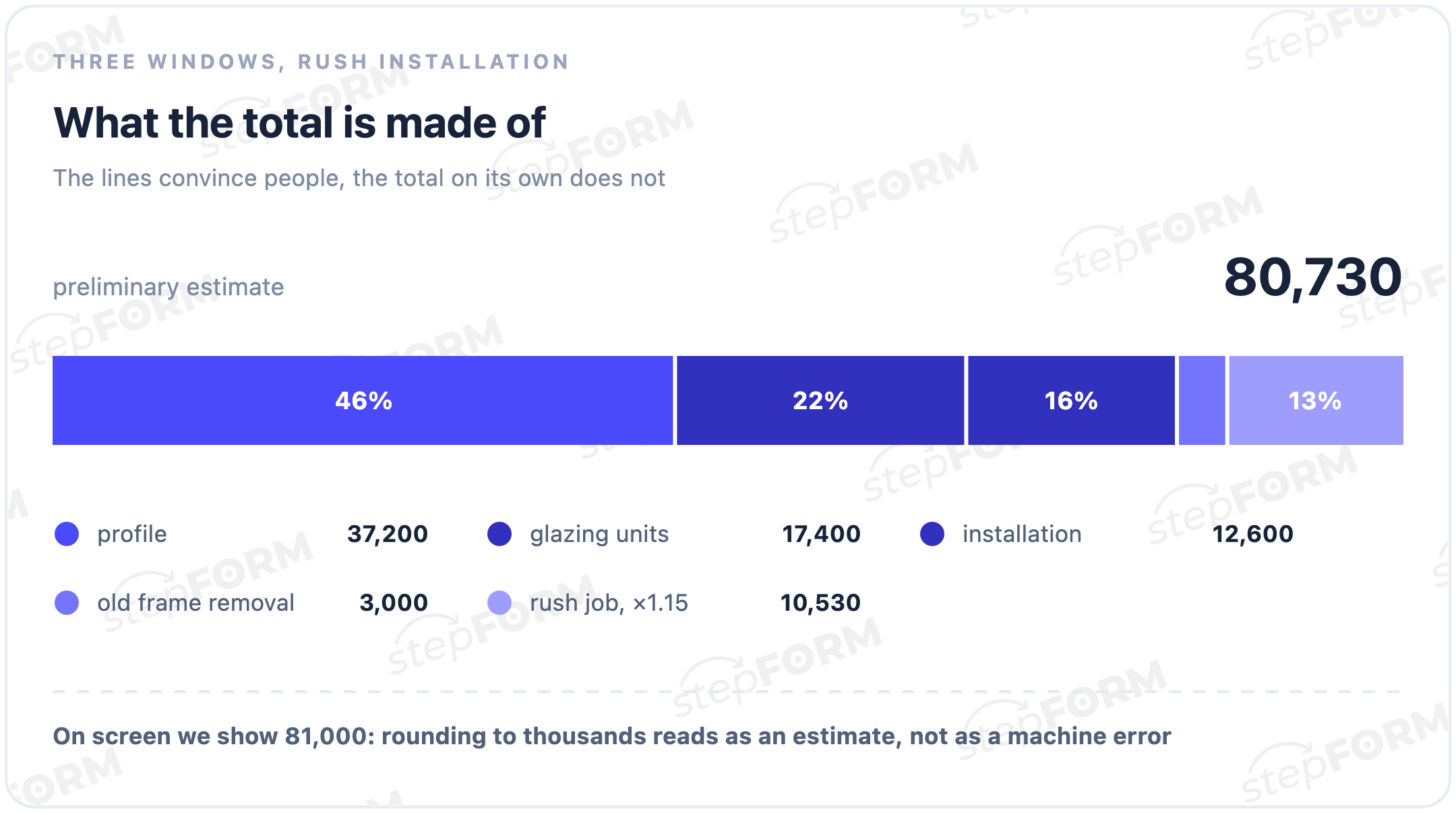
Rounding. A sum of 207,483 looks like a machine error. Round to thousands and the figure starts reading as an estimate, which is what it was all along.
How this looks in real niches:
- Apartment renovation. Area × rate for the finish class + design project, all multiplied by a rush coefficient.
- Windows. (Width × height × profile rate + glazing unit) × number of windows + installation + removal of the old frames.
- Freight. Kilometres × rate per kilometre + loading × number of movers + a surcharge for stairs.
- Printing. Run × price per copy with the discount threshold applied + setup + finishing.
And the one thing you cannot ship a formula without: test it at the edges. Feed it zero, one, and an absurdly large number. A calculator that cheerfully quotes installation on zero square metres, or prices ten thousand metres like a downtown apartment, undermines trust in the whole site.
An exact sum or a range
The answer depends on what you sell.
The price is fixed by a list: business cards, city delivery, standard cleaning. The visitor sees a figure and can pay immediately. Hiding it behind "leave your contact and we will send the quote" breaks a deal that was already made.
A site visit is needed: renovation, windows, ceilings, construction. An exact sum before the visit is impossible anyway, and the number you name will grow. A range sets the order of magnitude and filters out people whose budget is half of it.
There is a third option, popular in expensive services: show the range straight away and offer the precise quote after a short conversation. It works as long as the range is honest. If it is invented and the real estimate comes out twice as high, you get a complaint instead of a lead.
On the temptation to hide the result behind a contact form. The trick is old: we calculated it, now leave your phone number to see it. It does bring more leads, and their quality is worse, because people type fake numbers just to see the figure. A more decent compromise: show the range immediately and send the itemised estimate by email.
What to write on the result screen
The result screen gets discussed least and does the most to turn a calculation into a lead. A number on its own sells nothing: it answers the question and lets the person go.
Start by saying what kind of number this is. Not a bare figure but "a preliminary estimate based on your parameters". That one word removes half the future arguments and costs nothing.
Then the breakdown, the most underrated part. Materials this much, work this much, rush surcharge this much. While a visitor sees one total, they read it as your appetite. Once they see the lines, they start reading it as a calculation. Questions become specific, and the manager walks into a conversation about the work rather than an argument about the price.
Third, what is included, what is not, how long the job takes and when the sum could change. Three lines here save ten minutes on the phone.
And one step at the end. One, not three buttons side by side. Book a measurement, lock the price for a week, get the estimate by email. The reason to leave a contact has to read in a second, otherwise it does not get read at all.
How a lead form is put togetherWhere the calculation goes after the button
A calculated sum is valuable not by itself but because it comes attached to a person with a clear task. Speed matters from there.
The notification reaches the manager immediately: email, SMS or Telegram. While the visitor is still on the site there is a reason to call and say something specific instead of "hello, you left a request".
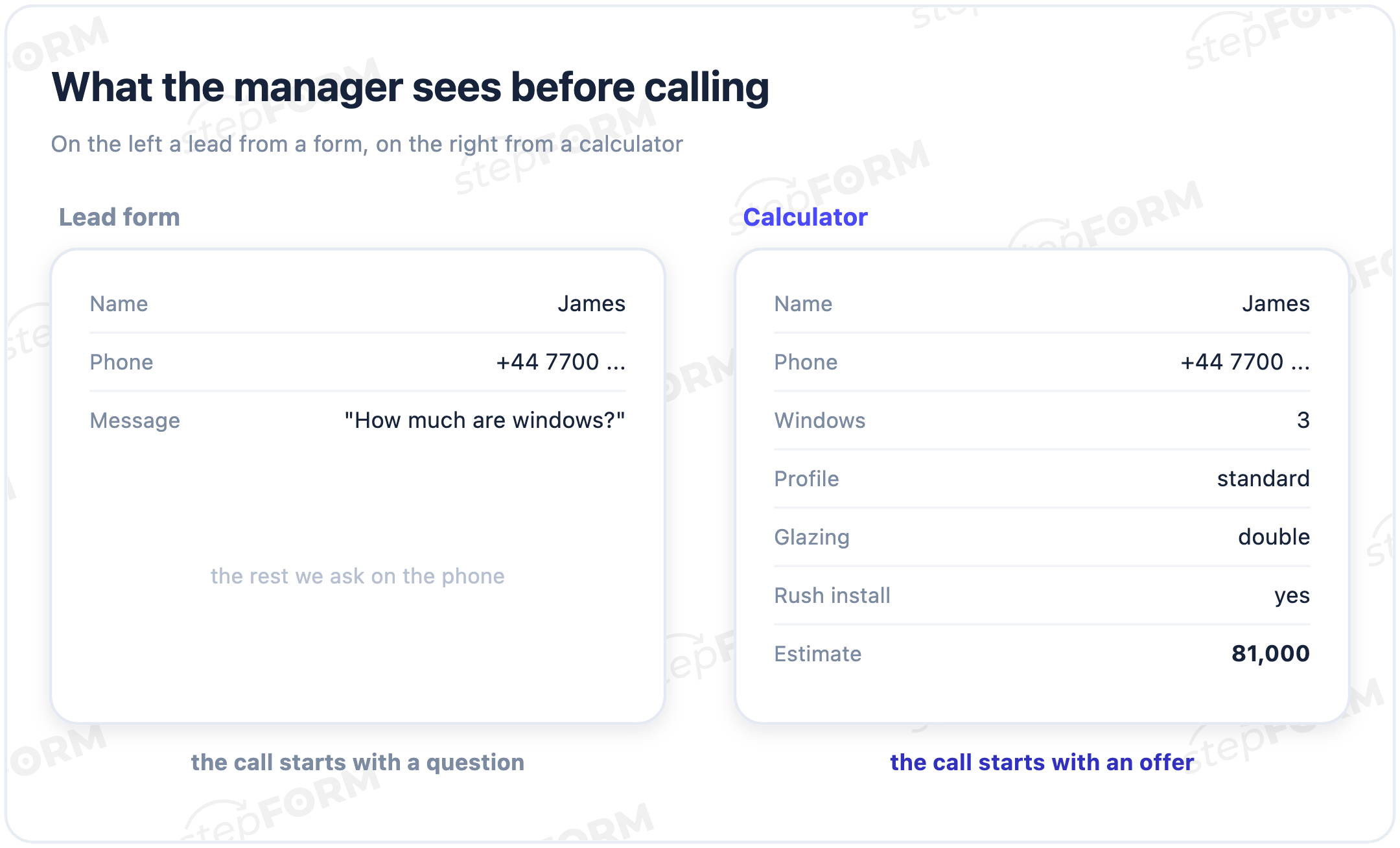
The lead lands in the CRM with every input. That is the difference between a calculator and an ordinary form. The record holds a phone number and next to it the area, the material, the deadline and the calculated sum. The manager sees the budget before dialling and knows straight away whether this is a fit.
For goods and services with a fixed price the chain can be closed completely: put a cart with online payment into the calculator itself. The visitor calculates, sees the sum, pays by card or QR without going anywhere. The enquiry turns into an order in the same window where it started.
Five mistakes that leave a calculator without leads
All five are common and all five take an evening to fix.
More fields than the formula needs. Every extra field is another chance the visitor closes the tab. Go down your list and cross out everything that does not feed the calculation and is not needed for the call. Usually a third goes.
The sum falls from the sky. A figure without a breakdown reads as invented, however much you explain it later on the phone.
Calculated and said goodbye. The visitor leaves with a number, you get nothing, not even a name. There is always an action on the result screen, otherwise the calculator works for your competitor: they are the ones who will call back.
The formula is not tested at the edges. Zero, one, a negative value, an absurd number. Limit the fields to a sensible range, or one day a request to glaze twelve thousand square metres lands in your CRM and a manager spends half a day working out that a schoolchild was bored.
The calculator is hidden. A link in the footer, four levels deep, under "Additional services". A price calculation belongs where people ask about price, and they ask on the first screen.
Where to put a calculator on the site
Four places, and they do not compete with each other.
The most valuable is a dedicated page. Search engines see it, because people look for price calculations directly, and it collects traffic on its own without advertising. Next comes a block on the service page: the visitor has read what you do and sizes up the budget without going anywhere.
A popup works, but only in response to an action: a click on "calculate", an attempt to close the tab. Not on a timer three seconds after arrival, when you interrupt someone who has not worked out where they are yet.
The fourth option is the most underrated. A calculator can live at its own link with no website at all: in ads, in a messenger, in a profile bio, on a QR code in a waiting room. For a small business that is sometimes enough on its own.
The numbers that show a calculator is working
Four of them, and none needs separate analytics.
Completion rate. How many of the people who started reached a sum. Look not at the overall figure but at which field they drop on: if everyone abandons at the same step, it is either unclear or asks for data they do not have to hand. Not everyone knows their floor area, everyone knows the number of rooms.
Share leaving a contact. Out of those who reached the figure. This usually sags because of the result screen, not the price.
Cost per lead. Budget divided by the number of leads. A calculator almost always lowers it, because it engages and filters out the casual visitors.
What reaches a deal. Honest and very inconvenient. Sometimes a calculator brings a flood of leads and half of them have a budget three times below your minimum order. Managers look busy, sales are not growing. One qualifying field, placed before the result, takes those enquiries aside.
How this is done in stepFORM
Everything above is built in the stepFORM calculator builder without programming. Step by step it looks like this:
- Collect the fields. Seventeen types to choose from: number, single or multiple choice, image choice, text, file upload. One field per screen or several at once, whichever suits.
- Set the weights. Behind every option sits its own number: a rate, a coefficient, a surcharge.
- Write the formula. Almost any mathematical function is supported and formulas can be as complex as you need, so conditions, discount thresholds and a minimum order are all handled without a developer.
- Set up the branching. Answers send people down different paths and irrelevant fields simply do not appear. The flow stays short even in a niche with a complicated price list.
- Write the result. A sum or a range, a breakdown by line, text for the customer segment and a button for the next step.
- Connect where leads go. Email, SMS, Telegram, webhook, handover to a CRM with the customer's answers. Plus a cart with online payment when you need one.
- Publish. Embed it on the site, open it at a direct link or show it from a QR code. The look adapts to your design and works the same on a phone as on a desktop.
You can try it free: the zero plan includes 5 forms and 50 responses a month, enough to build a calculator and see whether it brings leads. Payment acceptance and CRM handover open on paid plans, current figures are on the pricing page.
If you sell a service where the price depends on area, volume or configuration, start small. Build a six-field calculation, show a range, ask for a contact, and look at the numbers in a week. After that you edit the formula, not the whole site.
Frequently asked questions
Do I need to know how to code to build a calculator?
No. In a builder the fields, option weights and formula are set up in a visual editor. Code is only needed in one case: when the calculation has to pull live data from your accounting system.
How long does it take to build one?
A working six-field calculation takes an evening if your price list is already worked out. Most of the time goes not into the builder but into agreeing internally on coefficients and the minimum order.
Can I build a calculator for free?
Yes. The stepFORM zero plan includes 5 forms and 50 responses a month, enough for a first calculation and a test of the idea. Payment acceptance and CRM integration come with paid plans.
Should I show an exact price or a range?
An exact one where the price is fixed by a list and the customer can pay immediately. A range where a site visit is needed: an exact sum named before the visit almost always grows, and the conversation starts with a complaint.
How does the calculation reach the CRM?
The lead goes to the CRM with all inputs and the calculated sum, while the manager gets a notification by email, SMS, Telegram or webhook. The record shows the budget and the order parameters before the first call.
How many fields should a calculator have?
Five to eight. Fewer than four usually means the estimate is too crude, more than ten turns the calculator into a survey that few people finish.
Can I take payment inside the calculator?
Yes, for goods and services with a fixed price. A cart with online payment is built into the calculation and the customer pays by card or QR right after seeing the sum.
How is a calculator different from a quiz and from a lead form?
A form collects contacts from a customer who is ready. A quiz walks someone through questions towards a recommendation. A calculator answers one question, how much this costs, and returns a number. In practice they often live in one tool: a couple of qualifying questions, then the calculation, then the contact.
What if prices change every month?
Keep prices and coefficients as separate variables instead of burying them inside a long formula. Then updating the price list means editing a few numbers, not rebuilding the calculation.

 Daria Lisovenko