
How to build a renovation cost calculator for your website
How to build a renovation cost calculator for a contractor website: which questions to ask, how to combine a rate per square foot with multipliers and show a price range.
Guides  Daria Lisovenko
17 November 2026
Reading time ≈ 17 min.

A renovation cost calculator on a contractor website asks four to six questions: type of renovation, floor area, type of home, bathrooms and demolition. The formula multiplies the area by a rate per square foot, adjusts the main work with a multiplier and adds the jobs you price per unit. The visitor sees a range, and leaves a phone number to get an exact quote after a site visit. You can build this calculator in stepFORM without a developer, and it fits within the Free plan. Sending leads to Bitrix24 or Telegram requires a paid plan.
What the calculator covers and what stays in the quote
A calculator answers the first thing a homeowner wants to know: roughly how much will this cost. It does not replace a quote. The quote comes after a site visit, when your estimator sees uneven walls, old wiring and the real dimensions. The calculator only knows what the visitor told it.
| Website calculator | Quote after a site visit | |
|---|---|---|
| When the client gets a number | In a minute, without a call | A few days after the visit |
| Where the data comes from | The client's answers | Measurements and inspection |
| Precision | Order of magnitude, a range | Line items for labor and materials |
| What it gives your company | A lead with project details | A contract |
So the rule is simple. The calculator shows the order of the price honestly and leads to a site visit. Show an exact figure down to the dollar and the client will remember that figure. It is the number they will bring to the meeting.
Which questions to ask
One test for every question: does the answer change the price? If it does not, leave it for the call with your project manager. Paint colors and flooring brands can wait until the quote.
Five questions are enough for a home renovation:
- Type of renovation. Cosmetic refresh, full renovation, turnkey with design. This sets the rate per square foot, the main driver of the price.
- Floor area. Total area in square feet. A slider with limits beats an empty field. The visitor sees the allowed values and cannot type 54,000 instead of 540.
- Type of home. New build or older home. Older homes need more prep, so the rate is multiplied by a factor.
- Bathrooms. Tiling, plumbing and waterproofing cost differently from living rooms. A bathroom is easier to price as a fixed amount per unit.
- Demolition. Removing old tile, flooring and partitions. A separate job with its own rate per square foot.
A company that only does bathrooms or only stretch ceilings needs its own set of questions. The logic is the same: keep only what moves the price.
The formula: area, rate, multiplier
Every number in a renovation calculator plays one of three roles. The role decides where it goes in the formula.
- Rate per square foot. Multiplied by the area. Type of renovation, demolition, tiling.
- Multiplier. Multiplies the cost of the main work: 1 for a new build, 1.15 for an older home.
- Fixed job. Added once: a bathroom, debris removal, crew call-out.
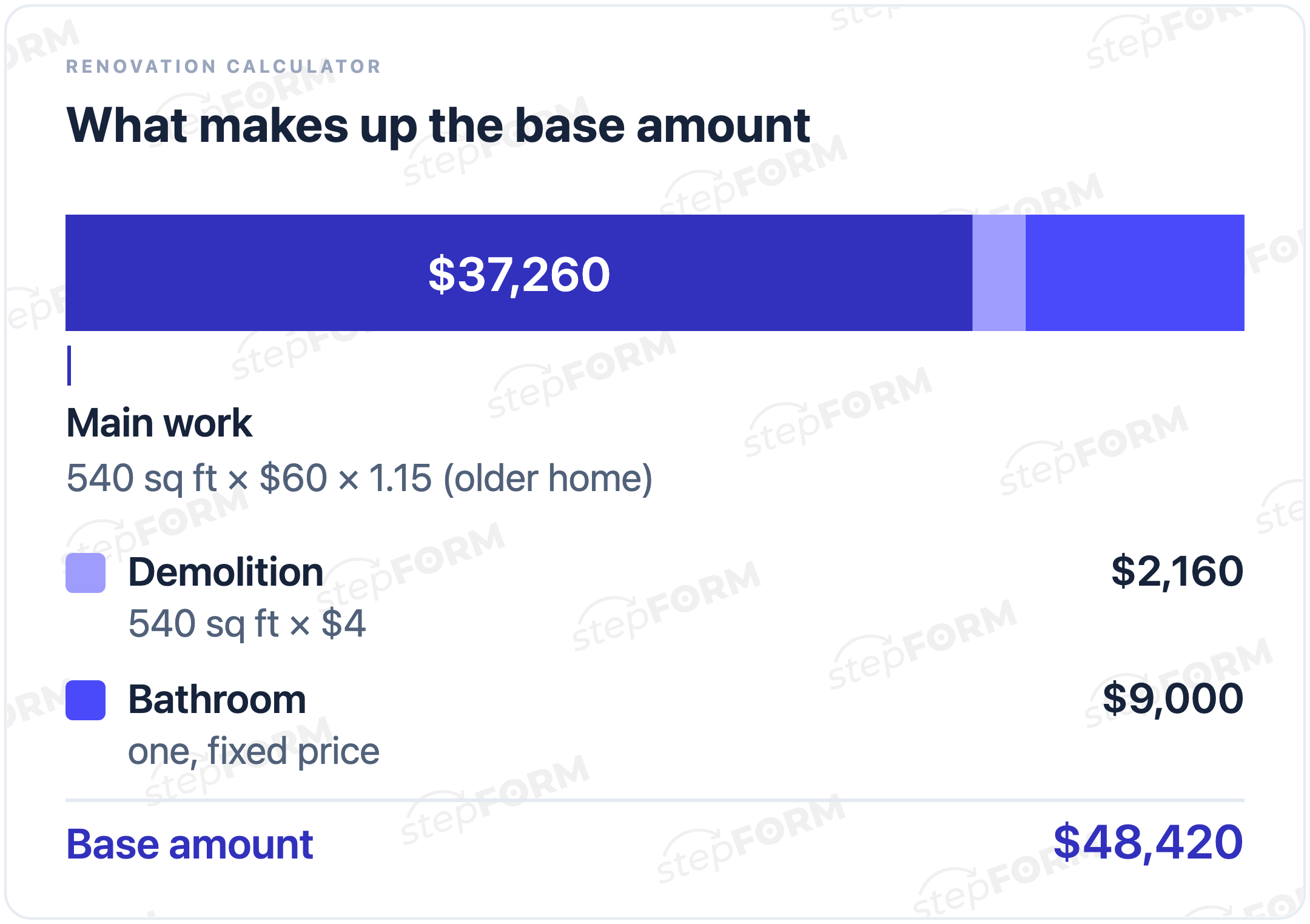
In our example the base amount is:
area × renovation rate × home type multiplier + area × demolition rate + bathroom price
In this model demolition and bathrooms do not depend on the type of home, so the multiplier leaves them alone. Your price list may work differently. Whatever you decide, write it down and use the same rule in every formula.
The most annoying mistake shows up in stepFORM customers' calculators too: the area is added to the price instead of multiplied. A formula like "rate + area + bathroom" adds 540 dollars for a 540 sq ft home. The buttons work and a total appears, but it barely changes with the size of the home. You can catch it in a minute: double the area. The main work should double in price, the fixed bathroom should stay the same.
A worked example
The rates below are made up for the calculation. Do not copy them into your price list: renovation prices depend on your market, materials and crew.
| Question | Option | Value in the formula |
|---|---|---|
| Type of renovation | Cosmetic / full / turnkey | $30 / $60 / $90 per sq ft |
| Floor area | Slider from 250 to 2,000 sq ft | The selected number |
| Type of home | New build / older home | 1 / 1.15 (100 / 115 in stepFORM, see below) |
| Bathrooms | None / one / two | $0 / $9,000 / $18,000 |
| Demolition | Not needed / needed | $0 / $4 per sq ft |
Take a full renovation of a 540 sq ft older apartment with one bathroom and demolition:
540 × $60 × 1.15 = $37,260 for the main work. 540 × $4 = $2,160 for demolition. Plus $9,000 for the bathroom. The base amount is $48,420.
The lower limit of the slider doubles as your minimum job. The cheapest option in this model (a cosmetic refresh of 250 sq ft in a new build, no bathroom, no demolition) gives a base of $7,500. The calculator will not go lower. With the range described below, the screen shows "from $6,800".
A range or an exact price
A base of $48,420 looks like a firm price. It is not one: before the site visit nobody knows what state the walls and wiring are in. That is why the screen should show a range.
In the example the lower end is the base minus 10% and the upper end is the base plus 15%. The margin is wider on the upside because opening up old finishes reveals defects and adds work. Take your own percentages from past projects: how far final quotes moved from the first estimate.
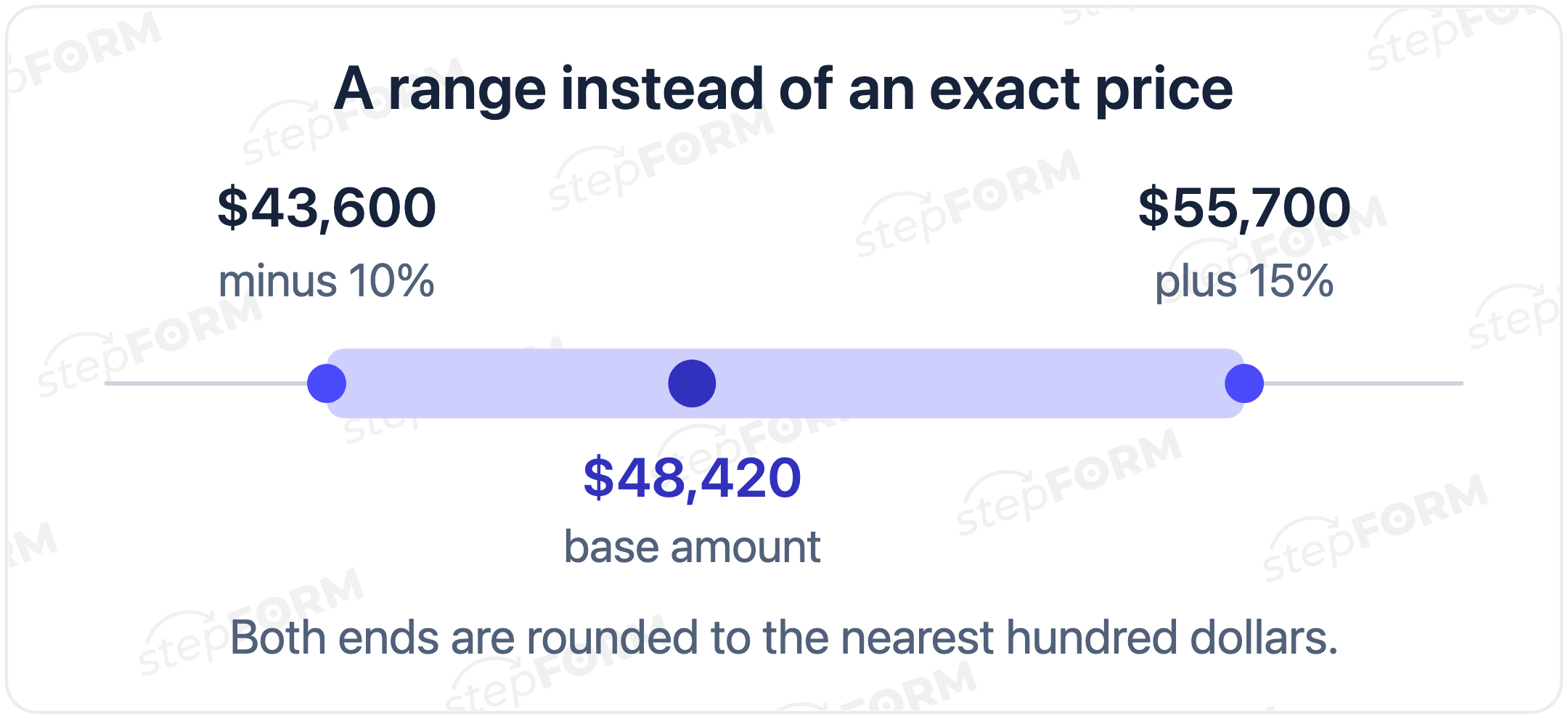
Round both ends. $43,600 reads as an estimate, $43,578 reads as a promise. In the example: $48,420 × 0.9 = $43,578, which rounds to $43,600. $48,420 × 1.15 = $55,683, which rounds to $55,700. The client sees "from $43,600 to $55,700".
Next to the range, say what is included and what is not. For example: "Labor only, materials not included. Exact price after a free site visit." That one line answers some questions before the first call.
The same approach for ceilings, bathrooms and painting
Not every contractor does whole homes. If you install stretch ceilings or lay tile, the questions change, but the three roles of numbers from the formula section stay.
| Service | Rate × area | Multiplier | Per unit |
|---|---|---|---|
| Stretch ceilings | Ceiling area × membrane price per sq ft | Matte, gloss or fabric membrane | Light fixtures, corners, pipe cutouts |
| Bathroom remodel | Wall and floor area × tiling rate | Large format tile or mosaic | Wall-hung toilet frame, shower drain, moving a stack |
| Painting and wallpaper | Wall area × rate per sq ft | Wall condition: smooth or needs skim coat | Debris removal, furniture protection |
There is a catch with area. People know the floor area of their home from documents, but they do not know their wall area. For painting and tiling, ask for the length and width of the room and convert them to wall area inside the formula. For a room with 9 ft ceilings, wall area comes from the perimeter: (length + width) × 2 × 9. Windows and doors can be covered by a multiplier or left for the site visit.
Stretch ceilings are easier: the ceiling area is close to the floor area, so you can ask for that. Ask for the number of light fixtures with a Range from 0 to 20 and multiply it by the price of one.
When to ask for a phone number
There are two approaches. Show the range right away and offer a site visit. Or hide the result behind a contact form: "Leave your number and we will send you the estimate."
We recommend the first. People came for a number. If they got it and it works for them, a request for a site visit feels like the logical next step. If it almost works, they may still leave a number to discuss where to save. A hidden result asks people to hand over their contact details blind. Some will, some will close the tab.
There is a middle ground too: the range is visible at once, and the detailed quote with line items is what you promise after the visit. Then the phone number is traded for something the calculator cannot give.
How to build the calculator in stepFORM
The example takes three pages and fits within the Free plan limits: 3 pages, 30 elements per form, 50 responses a month. The Formula element is available on every plan, and you only need a paid plan for formulas with more than three conditions. Ours has none.
- Page 1: type of renovation and type of home. Add two Radio button elements. In the renovation options, say briefly what is included: "Cosmetic: paint, wallpaper, flooring". Make both questions required.
- Page 2: area, bathrooms, demolition. For the area, add a Range element and in Customization set From to 250, To to 2000, Interval to 10 and Default value to 540. Make bathrooms and demolition Radio buttons as well. Give "no work" its own explicit option, such as "Not needed".
- Option values. Add a Formula element on the third page and open its editor with the Σ icon. In the Field Values block, set the active value of each option from the table above. Enter the multiplier as a whole number in percent: 100 for a new build, 115 for an older home. The help shows whole numbers in Field Values, and the formula divides by 100.
- Two formulas for the range. In the Formulas block, write the lower end. With the numbering from our example (renovation type F1, home type F2, bathrooms F3, demolition F4, area H1) the expression is
round((H1 * F1 * F2 / 100 + H1 * F4 + F3) * 90 / 10000) * 100. Here 90 / 10000 means "90%, in hundreds of dollars". Add a second Formula element for the upper end, with 115 instead of 90. The whole-number multipliers are deliberate: with 0.9 and 1.15, computer rounding of decimals can occasionally land one step lower than the hand calculation. Your form may use different labels, so check them in the editor. - Result labels. In the formula's Customization settings, set the Prefix to "from $" for one formula and "to $" for the other, and turn on the Thousands separator. Put a text block above the formulas saying what the price includes.
- Contact details. Below the range, add name and phone fields and a submit button with text like "Book a site visit".
The help article on setting up a formula describes the Field Values and Formulas blocks. If your prices already live in a spreadsheet, see our guide to moving an Excel pricing calculation to your website.
Where to send the lead
A lead from the calculator already contains the area, type of renovation, bathrooms and the calculated range. Nobody has to ask which home it is about. The only job left is getting it fast to whoever calls back.
| Destination | Setup | Plan |
|---|---|---|
| Form owner's email | A notification for every response | All plans |
| Responses tab | List of leads with all answers | All plans, CSV and XLSX export from Beginner |
| Bitrix24 | Install the stepFORM app in Bitrix24, then Settings → Bitrix24 in the form. Deals can go to a chosen pipeline | Beginner and Pro |
| Google Analytics or Yandex Metrica | Statistics and goals for form submissions | Beginner and Pro |
| Telegram | Settings → Telegram, stepFORM Bot in a private chat or a group | Pro only |
Telegram works well for a shared group of project managers or crew leads. The Notification template takes variables from the form elements, such as area and renovation type. Send a test lead to check that the range shows up in the message too. Then it reads on its own, without logging in. A goal in your analytics shows how many leads came from the calculator and from which ad.
Prices on the day we checked: Beginner is $11.20 a month billed annually or $14 billed monthly, Pro is $20.80 and $26. New users get a 7-day Beginner trial. Current terms are on the pricing page.
Where to put the calculator on your site
Put it where people think about price. On a "Home renovation" service page it goes right below the description of the work, next to photos of finished projects. You can also link to it from ads: "Estimate your renovation in a minute" can lead straight to the form, with no extra page in between.
Another option is a popup on portfolio pages. Someone is scrolling through photos of finished homes, and that is a good moment to offer them an estimate for theirs. Setup is covered in our guide to popup forms.
stepFORM gives you several ways to publish a form: embed code for your site, a link to a standalone page, and a popup. Site builders such as Tilda and WordPress have step-by-step instructions in the help center.
How to test the calculator before launch
One matching total tests one home, nothing more. Work out several combinations by hand or in a spreadsheet and compare them with the form:
| Area, type, home | Bathrooms, demolition | Base amount | Range on screen |
|---|---|---|---|
| 540 sq ft, full, older home | One, needed | $48,420 | $43,600 to $55,700 |
| 540 sq ft, full, new build | One, not needed | $41,400 | $37,300 to $47,600 |
| 250 sq ft, cosmetic, new build | None, not needed | $7,500 | $6,800 to $8,600 |
| 400 sq ft, cosmetic, older home | One, needed | $24,400 | $22,000 to $28,100 |
| 860 sq ft, turnkey, new build | Two, not needed | $95,400 | $85,900 to $109,700 |
| 1,300 sq ft, full, older home | Two, needed | $112,900 | $101,600 to $129,800 |
Then four quick checks:
- Doubling. Set 500 sq ft instead of 250 with everything else equal. The main part of the total should double, the bathroom should stay the same.
- Limits. Move the slider to 250 and to 2,000. The lowest total should match your minimum job.
- Phone. Go through the calculator on a smartphone: the slider moves with a finger, the range fits the screen.
- Lead. Send a test lead and open it in the Responses tab and wherever your notifications go. All five answers and both ends of the range should arrive.
Five mistakes that break the estimate
- The area is added to the price. Covered above. The doubling test catches it.
- A zero in the "nothing selected" value. Someone skipped the question, the multiplier became zero, and the range shows only the bathroom and demolition.
- Outdated rates. Your prices changed, the calculator did not. Rates live in one place, the Field Values block. Change them there and run the test table again.
- Precision to the dollar. $48,397 promises something the calculator does not know.
- Fifteen questions. Every extra screen loses someone. A question that does not change the price can go, your project manager will ask it on the phone.
In short
You can build your own estimate in the stepFORM calculator builder. Start with one service and a test table, and add the rest once the first one brings in leads.
How to build a price calculator for your website in one evening How to move an Excel pricing calculation to your website Build a Quiz That Calculates Prices and Accepts PaymentsFAQ
Can I build a renovation calculator for free?
Yes. The calculator in this example fits within the Free plan: three pages, up to 30 elements, 50 responses a month. Paid plans are needed to send leads to Bitrix24, analytics and Telegram, for webhooks, and for formulas with more than three conditions.
How many questions should a renovation cost calculator have?
Five are enough for a home: type of renovation, floor area, type of home, bathrooms and demolition. Add a question only when its answer changes the price.
Should I show an exact price or a range?
Before a site visit a range is more honest. In the example the lower end is 10% below the base amount and the upper end 15% above it, both rounded to hundreds. Take your own percentages from how far past quotes moved from the first estimate.
How do I account for older homes costing more?
With a multiplier: 1 for a new build and, for example, 1.15 for an older home. In stepFORM it is easiest to enter 100 and 115 and divide by 100 in the formula. The multiplier applies to the main work. Make the question required and set the "nothing selected" value to 100, or an empty answer will zero out the calculation.
Can I get calculator leads in Telegram?
Yes, on the Pro plan. In the form settings you connect stepFORM Bot to a private chat or a group, and the notification template can include answers from the form, such as the area and the renovation type.
How do I send the estimate to a CRM?
stepFORM has a native Bitrix24 integration from the Beginner plan: install the stepFORM app in Bitrix24, then connect your portal in the form settings. You choose which fields to send in the integration settings, and deals can go to a chosen pipeline. For other systems, the Pro plan can send webhooks to your own server.
How often should I update the rates?
Every time your prices change. Rates are stored in the Field Values block, so you change them in one place. After that, recalculate your test combinations and compare them with the form.

 Dmitry Molchanov