How to sell event tickets yourself with a payment form
How to sell event tickets yourself: a form with ticket types, an automatic total and online payment, a confirmation for the buyer, a guest list and the limits of this approach.
Guides  Daria Lisovenko
16 November 2026
Reading time ≈ 12 min.
You can sell tickets for a small event without a ticketing platform: through a form where the buyer picks a ticket type and quantity, sees the total and pays by card. In stepFORM a formula calculates the total, and the form connects to PayPal, Stripe, YooKassa, Robokassa or YooMoney. The money goes to your own account with the payment provider, and the buyer list builds up in the Responses tab. It suits events that need no seating plan and no QR tickets at the door. Taking payment in a form is available on the Pro plan.
A form or a ticketing platform
A ticketing platform earns its fee: it sells seats on a seating plan, issues QR tickets, scans them at the door and lists the event in its own catalogue. In return it charges a booking fee or a commission per ticket, and the amount is on its website. If you have a 40-seat room and your own audience on social media, you will not use half of it.
| What you need | Payment form | Ticketing platform |
|---|---|---|
| Sell to your own audience | Yes, by link from social media, a newsletter or your site | Yes |
| Several ticket types at different prices | Yes, with a choice and a formula | Yes |
| Seats on a seating plan | No | Yes |
| QR ticket and door scanning | No, guests are checked against a list | Yes |
| Promotion in the platform's listings | No | Yes, if the event gets listed |
| Buyer data stays with you | Yes, in the Responses tab | Depends on the platform's terms |
| Your own questions for the buyer | Any: T-shirt size, allergies, where they heard about it | Within the platform's settings |
A form works well for workshops, talks, retreats, parties, tournaments and courses with limited places. A thousand-seat concert with allocated seating belongs with a ticketing operator.
How selling through a form works
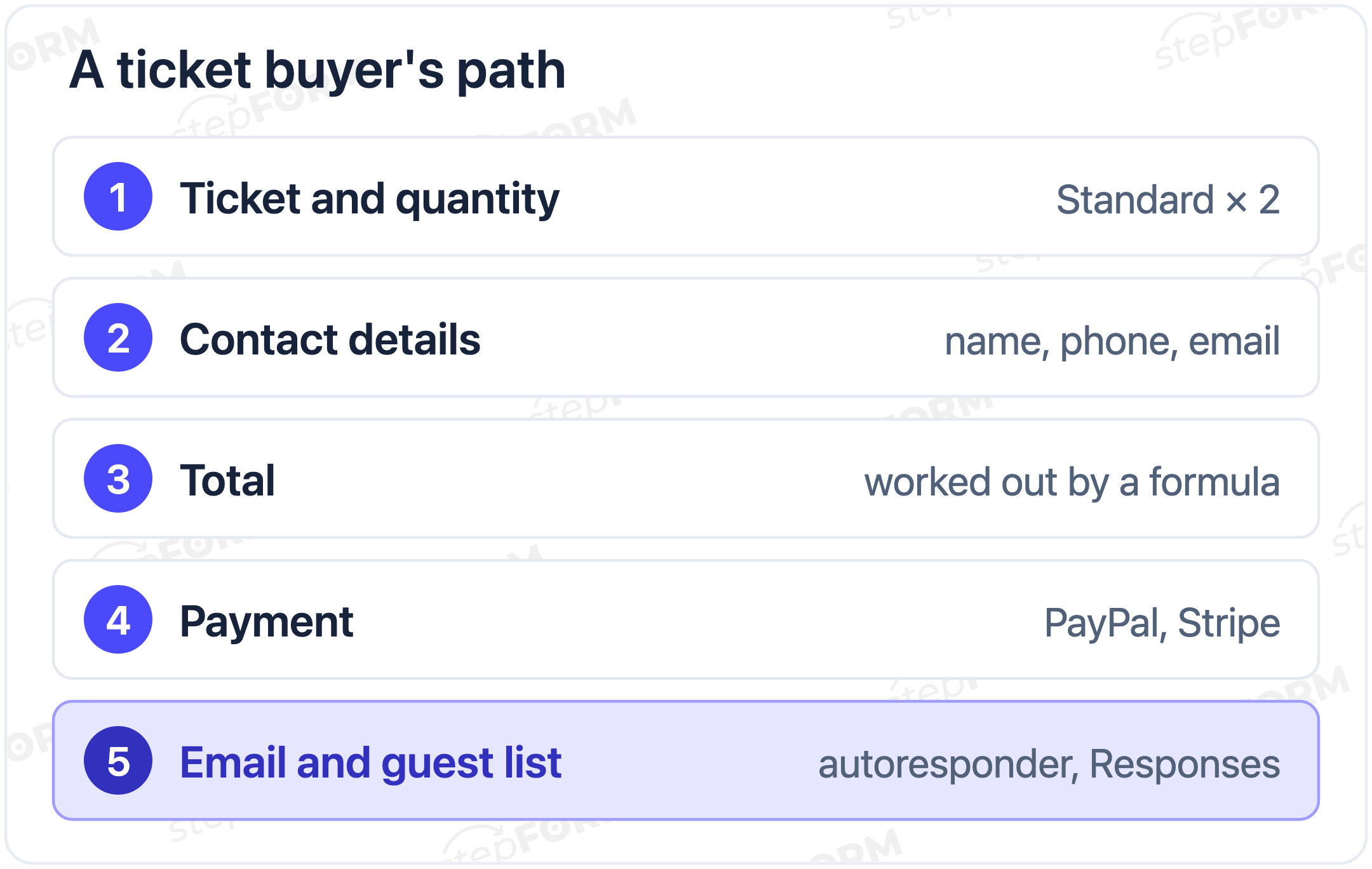
- The buyer opens the form by link and picks a ticket type.
- They enter the quantity, name, phone and email. The email is needed for the confirmation and for the provider's receipt, if it sends one.
- They see the total: the formula works it out.
- They press the pay button and pay on the payment provider's page.
- They get a confirmation email for the request, and you see it in the Responses tab and the payment in the provider's dashboard.
How payment looks for the buyer and which provider to choose is covered in our article on accepting payments on your website without an online shop. This article sticks to tickets.
Example: a workshop with three ticket types
Take a worked example: a pottery workshop with 30 places. The prices are made up for the calculation.
| Ticket | Price | What is included |
|---|---|---|
| Standard | $35 | Place, clay and tools on site |
| With firing | $50 | The same plus firing and collection a week later |
| Couple | $65 | Two people at one table |
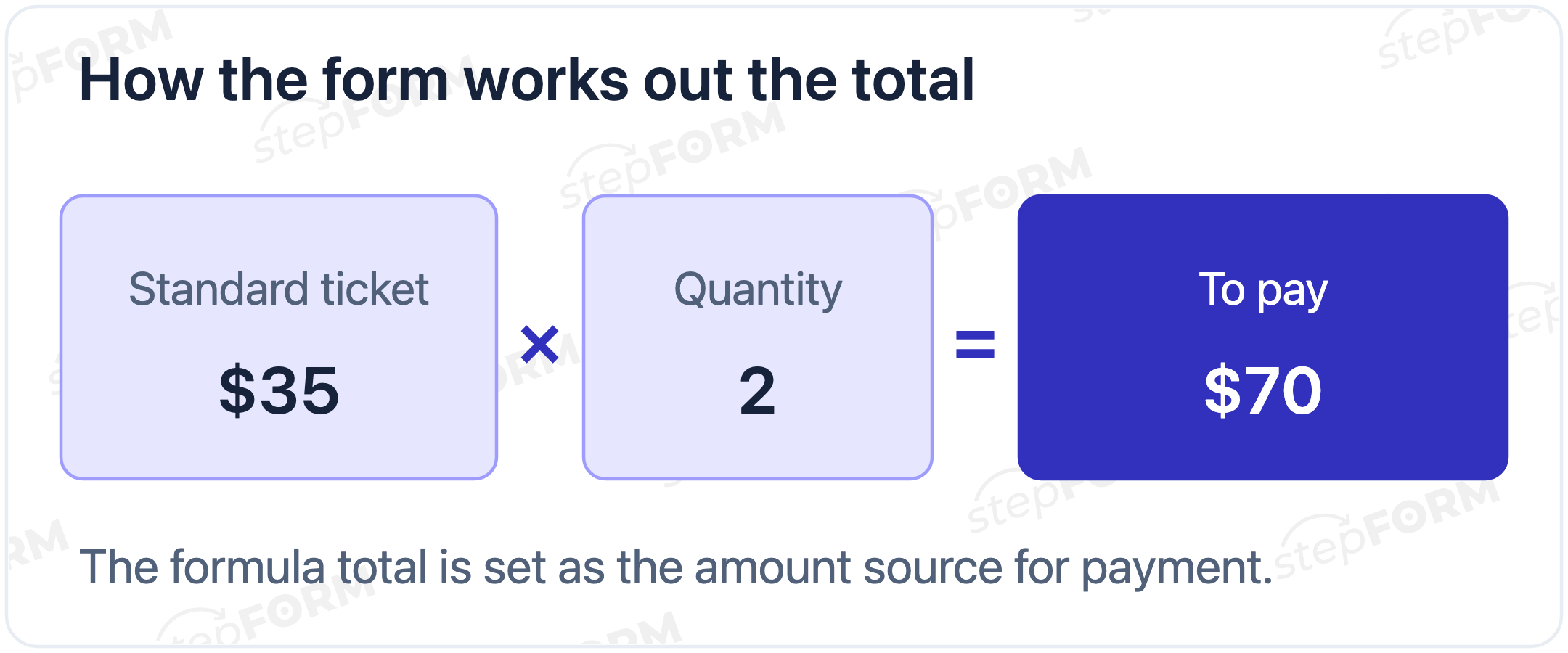
A buyer takes two Standard tickets: the formula multiplies $35 by 2 and shows $70. The Couple ticket counts as one even though two people use it, so say so in the option name, or someone will buy "two couple tickets" for two people.
How to build a ticket form in stepFORM
- Ticket type. Create a form and add a Radio button with the ticket types. Say briefly what each includes right in the option name or in the question description.
- Quantity. A Range from 1 to 5 with a step of 1 works best: the buyer cannot enter zero or forty tickets. Digital input also works, but the help articles do not describe a minimum and maximum value for it, so you will have to check totals by eye.
- Contact details. Text input for the name, plus Mobile and Email. Make the email required: the confirmation goes there.
- Total. Add a Formula. In the Field Values block give each ticket type its price when active and 0 when inactive. In the Formulas block multiply the chosen ticket by the quantity. In the formula's customization settings add a prefix such as "$" so the total reads at a glance.
- Payment. In the Settings tab activate a payment provider and open its settings with the gear icon. For Stripe enter the Publishable key and Secret key, choose the formula as the amount source and pick the currency. For PayPal enter the recipient account, a payment name, the currency and the amount source. The help articles on Stripe and PayPal walk through the steps.
- After payment. The buyer needs to know it worked. For Stripe, success and failure pages are set in the stepFORM settings. What to put on such a screen is covered in our article on the thank-you page.
- Confirmation. Turn on the autoresponder: the buyer gets an email with their answers, the ticket type and quantity. Add the date, time and address to the email text yourself. Note that the autoresponder goes out as soon as the form is submitted, before payment, so the email itself does not prove payment: check guests in against a list matched with payments.
- Test payment. Buy a ticket yourself in the provider's test mode and check everything at once: the amount matches, the after-payment screen shows, the email arrives, and the request appears in Responses.
What else to ask the buyer
With your own form you can ask anything a ticketing platform never thought of. A few useful questions for events:
- Allergies and dietary needs, if there will be a coffee break or dinner.
- T-shirt size for races, tournaments and events with merch.
- Skill level for workshops: beginners and experienced people are easier to seat at different tables.
- Where they heard about the event. A month later you will know which channel sells tickets and which only collects likes.
- Permission for photos and video, if you will film guests. As a separate, optional checkbox.
Every question makes the form longer before payment. Keep only what you will actually use to prepare.
Early-bird prices and last places
Early-bird tickets push sales in the first weeks. In a form you do it by hand: add an option "Early bird, until 1 December" at a lower price, and on that date change its price in Field Values and its name. Do not delete an option that already has purchases. The formula switches to the new price straight away. Put the end date in the option name so buyers can see how long they have.
When few places are left, say so honestly in the form description: "5 places left". Update the number by hand, or it will start to mislead.
Where to put the ticket link
The form lives at a direct link from the Publish section. Put it in a post and a pinned post on social media, in your newsletter and in event listings where you post the announcement yourself. On your website you can embed the form with code, so buyers never leave the event page. For a printed poster, turn the link into a QR code with any free generator.
How many places are sold and how to stop sales
The stepFORM help articles do not describe an automatic stop when places run out, so keep count yourself. Every request appears in the Responses tab. When 30 places are sold, turn on Hide form in the Settings tab: the link shows a placeholder, and no new purchases come in.
Two things to watch. One request can include more than one ticket, so count the sum of the Quantity field, not the number of requests. Unpaid requests also land in that list, so count places by payments.
How to check guests in
There are no QR tickets, so guests are checked against a list. The easiest way is to export responses to CSV or XLSX, available from the Beginner plan, and keep only the people whose payment appears in the payment provider's dashboard: matching by the buyer's email is quick. Print the list or open it on a tablet: name, ticket type, quantity. Tick off arrivals right in the table. For 30-50 guests that is quick.
If you have many guests and one door, checking a list will start slowing the queue. That is a good sign the event has outgrown a form and needs a ticketing platform.
Refunds and rescheduling
Write your refund rules in the form description before payment: until which date you refund in full, and what happens if the event moves. With Stripe, PayPal, YooKassa and Robokassa the refund is made in the dashboard of the provider that took the payment. If the money went to a YooMoney wallet, you will have to send it back as a separate transfer. The buyer is easiest to find by the email in their request in Responses.
Receipts and tax
Rules on receipts, invoices and VAT for ticket sales depend on your country and business type. Check them with your accountant before sales open, and use the payment provider's own tools for receipts where it has them.
Which plan you need
| Plan | Price per month | What it gives ticket sales |
|---|---|---|
| Free | $0 | A registration form with a calculated total, without payment |
| Beginner | $11.20 billed annually, $14 billed monthly | Autoresponder to the buyer, guest list export. No payment |
| Pro | $20.80 billed annually, $26 billed monthly | Payment provider integrations, 1,000 responses a month, Telegram notifications |
Prices were checked against the pricing page on 16 November 2026. The payment provider charges its own fee per payment, so build it into the ticket price. If the event is free, you do not need payment at all: an ordinary event registration form will do.
Common mistakes
- The total appears only on the payment page. The buyer does not see what they are paying and closes the tab.
- No email in the form. The confirmation has nowhere to go, and there is no way to reach the buyer if the event moves.
- Counting requests instead of tickets. Ten requests for three tickets each already add up to 30 places.
- Sales not closed in time. The thirty-first buyer has paid for a place that does not exist.
- The first payment was made by a buyer. They will be the first to find a wrong key or formula.
- Refund rules appeared after the purchase. The dispute starts with the buyer never having seen them.
Checklist before sales open
- Ticket types and what they include are described in the options.
- The formula multiplies price by quantity, and the total is visible before payment.
- Email is required, the autoresponder is on, and the date and address are in the email text.
- The payment provider is connected, and the amount source is set.
- A test payment worked: amount, after-payment screen, email, request.
- Refund and rescheduling rules are in the form description.
- Someone knows when to turn on Hide form once places run out.
Frequently asked questions
Can I sell event tickets without a ticketing platform?
Yes, for a small event a form with online payment is enough: the buyer picks a ticket and quantity, sees the total and pays through the connected payment provider. You do not get a seating plan or QR tickets this way.
Which payment providers can I connect to the form?
stepFORM integrates with PayPal, Stripe, YooKassa, Robokassa and YooMoney. The amount to pay comes from a formula via the amount source setting of the payment provider.
How does the buyer get a ticket?
The buyer gets an autoresponder email with their answers, and you add the date and address to the email text. But the autoresponder goes out when the form is submitted, so at the door check guests against a list matched with payments in the provider's dashboard.
How do I limit the number of places?
The stepFORM help articles do not describe an automatic stop. Count sold tickets by payments and the Quantity field, and when places run out turn on Hide form in the settings.
How do I refund a ticket?
With Stripe, PayPal, YooKassa and Robokassa refunds are made in the provider's dashboard, and a payment to a YooMoney wallet is returned as a transfer. Put your refund rules in the form description in advance, so buyers see them before paying.
Which plan do I need to sell tickets?
Payment provider integrations are available on the Pro plan: $20.80 a month billed annually or $26 billed monthly. The payment provider charges its own fee per payment on top.
Can I add questions a ticketing platform does not ask?
Yes, that is one of the main reasons to use your own form: dietary needs, T-shirt size, skill level, where the buyer heard about the event. Keep only the questions you will actually use.