How to create a test for students online and see the scores straight away
How to create an online test for students: scored questions, turning points into grades, shuffled options against copying, one link for the class and each student's result.
Guides  Daria Lisovenko
11 November 2026
Reading time ≈ 13 min.

An online test for students is built from multiple-choice questions, points for right answers and a field for the student's name. Students open a link on a phone or computer and answer, and at the end they see their score if the teacher chooses to show it. The teacher sees each student's name, class, chosen options and total in the responses. In stepFORM a 10-question test for one class fits the free plan: 3 pages and 50 responses a month.
The article follows one example: an English test for 11-year-olds on parts of speech, 10 questions. Three of the questions are below, and the teacher writes the rest to fit their own syllabus. The grading scale is an example too: every school has its own rules.
When an online test beats paper
A paper test is reliable: no internet, no phones. But marking 28 scripts eats an evening, and the results then go into the mark book by hand. An online test adds up the points itself, and the teacher sees the results right after the lesson.
It works well for homework checks, revision before an exam, a baseline test at the start of term and remote learning days. For a final in-class exam, paper is still safer: there is no timer in an online test, and a link cannot tell you who is reading the textbook under the desk.
How to write the questions
The rules are the same as for any test, with one school twist: students compare questions at break time, and any ambiguity will surface in the next lesson.
- One right answer. If someone can argue that a second option fits, there will be an argument.
- Wrong options from real mistakes. Not random words, but what students actually mix up.
- Wording that gives nothing away. The right option is not longer than the others and not the only one with a qualifier.
- The question tests the topic. Double negatives and trick questions test attention, so save them for a quiz night.
Three questions from the example:
| Question | Options | Right answer |
|---|---|---|
| Which part of speech is the word "eat"? | Verb, noun, adjective, adverb | Verb |
| Which part of speech is the word "beautiful"? | Adjective, adverb, noun, verb | Adjective |
| Which part of speech is the word "quickly"? | Adverb, adjective, verb, noun | Adverb |
If AI helps you draft the questions, check the answer key using the steps in our article on generating a test with AI: models sometimes mark a wrong answer as correct.
Which questions are marked automatically
Not every question can be scored by the formula on its own. The question type decides whether the teacher has to add points by hand:
| Question type | stepFORM element | How points are counted |
|---|---|---|
| One right answer from several | Radio button | Automatically: the right option is worth 1, the others 0 |
| Answer as a number | Digital input with Numbers only | Automatically, with a condition in the formula: if the right number is entered, 1 point. On the free plan, three such questions at most |
| Several right answers | Checkbox | Harder: if each right option earns a point, a student who ticks everything gets full marks. For automatic marking, use a single-choice question instead |
| Written answer | Text input with a large field | By hand only: the teacher reads it in the Responses tab |
For automatic marking, single choice is the most reliable. Number questions suit maths, but word them so the answer is one whole number: a field with Numbers only accepts digits only. The pricing page puts "more than three conditions" in calculations on the Beginner plan, so on the free plan it is safer to keep number questions to three or fewer. A written answer can stay as one final question, and the teacher adds its points.
How to build the test in stepFORM
The test takes three pages: questions on the first two, the score on the third. That keeps it within the free plan.
- Name and class. Create a form. Make the first element a Text input called "First and last name" and turn on Required field in its validation. Add a Drop-down list of classes next: 6A, 6B, 6C. Do not ask for children's phone numbers or emails: you do not need them to mark a test.
- Questions 1-5. On the same page add five Radio button elements. In the general settings of each, turn on random order for the options. They reshuffle every time the form opens, so the student at the next desk cannot whisper "the third one down".
- Questions 6-10. A second page with five more questions. For a number answer, use Digital input with the Numbers only setting.
- Points and score. A third page with a Formula element. In the Field Values block, give the right option of each question 1 when active and 0 when inactive, and give the wrong options 0. In the Formulas block add up the variables of the ten questions. The help article on setting up a formula explains the editor. In the formula's customization settings set the prefix to "Your score: " and the postfix to " out of 10".
- No going back. In the button block at the bottom of the third page turn on Hide "Back" button. Otherwise a student sees "6 out of 10", goes back and changes answers until they reach 10.
- The score in a graded test. A hidden Back button does not stop another trick: a student sees "6 out of 10", closes the tab without submitting, opens the link again and starts over. So for a graded test, hide the Formula element in its general settings: the points are still counted, but only the teacher sees them. Check with a test submission that the total appears in the Responses tab. Showing the score to students works well for practice tests.
- Test it. Play the test in preview three times: all right, all wrong and a mix. The score should be 10, 0 and your own number.
- A link for the class. In the Publish section copy the direct link and post it in the class chat. Tell students to press the submit button at the end: without it the result is not saved.
How to turn points into a grade
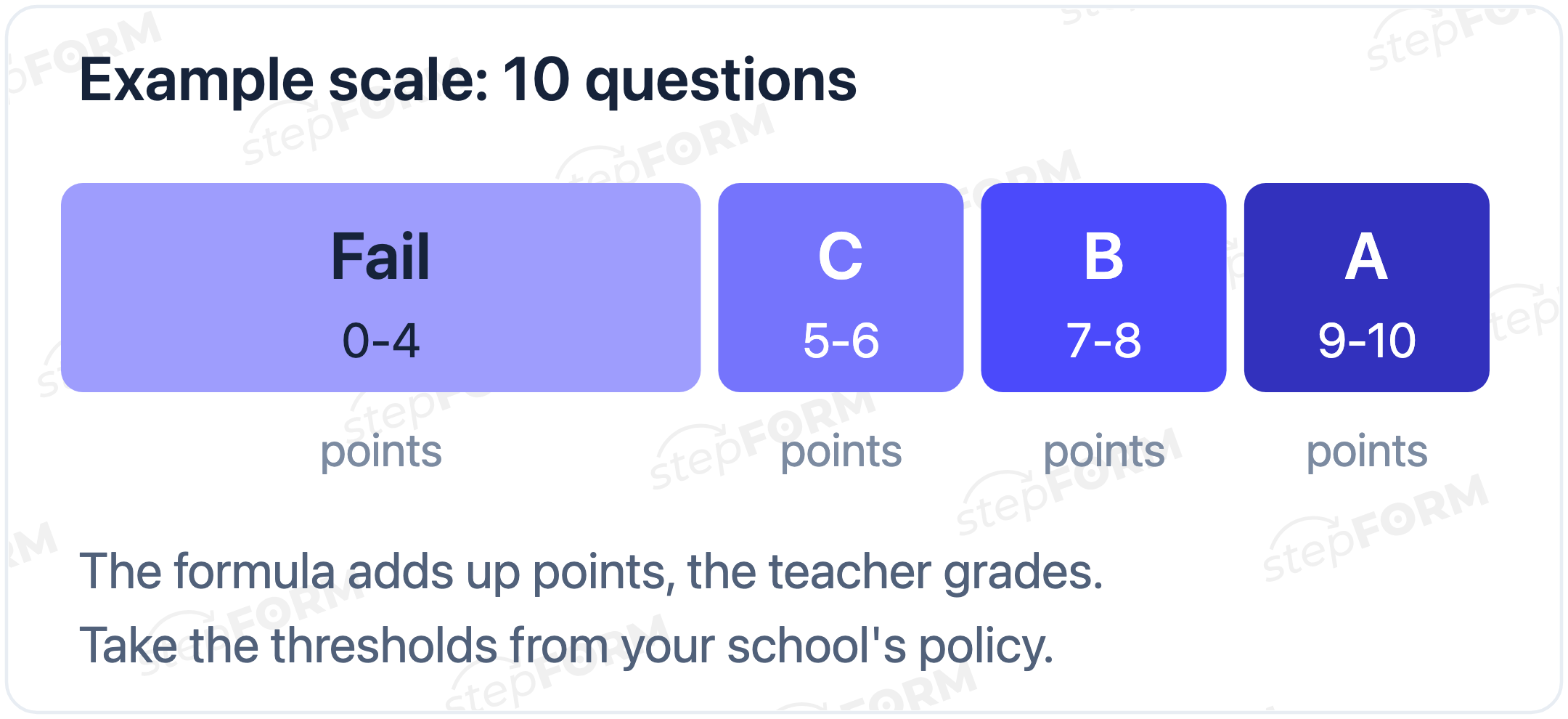
The formula shows the total, and the teacher gives the grade from a scale. For a 10-question test the scale might be: 9-10 points an A, 7-8 a B, 5-6 a C, 0-4 below the pass mark. Take the thresholds from your school's assessment policy if it has one.
You can also show the student a grade. For that you set conditions on the formula value in Logic Jumps, and each range leads to its own page with a message: "Excellent, A", "Good, B" and so on. The help article on creating an online test shows a scored example. But two question pages, a score page and four grade screens make seven pages, and the free plan has three. So grade screens need the Beginner plan.
Where to see the class results
Every submitted test lands in the Responses tab. It shows the name, class, chosen options and the formula total. Filtering, sorting and exporting to CSV or XLSX for the mark book start on Beginner. On the free plan you scroll through the responses, which is quick for one class.
Besides the totals, look at individual questions. If half the class got the same one wrong, the cause is most likely the topic or the wording of the question. That question is a good place to start the next lesson.
After the lesson, close the test: in the Settings tab turn on Hide form, and the link shows a placeholder. That way nobody takes it in the evening with hints from classmates who have already done it.
A test in the lesson, step by step
- Before the lesson. The test has been checked with three runs, test responses are deleted, Hide form is off. The link is in the class chat or on the board as a QR code.
- The first two minutes. Rules out loud: write your full name, press the submit button at the end, only the first submitted test counts, ten minutes in total.
- While they work. The Responses tab is open on the teacher's computer, showing how many tests are in, and a quick check against the class list shows who has not submitted yet.
- End of the lesson. Turn on Hide form. In the evening, scroll through the responses and note the question most students got wrong.
- Next lesson. Start with that question. Going through one shared mistake does more good than reading out the grades.
How to make copying harder
An online test cannot be made copy-proof, but copying can be made awkward:
- Shuffled options. Neighbours see the options in a different order, so "answer B" means nothing.
- A test for the length of the lesson. stepFORM has no timer, so open the link at the start of the lesson and turn on Hide form at the end.
- No score on a graded test. With the formula hidden, students have nothing to compare against, so retaking the test for a better result is pointless.
- The first submission counts. The link can be opened again, so tell the class in advance that only the first submitted test counts.
- Questions about understanding. "What is an adverb?" takes a second to look up. Identifying the adverb in a sentence from the lesson takes thought.
What the free plan covers
| Plan | Price per month | What it gives a teacher |
|---|---|---|
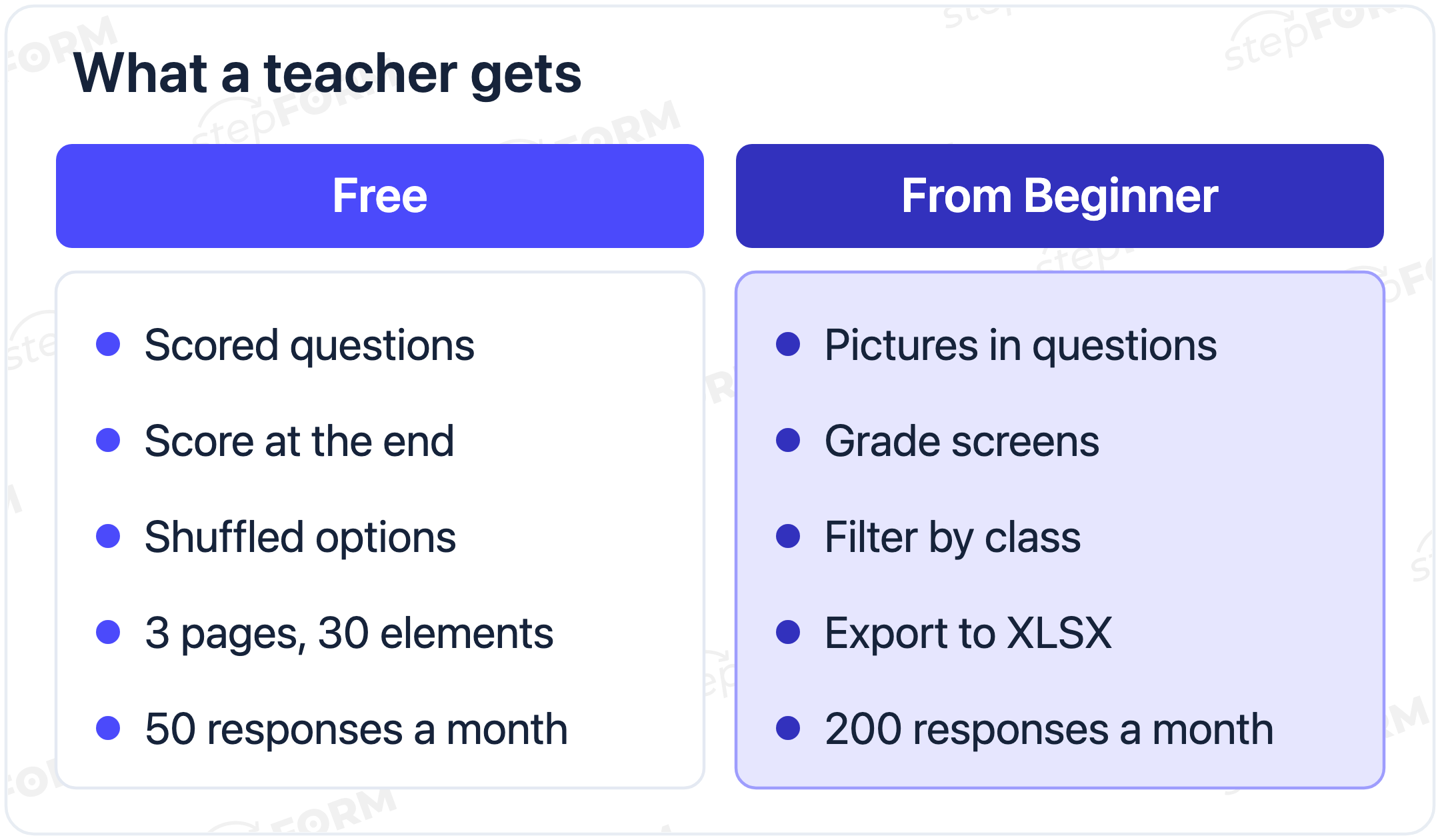
| Free | $0 | 3 pages, 30 elements, 50 responses a month. A scored test for one class, without pictures |
| Beginner | $11.20 billed annually, $14 billed monthly | 10 pages, 100 elements, 200 responses. Pictures in questions and options, grade screens, filter by class, export |
| Pro | $20.80 billed annually, $26 billed monthly | 50 pages, 300 elements, 1,000 responses. For several year groups and frequent tests |
Prices and limits were checked against the pricing page on 11 November 2026. Two things to keep in mind. The response limit is monthly, and test runs use it up too: two full classes of 28 will not fit into 50 responses. And the Image and Choose images elements are not available on the free plan, so questions about a map or a diagram have to wait for Beginner.
Tests for revision and games
The same setup works for revision: students take the test at home, see their score and go through the mistakes in class. For an end-of-term game, a quiz with a tie-breaker works better, as in our article on how to make a trivia quiz. How the builder helps teachers in general is covered on our page about quizzes at school.
Common mistakes in online school tests
- The score on the question page. The formula recalculates with every tap and gives away the right option.
- No name field. Twenty-eight results and not one name.
- The test stays open after the lesson. In the evening, students who were absent take it with their classmates' answers.
- An ambiguous question. A word that is a noun in one sentence and a verb in another gives two right answers without context.
- Nobody checked it on a phone. Students will open the link on a smartphone, and long options can wrap awkwardly. Look at the test in preview in phone mode.
Checklist before you send the link
- Every question has one right answer, and the key is checked against the textbook.
- Random order is on in every question.
- The name is required, and the class is picked from a list.
- The formula is on the last page, and the Back button there is hidden. For a graded test the formula is hidden, and the total shows in Responses after a test submission.
- Three test runs gave 10, 0 and the expected score in between.
- Students know to press the submit button at the end, and that only the first submitted test counts.
- Hide form is turned on after the lesson.
Frequently asked questions
Can I create a test for students for free?
Yes. The Free plan gives you 3 pages per form, 30 elements and 50 responses a month. That covers a 10-question test with a score for one class. Pictures, grade screens and response export start on Beginner.
Do students need to register?
No. The test opens by link in the browser on a phone or computer, with no account or app. Students type their name and pick their class in the form itself.
How do I see each student's result?
In the Responses tab: each submitted test shows the name, class, chosen options and the formula total.
Can I set a time limit?
stepFORM has no timer. Limit the time by hand: open the link at the start of the lesson, and at the end turn on Hide form in the settings so the test is no longer available.
Can students see a grade as well as points?
Yes, with Logic Jumps: each score range leads to its own page with the grade. Two question pages, a score page and four grade screens make seven pages, which is the Beginner plan.
How do I move scores into my mark book?
From the Beginner plan, responses export to CSV or XLSX: a table of names and scores is easy to open next to your mark book. On the free plan, copy the scores from the Responses tab by hand.
How do I run one test for several classes?
Add a drop-down list of classes at the start, and the responses show who is in which class. Watch the limit: the free plan has 50 responses a month, which is not enough for two full classes.
 Dmitry Molchanov