
How to move an Excel pricing calculation to your website
Rebuild an Excel pricing calculation in stepFORM with a cell-to-field map, unit conversion, rounding checks and a repeatable price-update routine.
How-to  Daria Lisovenko
5 October 2026
Reading time ≈ 10 min.
Daria Lisovenko
5 October 2026
Reading time ≈ 10 min.
A customer asks for a price. Someone opens Excel, enters the dimensions and replies with a number. If the rules are already in your sheet, you can rebuild them in stepFORM so visitors can calculate an estimate themselves. The transfer is manual. You will not be importing an XLSX file.
The sample price sheet calculates a custom sign by size, material and optional mounting. We will map its cells, rebuild the expression and compare the results. The rates are fictional, and all amounts are expressed in currency units. This is not a recommended price list.
Do you need a form or the spreadsheet itself?
If visitors need to use the actual workbook, rebuilding it may be unnecessary. Microsoft documents embedding an Excel workbook from OneDrive, including an embedded view that reflects workbook updates. Review the file contents and sharing settings before making it available.
A stepFORM calculator gives customers a shorter interface: they choose specifications, see an estimate and can submit an inquiry with those choices, without having to navigate the working cells of your internal workbook. The two tools remain separate.
Start with one product or service. If your workbook depends on macros, external data, stock availability or linked sheets, review those dependencies before attempting a rebuild; changing the cell references alone will not transfer the model to a different engine. This example uses basic arithmetic.
The broader guide to building a website price calculatorIsolate one pricing rule
Work in a copy. Keep one product and separate customer inputs from rates, fixed charges and intermediate results. Leave the original workbook alone for now.
Our sample order is one sign. Width can be 20 to 200 cm and height 20 to 150 cm, both in whole centimeters. Standard material costs 2500 per square meter; premium costs 3500. Setup adds 600 once per order. Optional mounting adds 900. Delivery and other work are excluded.
| Cell | Meaning | Value or formula |
|---|---|---|
| B7 | Width, cm | 100 |
| B8 | Height, cm | 60 |
| B9 | Material rate per m² | 2500 or 3500 |
| B10 | Setup, once per order | 600 |
| B11 | Mounting | 0 or 900 |
| B14 | Area, m² | =B7*B8/10000 |
| B15 | Material cost | =B14*B9 |
| B16 | Total before rounding | =SUM(B15,B10:B11) |
| B5 | Customer-facing total | =ROUND(B16,0) |
These formulas use English Excel function names and comma argument separators. Your Excel locale may use a different separator or localized names. Keep the working formula in the syntax your spreadsheet expects.
In this workbook, B9 holds the chosen rate separately from the material-cost formula. The allowed values, 2500 and 3500, are defined in its choice list; there is no separate rate lookup table. Update that list when the rates change. Setup is separate from the area calculation too. It is charged once per order.
Match units before you match totals
The dimensions are in centimeters, while the rate is per square meter. Divide width times height by 10,000. Dividing by 100 would make the area a hundred times too large.
For a 100 × 60 cm sign, the area is 0.6 m² and material at the standard rate costs 0.6 × 2500 = 1500; adding setup of 600 and mounting of 900 gives a total of 3000. Remove mounting. The total should be 2100.
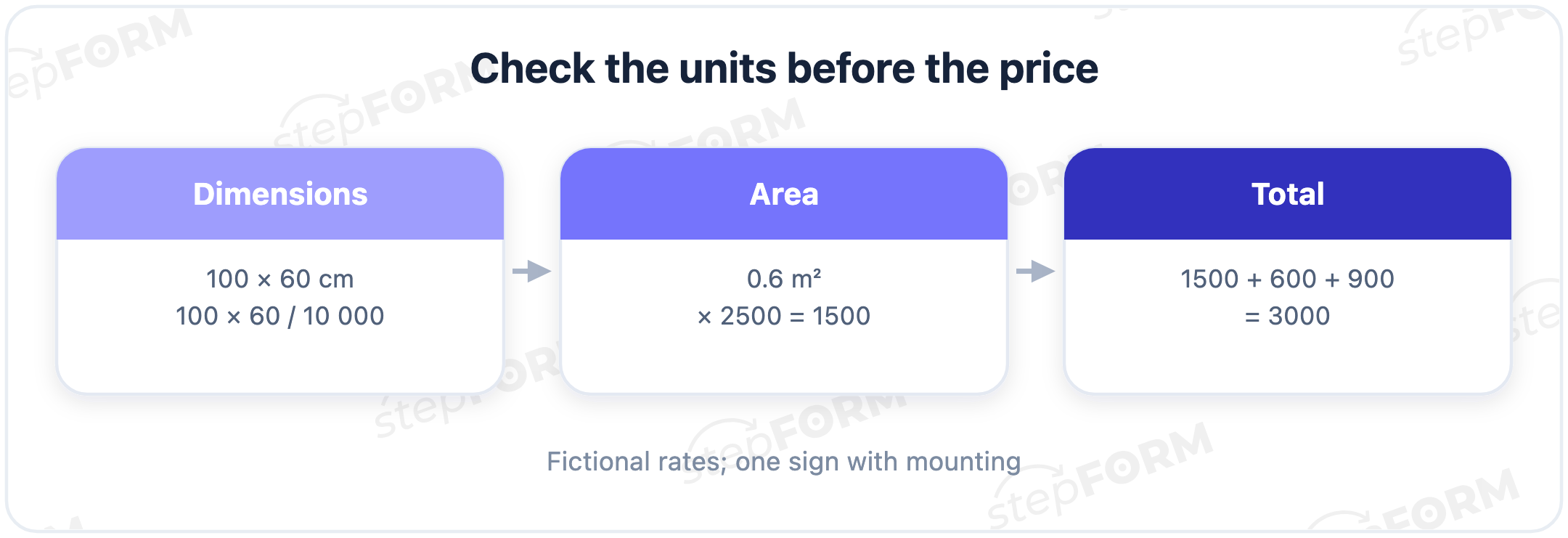
Keep this calculation beside the source model. It gives you a quick way to diagnose the first mismatch. If material costs 150,000 instead of 1500, check the unit conversion before investigating rounding.
Map cells to stepFORM fields
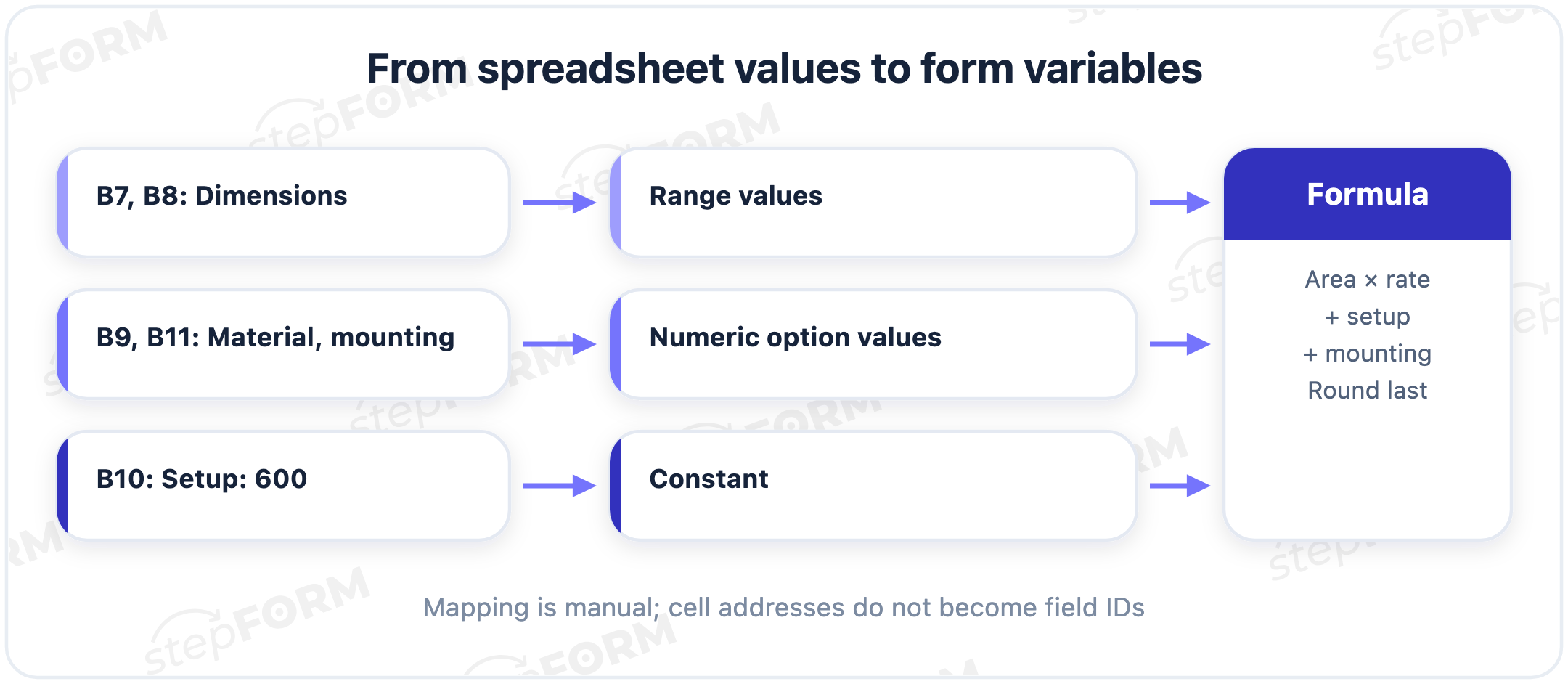
Cell B7 has no automatic connection to a form. You supply the mapping: the spreadsheet's width input becomes the value of the width field. A matching label is not enough.
| Spreadsheet source | Form element | Calculation value |
|---|---|---|
| B7, width | Range: minimum 20, maximum 200, step 1 | Selected width |
| B8, height | Range: minimum 20, maximum 150, step 1 | Selected height |
| B9, rate | Single material choice | 2500 or 3500 |
| B10, setup | Constant in the expression | 600 |
| B11, mounting | Single choice: No / Yes | 0 or 900 |
Add two Range elements. Select the width field and open its settings with the gear icon. In the customization settings, set its minimum to 20, maximum to 200, step to 1 and default to 100. For height, use 20, 150, 1 and 60 respectively.
Set the numeric option values in the formula's Field Values block. Set the active value of standard material to 2500 and premium to 3500, with an inactive value of zero for each option. The “Premium” label does not set a price by itself.
Make “No mounting” an explicit choice with a value of zero. An unanswered required question should not silently mean “No.” The visitor should know which service is included in the estimate.
Check the defaults. Our workbook starts at width 100, height 60, standard material and mounting enabled. A form with different defaults will show a different first total, even when its arithmetic is correct.
Rebuild the expression in the formula editor
Add a Formula element, select it and click the Σ icon in its toolbar. Find the variables for your inputs in the Field Values block. The formula setup guide explains how field values feed an expression. Refer to the element settings for ranges and supported mathematical functions.
Our sample form uses H1 for width, H2 for height, F1 for the material rate and F2 for mounting. Your form may have different identifiers. Check the actual variables in its editor before entering the expression:
round(H1 * H2 / 10000 * F1 + 600 + F2)Read the expression back in four parts: area, material rate, setup and mounting. Do not paste the Excel function names verbatim. Here, + replaces the sum and round rounds the final result.
Quantity is deliberately absent. This model covers one sign. Before adding a quantity field, decide whether setup and mounting apply per item or per order. Multiplying the entire total by quantity would charge setup repeatedly, which may not match your pricing rule.
Round at the same stage
In the sample model, only the final total is rounded to a whole unit. Area and material cost retain their fractional values until that point. Display formatting is a separate decision.
For a 50 × 25 cm sign in standard material with no mounting, the area is 0.125 m², material costs 312.5 and setup adds 600. That gives 912.5 before rounding. The expected final total is 913.
If you round the area to 0.13 m² first, the total becomes 925. Changing how many decimals are displayed cannot fix that calculation. The intermediate value has already changed.
This example uses positive amounts rounded to whole units. Negative adjustments, fractional discounts and other rounding policies need their own test cases. A match here does not establish that every Excel function behaves identically in another engine.
Check more than one order
One matching total checks one order. The 20 cases below cover both rates, mounting on and off, dimension limits and fractional intermediate amounts. Expected totals were calculated independently of the form builder. On October 5, 2026, we entered all 20 cases in our sample stepFORM calculator. Every result matched. Your own form still needs testing.
Keep separate columns for the workbook total, the actual form result and their difference. Enter the same inputs in both tools. For this whole-unit rounding policy, the expected difference is zero.
| Size, cm | Rate per m² | Mounting | Before rounding | Expected total |
|---|---|---|---|---|
| 100 × 60 | 2500 | No | 2100 | 2100 |
| 100 × 60 | 2500 | Yes | 3000 | 3000 |
| 100 × 60 | 3500 | No | 2700 | 2700 |
| 100 × 60 | 3500 | Yes | 3600 | 3600 |
| 20 × 20 | 2500 | No | 700 | 700 |
| 20 × 20 | 3500 | Yes | 1640 | 1640 |
| 200 × 150 | 2500 | No | 8100 | 8100 |
| 200 × 150 | 3500 | Yes | 12000 | 12000 |
| 85 × 55 | 2500 | No | 1768.75 | 1769 |
| 85 × 55 | 2500 | Yes | 2668.75 | 2669 |
| 85 × 55 | 3500 | No | 2236.25 | 2236 |
| 85 × 55 | 3500 | Yes | 3136.25 | 3136 |
| 50 × 25 | 2500 | No | 912.5 | 913 |
| 50 × 25 | 3500 | No | 1037.5 | 1038 |
| 100 × 100 | 2500 | No | 3100 | 3100 |
| 100 × 100 | 3500 | Yes | 5000 | 5000 |
| 120 × 80 | 2500 | Yes | 3900 | 3900 |
| 120 × 80 | 3500 | No | 3960 | 3960 |
| 199 × 149 | 2500 | No | 8012.75 | 8013 |
| 199 × 149 | 3500 | Yes | 11877.85 | 11878 |
Switch mounting from Yes to No and back. The difference should be 900 each time, with no accumulated surcharge. Then change the material while keeping the dimensions fixed. At 100 × 60 cm with mounting, switching to premium changes the total from 3000 to 3600.
Test range boundaries, defaults and the mobile layout. If you replace a range with free numeric entry, also try an empty field, zero, a negative number and a size outside the model. A plausible price for an order you cannot accept is still a wrong result.
Test the submitted inquiry
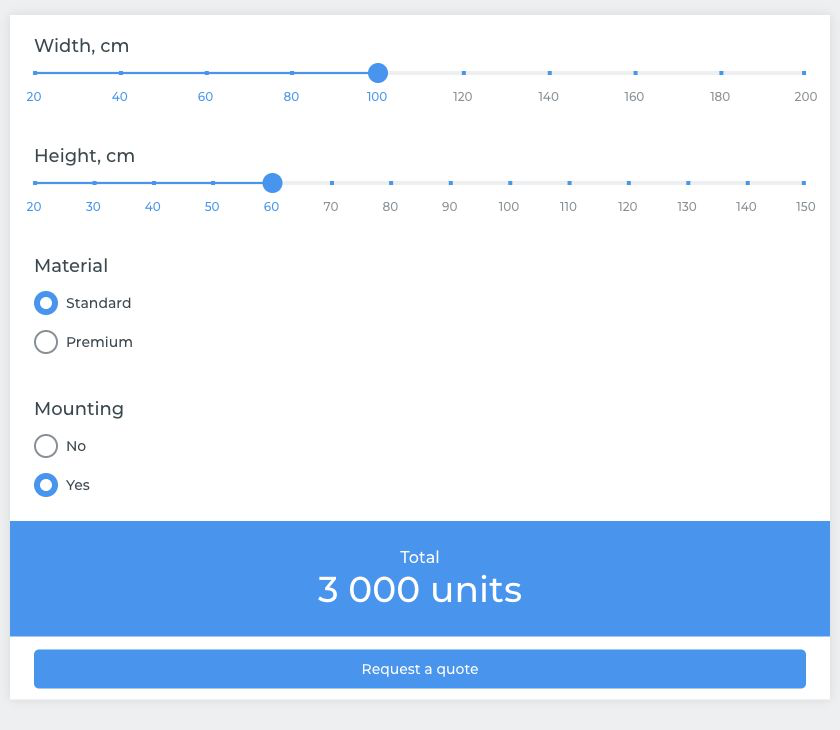
After showing the estimate, offer a clear next step, such as “Discuss this order.” State what the number includes: one sign of the selected size, setup and the chosen mounting option. Say that delivery is excluded.
Submit your own test inquiry. In the received response, check the dimensions, material, mounting choice and calculated total; if the sales team only receives contact details, they will have to ask again what the customer was pricing.
We submitted the sample order and checked its saved response. All five values were present: width 100, height 60, standard material, mounting enabled and a total of 3000. Payments and notifications were not enabled for this test.
Test this separately from the formula. A correct number in the browser does not prove that the required details arrived with the submission. Do not add a payment flow until the final price and order terms are settled.
Give price changes an owner
A manual rebuild creates a second calculation. Editing Excel alone does not update values in stepFORM. Assign one person to maintain both versions and keep a short change log: date, old rate, new rate and the cases checked.
Suppose the standard rate changes from 2500 to 2800. For a 100 × 60 cm sign with mounting, the new total is 3180. Change the relevant option value in the form, check that order and confirm that the premium rate is unchanged. Then rerun the full control set.
Within the form, define each rate in one place. Repeating it inside several expressions makes the next update harder to verify. If the pricing rule changes, rebuild the expected totals too. The old control sheet describes the old rule.
Use the stepFORM calculator builder to recreate one checked calculation from your workbook. Map its inputs, enter the expression and compare identical orders. Embed the form on your website after the totals and a test inquiry have been checked.
Frequently asked questions
What changes if dimensions are entered in millimeters?
If both sides are in millimeters, divide their product by 1,000,000 to get square meters, not by 10,000. Update field labels, limits and control cases along with the formula.
Do I need a material choice if there is only one material?
You can remove that choice and use the approved rate as a constant instead of a material variable. Repeat the checks after the change: removing a field should not change the remaining pricing rules.
How should I handle a discount set by a salesperson?
Do not include a discretionary discount in the automated estimate without an agreed rule. Show the list-price estimate and explain that individual terms can be discussed after the inquiry.
Do the control totals need to change when I add delivery?
Yes. Define the delivery rule first, then recalculate expected totals and add cases with and without delivery. Passing the old set does not verify the new formula.
Does hiding the formula on screen make it confidential?
No. Removing an expression from the visible interface does not establish that the pricing rules are protected. Sensitive calculations need a separate review of the architecture and server-side execution.

 Dmitry Molchanov