How to Create a Website Quiz Online for Free
Build a website quiz step by step: pages, logic jumps, a result and a lead. We also show exactly what the Free plan covers and where you will hit its limits.
How-to  Daria Lisovenko
22 September 2026
Reading time ≈ 12 min.
Daria Lisovenko
22 September 2026
Reading time ≈ 12 min.
A quiz in a form builder is made of pages: one or more questions on each, logic jumps between them, and a lead at the end. You can build one for free, but with two limits that rarely get mentioned: a form can have no more than three pages, and answers cannot be images. Below is the full build, step by step, plus how to work within those limits.
Every limit in this guide was checked against the stepFORM pricing page on 22 September 2026, and button names against the official documentation. If you are reading this later, check the numbers there, since plans change.
The short version
Sign up, create a form, add pages and questions, set up the logic jumps, write the message shown after submission, and publish it as a link or embed it on your site. On the Free plan that gives you a quiz of up to three pages, with leads delivered by email, up to fifty a month.
If your quiz needs more steps or image answers, every new account gets a seven day trial of the Beginner plan, which allows ten pages and image choices. That is enough to build and test a full quiz before deciding whether to pay.
What the Free plan covers and what it does not
Most guides stop at "there is a free plan". For a quiz the specific rows matter, so here they are.
| What a quiz needs | Free | Available from |
|---|---|---|
| Pages per form | 3 | 10 on Beginner, 50 on Pro |
| Logic jumps | yes | all plans |
| Image choice answers | no | Beginner |
| Formula for pricing | yes, up to three conditions | more conditions from Beginner |
| Leads by email | yes, one recipient | up to three recipients on Beginner |
| Leads in Telegram | no | Pro |
| Webhooks | no | Pro |
| Google Analytics and Bitrix24 | no | Beginner |
| stepFORM branding in the form | stays | removed from Beginner |
| Leads per month | 50 | 200 on Beginner, 1,000 on Pro |
Step zero: one sentence of promise
Before opening the builder, write one sentence about what the visitor gets at the end.
| Weak promise | Promise that works |
|---|---|
| Take our quiz | Find your house plan and a price range |
| Answer a few questions | Estimate your bathroom renovation in a minute |
| Learn more about our services | See three kitchens that fit your measurements |
The working version names a concrete benefit and a time. The weak one asks for effort and offers nothing back. Every question you add has to serve that sentence, and the final screen has to deliver it. If you cannot write the sentence, it is too early to build: first decide how the quiz helps the visitor. For the difference between a quiz, a form and a test, see what a quiz actually is.
The build, step by step
Button names below come from the stepFORM documentation. Interfaces change over time, so follow the intent of each step.
- Create a form. After signing up, create a new form and give it a working title. Visitors will not see it.
- Add pages. In stepFORM a quiz is a form with several pages, added with the "+" button. Pages can be reordered, duplicated and deleted. A block with the page number and a progress bar appears at the top and can be hidden.
- Lay out the questions. Use single choice for answer options: it is the easiest format for a quiz, answered in one tap. It is also the most common question type overall, accounting for nearly a quarter of all questions in stepFORM forms.
- Set up logic jumps. The "Logic jump" icon sits in the top left of the builder. For each page, choose where each answer leads and what happens under "In other cases".
- Add the contact field. Place the phone or email field on the last page of each route, after the questions, together with a consent checkbox.
- Write the post-submission message. In the settings of the "Send" button, choose "Message after form submission" and write what happens next.
- Publish. In the "Publication" tab, the "Link" section holds the direct link to the quiz, along with the code for embedding it on a website.
Fitting a quiz into three pages
A classic quiz shows one question per screen. Six questions plus a contact field is seven screens, and the Free plan gives you three. You can hit the limit by the fourth question.
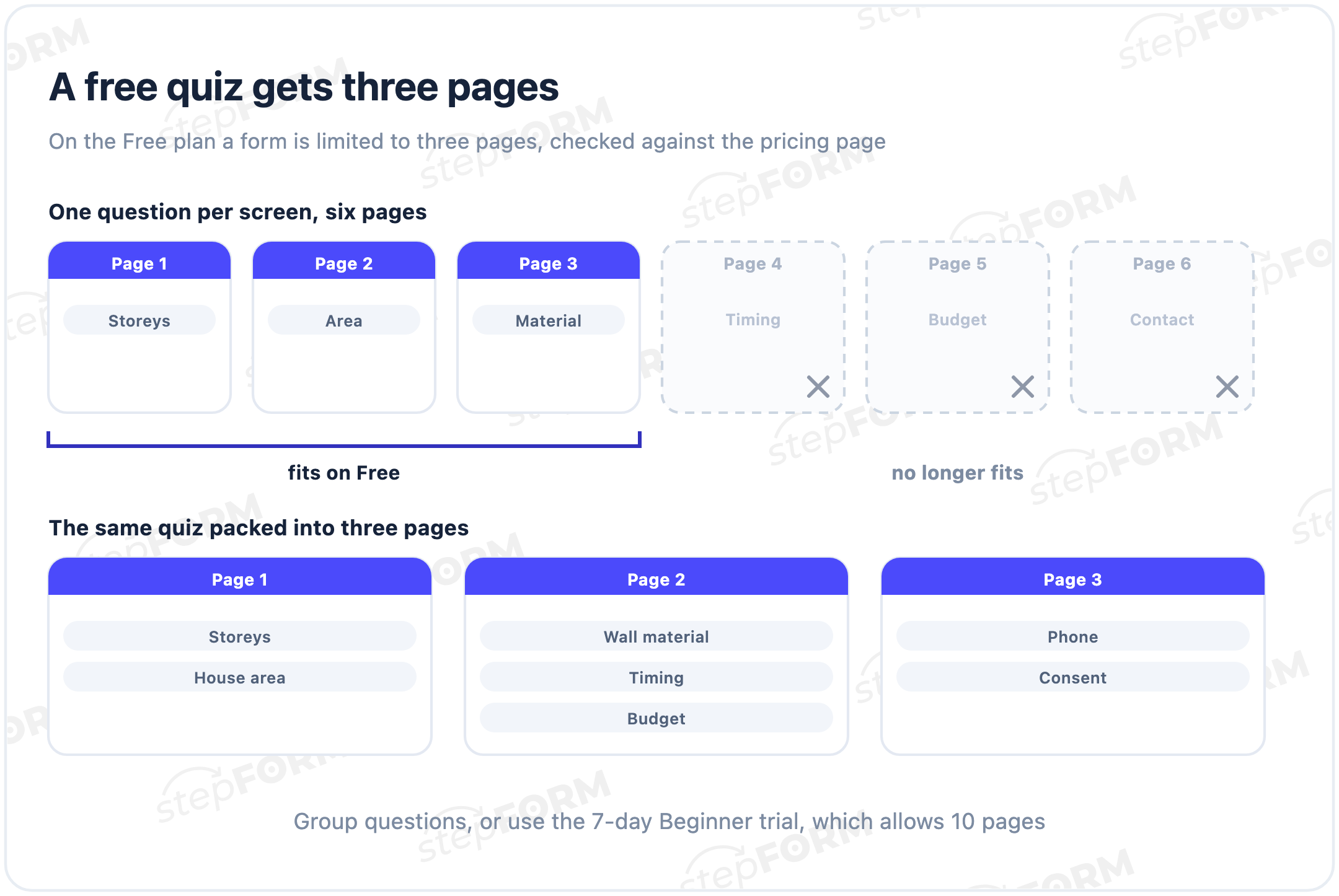
- Group questions by topic: storeys and area on one page, material, timing and budget on another, the contact on the third
- Remove the questions that do not change the result. There are almost always two or three
- Use the seven day Beginner trial to build the one-question-per-screen version and compare it on real traffic
The second point is underrated. Looking at how people actually build forms and quizzes in stepFORM, 72% stay within nine questions, a third manage with three, and the median is six. A short quiz is not a compromise, it is the norm.
Logic jumps and the condition order trap
Logic jumps let each visitor answer only the questions that apply to them. Someone building a sauna has no reason to choose a number of storeys.
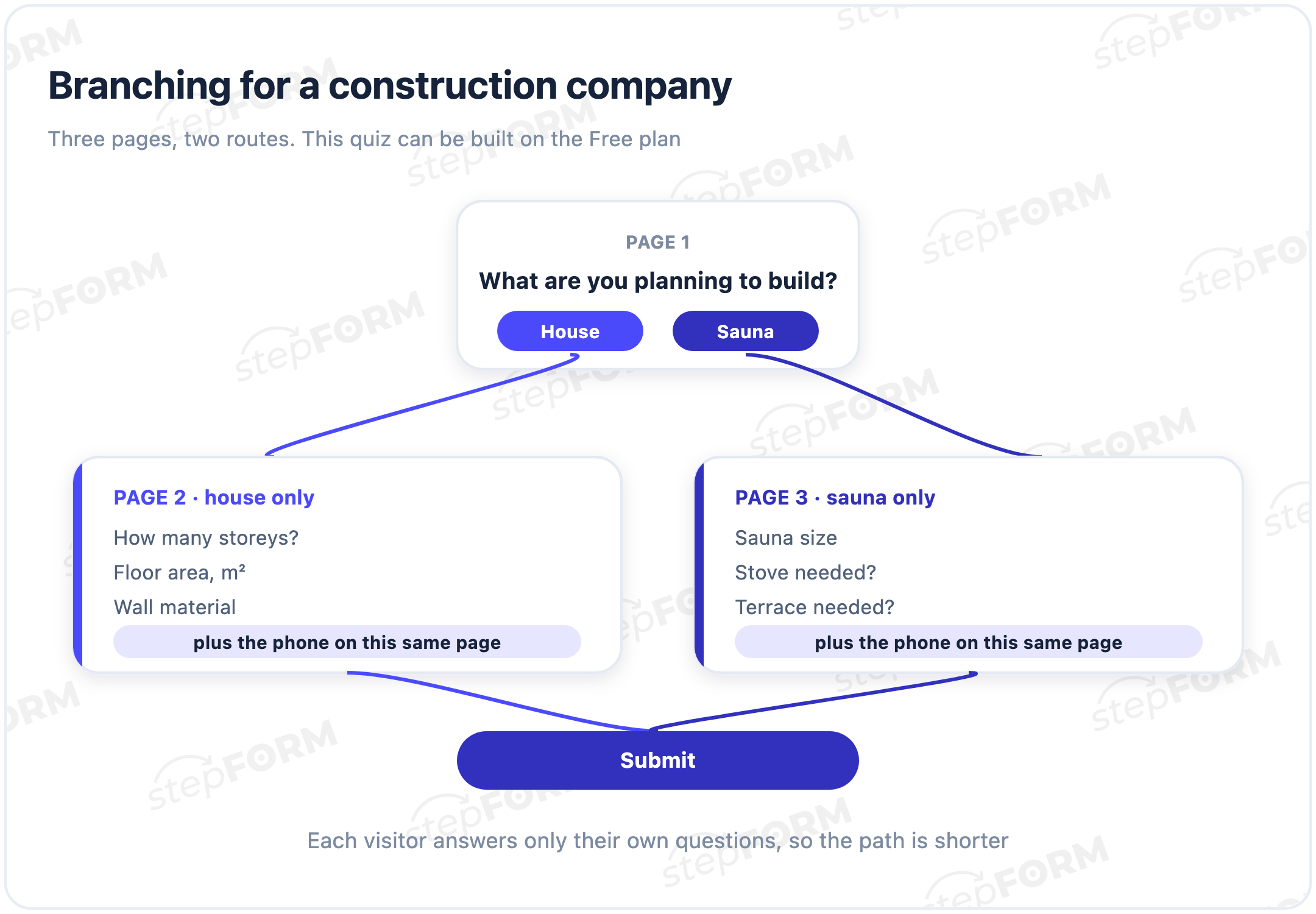
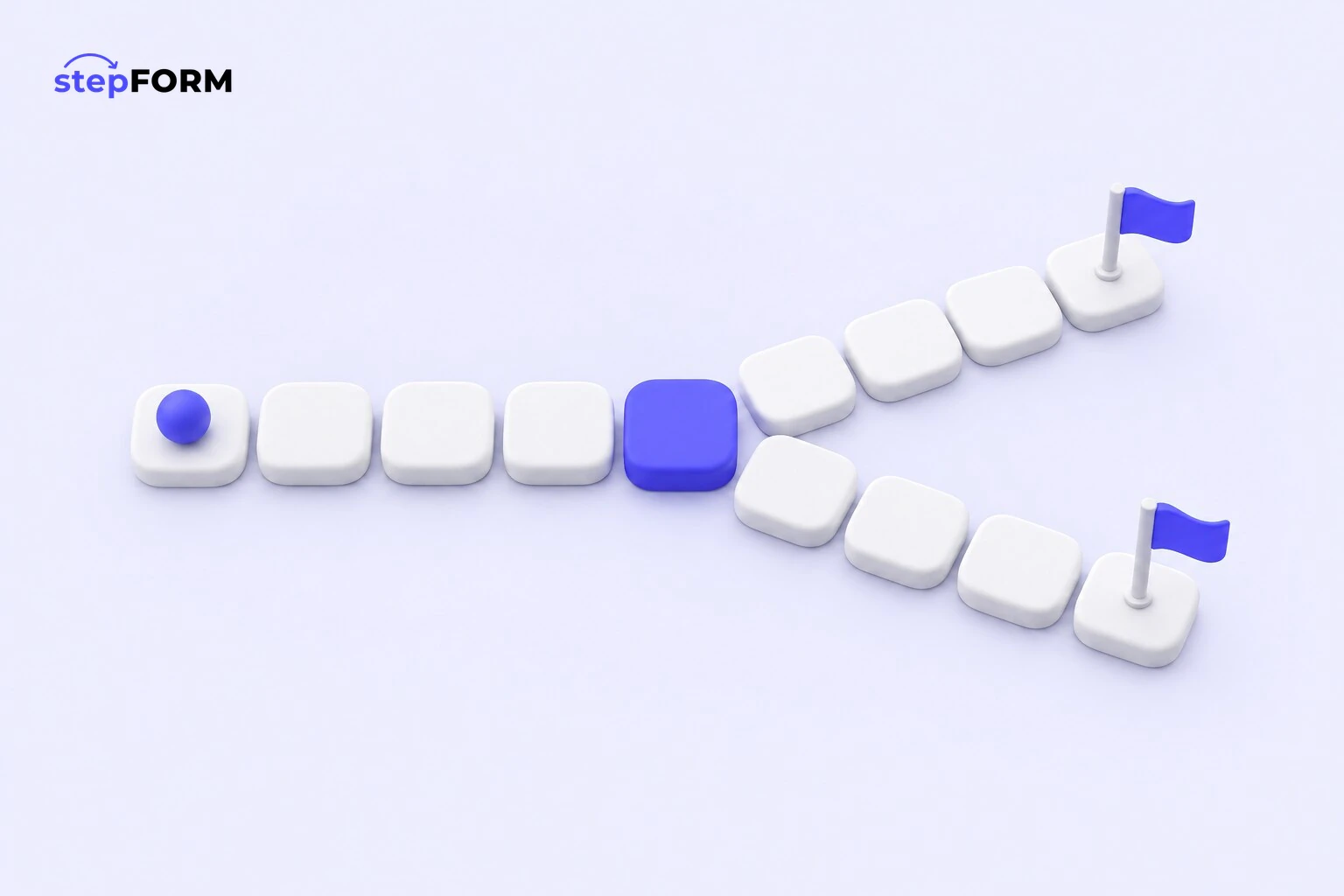
On the first page, two conditions do the work: "House" leads to page two and "Sauna" to page three. The phone field sits at the end of both routes, so no separate contact page is needed and the three page limit holds. The logic jump documentation covers the basics.
Now the trap few people know about. In stepFORM, logic conditions are evaluated strictly from top to bottom, with no precedence of AND over OR the way there is in maths. Each condition is applied to the result of the previous one.
Example: the rule reads "House" OR "Sauna" AND "Budget over 3 million". The intention was to send every house, and only expensive saunas, to the premium page.
| Visitor chose | How a mathematician reads it | How stepFORM evaluates it |
|---|---|---|
| House, budget 2 million | jump happens: a house qualifies on its own | no jump: first "house or sauna", then "and budget over 3 million" |
| Sauna, budget 4 million | jump happens | jump happens |
| House, budget 5 million | jump happens | jump happens |
A complete example: a construction company quiz
Here is the quiz from the diagram. It fits the Free plan.
Promise: "Find a plan and get a price range in one minute."
Page 1. A heading with the promise and one question, "What are you planning to build?", with the options "House" and "Sauna". Logic: "House" goes to page 2, "Sauna" to page 3.
Page 2, houses only. "How many storeys?" as single choice, "Floor area, m²" as a number input, "Wall material" as a dropdown. Below them, the phone field and consent.
Page 3, saunas only. "Sauna size", "Stove needed?", "Terrace needed?". Below them, again, the phone field and consent.
After submission. The message reads: "Thank you! We will send matching plans and a price range within an hour." Concrete promise, named timeframe.
This quiz will not show a price on screen: the Free plan allows up to three conditions in a formula, and a price range for a house needs more. How to calculate the price right inside the quiz is covered in the guide to a quiz with pricing and payments.
A quiz on your site or a standalone quiz page
The same quiz can be shown in two ways.
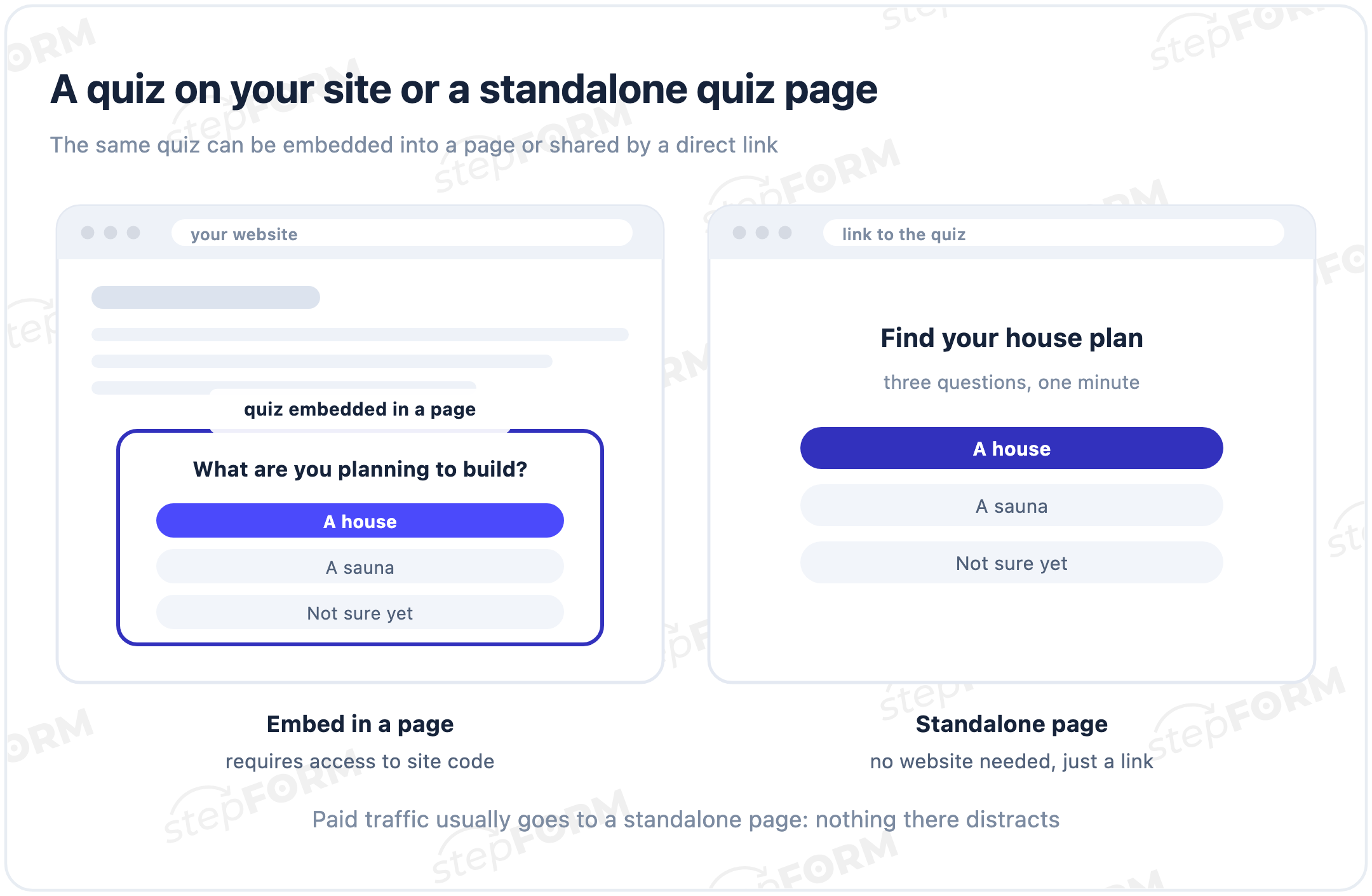
The code from the "Publication" tab goes onto a service page. This suits you if you have a site and can edit it. The quiz then sits among your copy, reviews and contact details.
The direct link opens the quiz on its own page. You do not need a website at all. This link is what goes into ads, social profiles, messengers and QR codes. Which screens such a page needs and how many questions to ask is covered in our guide to building a quiz landing page.
On the Free plan the direct link uses a standard address. You can change it from Beginner, and connect your own domain on Pro.
Where the leads go
On the Free plan each lead is emailed to one recipient and stored in the form's responses. That is enough to launch and see whether the quiz works.
After that it becomes a question of speed. A quiz lead is best handled within minutes, while the person still remembers what they asked about. If email is checked once a day, look at Telegram notifications on Pro or the Bitrix24 integration from Beginner.
Checks before launch
A broken quiz fails quietly: the visitor just leaves and you never find out. Fifteen minutes of checking pays for itself with the first lead.
- Walk every route. With two routes, finish both. If a rule mixes AND with OR, test the edge cases from the table above.
- Open the quiz on a phone. Most form submissions come from mobile, and long answer labels wrap there and swell the buttons.
- Send a test lead. Put a recognisable marker in it, such as "test 22 September", and find it in the form's responses.
- Check your inbox and spam folder. The first messages from a new sender often land in spam.
- Read the post-submission screen. The visitor should know what happens next and when. A thank you with no timeframe makes people uneasy.
If the test lead appears in responses but never reaches your inbox, the problem is delivery, not the quiz. A step by step diagnosis is in the guide on why a website form stops producing leads.
When the Free plan stops being enough
- you have more questions than fit in three pages, even after grouping
- you need images as answer options: floor plans, facades, samples
- you consistently get more than fifty leads a month
- leads need to flow into a CRM or a sales team messenger automatically
Beginner costs $14 a month billed monthly, or $11.20 a month billed annually. The seven day trial is enough to find out whether you need it.
Frequently asked questions
Can I make a quiz completely free?
Yes. The Free plan includes logic jumps, the core question types, formulas with up to three conditions and email leads, up to fifty a month. The limits: no more than three pages per form, no image answers, and stepFORM branding stays in the form.
How many questions fit in a free quiz?
The limit applies to pages, not questions: there are three. A page can hold several questions, up to thirty elements per form. A six or seven question quiz fits if you group two or three questions per page.
How do I make a standalone quiz page without a website?
Publish the quiz by the direct link from the "Publication" tab. It opens the quiz on its own page, which you can use in ads, social profiles or a QR code. A custom link address is available from Beginner and your own domain on Pro.
Why does my logic jump not fire?
Usually because of condition order. In stepFORM conditions are evaluated strictly top to bottom, with no precedence of AND over OR. The rule "A or B and C" behaves like "(A or B) and C". Split such rules and walk through every route.
Can the quiz show a price?
Yes, through a formula. The Free plan allows up to three conditions in a calculation; complex ranges need Beginner. Taking payment inside the quiz requires Pro.
Where do leads from a free quiz go?
To one email recipient, and they are also stored in the form's responses. Telegram and webhooks are available on Pro, Google Analytics and Bitrix24 from Beginner.
What is the difference between a quiz and a test?
A test has correct answers and scores them. A quiz has none: it matches the visitor to an option based on what they told you. Both are built the same way in stepFORM; the difference is what the final screen shows.
How long is the free trial?
Seven days of the Beginner plan for every new account. During the trial you get ten pages per form, image choice answers and that plan's integrations, so you can build the full quiz and test it.