
Why Your Website Form Isn't Getting Leads
No leads from your website form? Trace the funnel from form view and first input to submission, delivery and CRM. Nine causes, signals and fixes.
Guides  Daria Lisovenko
16 September 2026
Reading time ≈ 16 min.
Daria Lisovenko
16 September 2026
Reading time ≈ 16 min.
When a website form generates no leads, first identify where the person or their data disappears. The form may never become visible, people may not start it, validation may block submission, the server may reject the request, or a valid lead may be lost before it reaches email or the CRM. These failures look identical in a sales report, but they require different fixes.
Do not begin with button colour, removing fields indiscriminately or a complete redesign. Start with evidence. Build a small event funnel, locate the first abnormal drop and turn it into one testable hypothesis. That gives you a basis for the next change instead of a collection of unrelated best practices.
The short answer
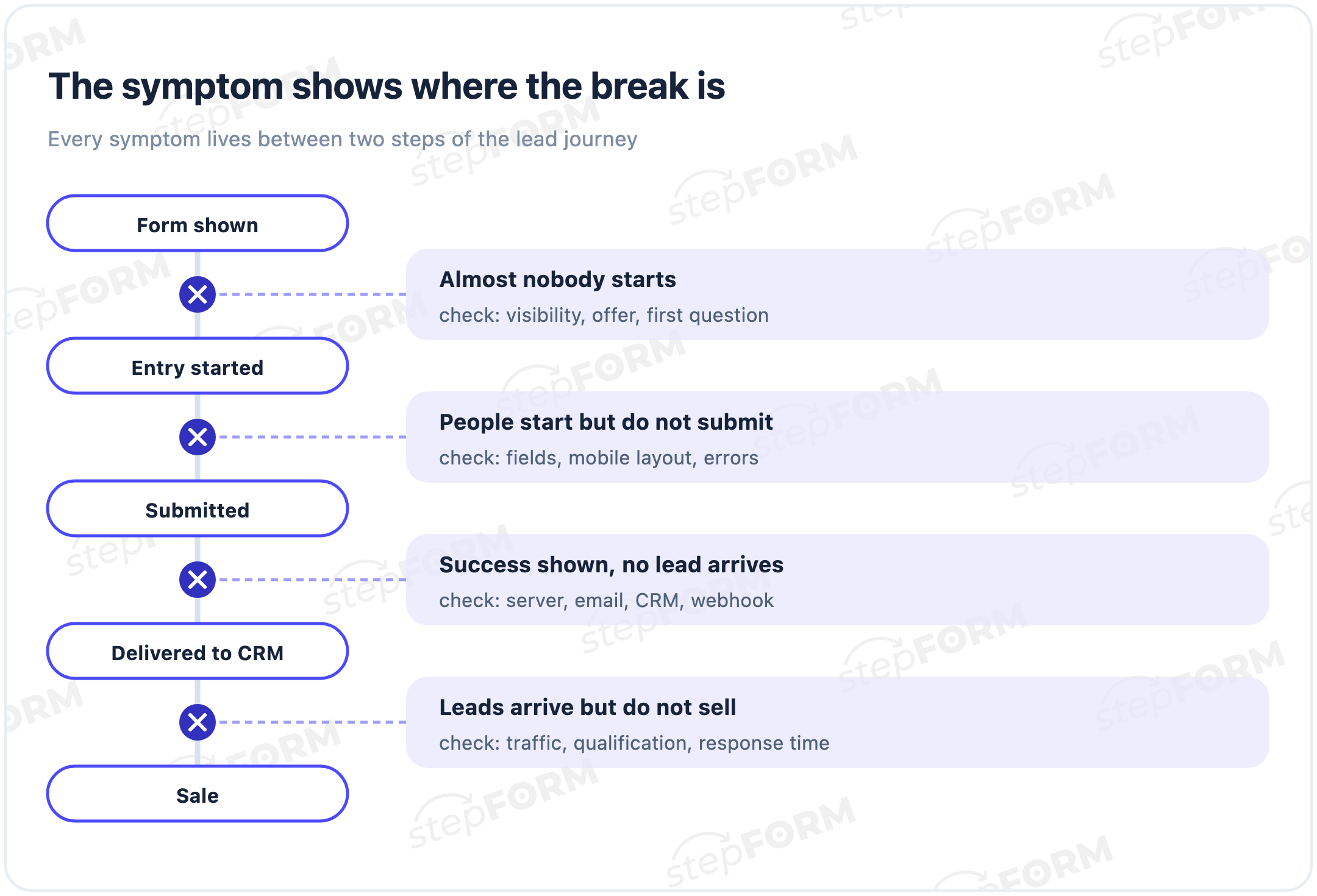
Split the lead journey into eight events: eligible page view, form impression, form start, step progress, submit attempt, confirmed server success, delivery to email or CRM and qualification by sales. Find the first weak transition and investigate only the causes that can affect it.
| Symptom | Likely problem area | First check |
|---|---|---|
| The page receives few relevant visits | Demand or acquisition, not the form | Sources, search intent, campaigns and audience fit |
| People see the form but do not start | The value, required effort or first step is unclear | Offer, CTA, visibility and first field |
| People start but do not submit | Fields, branching, mobile input or validation | Step exits, session evidence and a phone test |
| Success appears but no lead arrives | Delivery failure or the wrong event definition | Saved responses, server, email, CRM and webhook |
| Leads arrive but do not become sales | Traffic fit, qualification or follow-up | Source, lead quality, response time and CRM status |
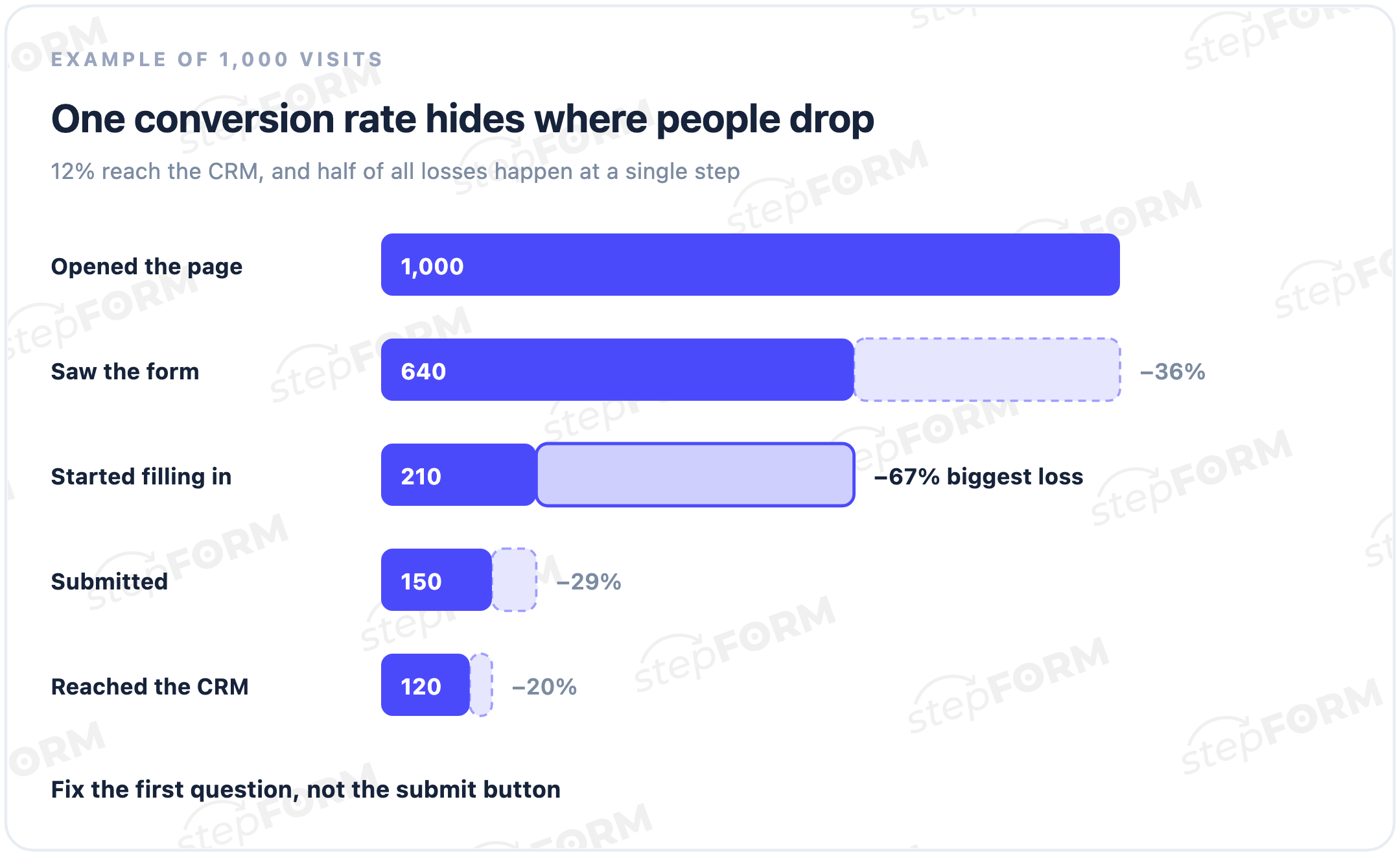
Find the point of loss before changing the form
The formula “leads divided by visits” is too coarse for diagnosis. A low result may mean that few people saw the form, that one question stopped them, or that a successful response never reached the CRM. The names below are a recommended diagnostic scheme, not ready-made stepFORM events. GA4 may collect form_start and form_submit automatically; configure the remaining events in your own analytics and validate all of them on the published form. An automatic GA4 form_submit is not the same as a server-confirmed response.
- eligible_page_view - a person opened a page on which the form could be shown.
- form_impression - the form actually entered the viewport and was available for interaction.
- form_start - the person changed the first field or selected the first option.
- form_step_view - another step in a multi-step journey opened.
- form_submit_attempt - the person tried to submit the data.
- form_submit_success - the server accepted the response and confirmed success.
- lead_delivery_success - the lead appeared in the intended delivery system.
- lead_qualified - the team confirmed that the enquiry matched the target customer.
These events produce separate rates: impressions per eligible view, starts per impression, step-to-step progression, submit attempts per start, confirmed submits per attempt, deliveries per confirmed submit and qualified leads per delivery. This separates an exit on one question from a validation block or server failure. Calculate rates from unique form journeys using a non-identifying identifier, not raw event counts: a repeated click must not create a second “conversion”. Keep the numerator, denominator and period next to every percentage. Five successes out of ten and five hundred out of one thousand are both 50%, but they do not carry the same certainty.
GA4 Enhanced Measurement can collect form_start and form_submit, along with form-related parameters, but you still need to validate what those events mean for your implementation. The official Google documentation also says not to send personally identifiable information to Analytics. For a dependable funnel, distinguish a submit attempt from a server-confirmed success and reconcile the latter with stored responses. The stepFORM Google Analytics help page describes the older Universal Analytics interface, so verify current GA4 transmission on the live form with Realtime or DebugView.
If you do not have event tracking yet, do not postpone the audit. Run the manual 30-minute check below with a numbered test lead, then instrument the part of the journey where the first discrepancy appears.
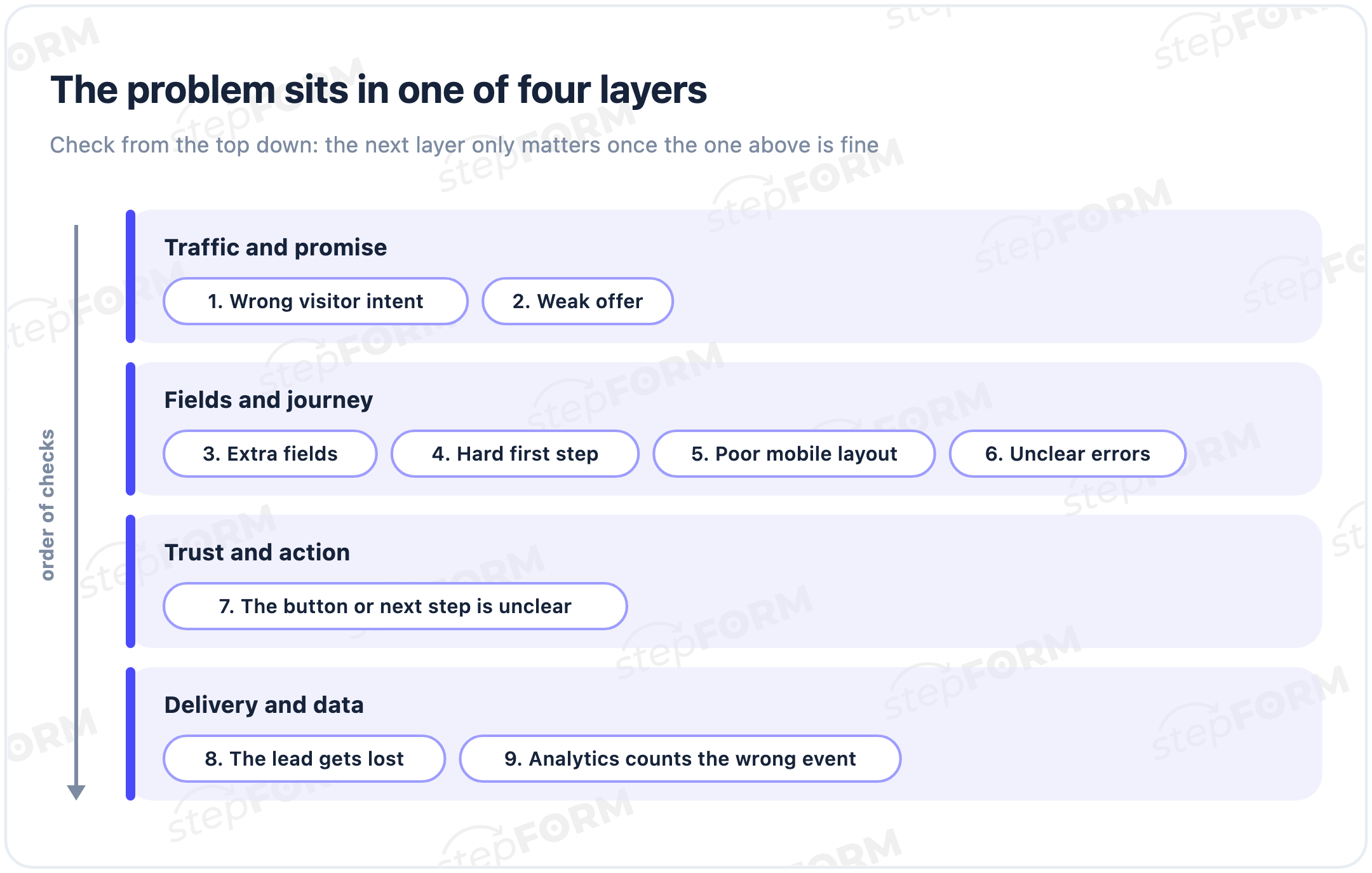
Nine reasons a website form gets no leads
1. The page has too little traffic or the wrong visitor intent
Signal: the page receives few relevant visits, or it attracts people whose problem does not match the offer. They leave before the form appears or submit enquiries that the team rejects.
Check: segment the funnel by source, campaign, landing page, device and new versus returning visitor. Add the qualified lead rate instead of treating every submission as equal. A source can produce many inexpensive form completions and almost no viable opportunities.
Fix: align the promise in the ad or search result, the landing-page content and the result after submission. If the query is informational, answer it before asking for a phone number. Form changes cannot manufacture missing demand.
2. People do not see the form or understand the CTA
Signal: the page has traffic, but form_impression or form_start is unexpectedly low. The form may sit far below the useful content, remain behind a closed tab, fail inside an embed or begin with a vague “Continue” button.
Check: open the live page in a private window, on a phone and on a slower connection. Confirm that the form loads, is not covered by a consent banner and enters the viewport. For an embedded form, inspect the container height and the host platform's restrictions.
Fix: use a CTA that names the outcome, such as “Get an estimate”, “Book a consultation” or “Check available dates”. On a long page, repeat an anchor or entry point after the explanation that resolves the visitor's main concern.
3. The visitor does not know what happens after submission
Signal: people notice the form but postpone starting it. A heading says “Contact us”, yet gives no clue who will respond, what they will prepare, how long it will take or whether the person is opting into a sales sequence.
Check: show the block to somebody who did not work on the page. Ask them what they will receive, when they will receive it and what information they must provide. If any answer requires a guess, the friction begins before the first field.
Fix: state the result and next step beside the form. “We will review your brief during business hours and send an initial plan” is more useful than “Submit”. Do not promise an instant quote when a manager must calculate it manually.
4. The form asks for more data than the next action needs
Signal: people start but leave around company details, a full address, a detailed budget or multiple required contact methods. This does not prove that every long form is bad. A detailed brief can filter poor-fit enquiries and save time later.
Check: for every required field, name the action that cannot happen without its answer. If sales will ask again later or use the information only after qualification, move it to the next stage.
Fix: retain the minimum for the immediate action, make secondary fields optional or explain why they matter. Do not optimise for a universal field count. Compare the form with its own baseline and check lead quality alongside completion.
5. The first field, order or branch creates unnecessary effort
Signal: visitors open the form and leave on the first screen, or a branch asks questions that no longer apply. Contract numbers, exact budgets, file uploads and long free-text explanations are demanding ways to begin.
Check: complete every logic branch, including “other”, fallback conditions and back navigation. In stepFORM, conditions are evaluated from top to bottom, so test a complex rule in the same order in which its rows are configured.
Fix: begin with an easy question that confirms intent and changes the route. Group a longer journey into meaningful stages and show progress. The W3C multi-page form guidance recommends logical steps, progress information and preservation of entered data.
6. Mobile input is awkward
Signal: desktop visitors complete the journey more often, while phone users stop at phone, date, address or long-choice fields. A responsive component does not automatically make every form easy to use.
Check: complete the live form on a real phone with your thumbs. Inspect the keyboard, autocomplete, phone mask, tap targets, scroll position after an error, back navigation and whether the action button remains reachable above the software keyboard.
Fix: choose the appropriate field type in stepFORM, such as phone, email or numeric input. Configure inputmode only in your own HTML form or custom code when you use it. Avoid horizontal scrolling and do not use placeholder text as the only label. stepFORM elements are adaptive and provide device previews, but the final journey still needs a real-device test.
7. Validation is late, vague or destructive
Signal: submit attempts are common, but confirmed successes are not. The person sees “Invalid value”, cannot locate the failing field, does not know the required format or loses entered data after an error.
Check: intentionally leave each required field empty, enter an invalid email and phone number, exceed text limits and submit. An error should appear near the field, explain how to fix it and preserve the other answers. These principles are also covered by the W3C guidance on form notifications.
Fix: state the remedy, not only the failure. “Enter an 11-digit phone number” is better than “Error”. Test both client-side and server-side validation. In stepFORM, text inputs can have length limits, email and phone fields have built-in validation, and multiple-choice fields can require a minimum or maximum number of selections.
8. The interface shows success but the response does not arrive
Signal: the visitor reaches a thank-you screen, but the team cannot find an email or CRM record. This is no longer a field-length problem. You need to separate response storage from delivery to an external channel.
Check: submit a uniquely labelled test and first find it in the stepFORM Responses section. If the record exists, the form worked. Then check email confirmation, Telegram connection, Bitrix24 field mapping, webhook responses, spam rules and CRM automation separately. When an account exceeds its response limit, new responses are still stored but may remain hidden until more capacity is purchased.
Fix: monitor errors in the receiving system and preserve one lead identifier throughout the chain. A thank-you page confirms an outcome to the visitor; it does not prove that an external CRM accepted the record. Our form, quiz or calculator guide explains where these formats differ and what each result should do.
9. Analytics counts the wrong event
Signal: reports show submissions that do not exist in storage, or the Responses section contains more leads than Analytics. The configured conversion may represent a button click or submit attempt rather than a confirmed server response. The opposite can happen when an analytics script is blocked but the form still stores the answer.
Check: run three numbered tests: a valid submission, a validation failure and a valid response with one delivery channel disabled. Reconcile timestamps and counts across the browser network log, GA4 DebugView, stepFORM Responses and the CRM. Treat the server record as the source of truth for received data.
Fix: separate form_submit_attempt, form_submit_success and lead_delivery_success. Send technical parameters such as a non-identifying internal form_id, form version, step index and error code. You may also map the confirmed submit to GA4's recommended generate_lead event when that definition matches your goal. Never send email addresses, phone numbers or field responses to GA4.
A 30-minute form audit
This is a manual first pass when you already have access to the form and its delivery channels. Full event instrumentation, server-log investigation or coordination with a CRM owner may take longer.
- Minutes 0-5: availability. Open the public URL in a private window on phone and desktop. Confirm that the form is not intentionally hidden, loads inside the site and is not covered by another element.
- Minutes 5-10: normal journey. Complete it as a customer. Note unclear labels, unnecessary required data, the wrong keyboard and missing information about the next step.
- Minutes 10-15: errors. Leave required fields empty, enter invalid formats, go back, change a branch and submit twice. Previously entered data should not disappear without a clear reason.
- Minutes 15-20: confirmation. Verify that a successful server response produces the intended final screen and a stored record in stepFORM Responses. If the record is not visible, first check the response limit and access to over-limit records.
- Minutes 20-25: delivery. Find the same test in email, Telegram, CRM or webhook logs. Do not treat a missing email as proof that no response exists.
- Minutes 25-30: analytics. If events already exist, compare start, attempt, success and delivery. Otherwise, record the available manual confirmations and the part of the journey that needs instrumentation.
If you find a technical failure, fix it before running a copy or design experiment. Testing a new headline is pointless while the baseline loses some valid responses after submission.
How to test a fix instead of celebrating random movement
Write one hypothesis before changing anything: “If we explain the outcome beside the form, more people who see it will start.” Choose one primary metric and a few guardrails. For that hypothesis, the primary metric is form_start / form_impression; completion and qualified lead rate can serve as guardrails.
Compare like with like across traffic source, device and form version. Do not combine a paid mobile campaign spike with a normal week of desktop traffic. If volume allows it, randomly assign visitors to A and B. With lower volume, change one element at a time, keep version dates and do not infer a trend from a handful of visits.
Do not optimise for submission rate alone. Removing a qualifying question can increase responses while flooding sales with poor-fit enquiries. The final chain should connect submit, delivery, qualification, contact and sale.
What to check in stepFORM
Begin with the published form rather than only the editor preview. If the hide-form setting is active, visitors will see a placeholder. For an embed, confirm that the host platform permits the required code; use the direct link when it does not. Then inspect required fields, every logic branch and the action configured for a custom button. A button must use the form-submission action to record a response.
After a test, locate the record in Responses. Only then move to delivery channels: email must be confirmed and activated, Telegram connected to the correct account or group, and Bitrix24 checked for application access, pipeline and field mapping. For a webhook, use the receiving endpoint or RequestBin to confirm that the POST JSON arrived, then inspect logs or the HTTP response there. Feature availability varies by plan, so verify current terms on the stepFORM pricing page.
The Summary and Reports areas can show opens, unique visits, responses, average completion time, completion percentage, devices and answer distributions. Reports can reveal a problematic segment, but they do not prove the cause without a journey test. According to the official product post, Reports and Responses do not update in real time, so refresh the page for current data.
Frequently asked questions
What is a good website form conversion rate?
There is no universal percentage. The result depends on source, device, intent, offer, requested data and the event used as the conversion. Compare like-for-like segments of your own form and specify whether you mean a start, attempt, confirmed submit or qualified lead.
Should I always reduce the number of fields?
No. Remove a field when its answer is not needed for the next action, route, calculation or qualification. A longer, purposeful brief may produce fewer but more useful enquiries. Judge completion together with lead quality and handling cost.
When should I split a long form into steps?
Use steps when questions form meaningful groups, later inputs depend on earlier answers or one screen overwhelms mobile users. Name the stages, show progress, allow back navigation and preserve entered data.
How do I know that a form submitted but the lead was lost?
Send a test with a unique label. If it appears in stepFORM Responses, submission worked. Trace the same identifier through email, Telegram, CRM or webhook logs. If no record is visible, first check the response limit and access to over-limit records; only then investigate a failure before storage.
What should I test separately on mobile?
Test the live embed, tap-target size, keyboard type, autocomplete, phone masks, long options, scrolling to an error, back navigation and whether the action button remains visible above the software keyboard.
How long should I wait before judging a change?
Do not choose a period by calendar alone. Collect a comparable volume of relevant visits from the same sources and devices. Keep numerator and denominator, avoid simultaneous changes and verify that the event instrumentation still works.


 Dmitry Molchanov