
Job application form: what to ask and what to leave out
A job application form: sample questions by section, what not to ask candidates, consent and retention, and how to build the form online with CV upload and notifications.
Guides  Daria Lisovenko
9 November 2026
Reading time ≈ 13 min.

A job application form collects the same information from every candidate before the interview: contact details, the role, experience, education, skills and the terms on which the person can start. It leaves out questions about marital status, children, age, religion, ethnicity and health, because anti-discrimination law in many countries protects them: in the UK, for example, age, marriage, pregnancy, race, religion and disability are protected characteristics. Candidates should also know what happens to their data. Below is a sample set of questions by section and a way to build the form online in stepFORM, starting on the free plan.
The legal points were checked on 9 November 2026 against UK government guidance and the text of the GDPR. Rules differ from country to country, so this is not legal advice: check the wording of your privacy notice and your retention periods with a lawyer for your jurisdiction.
Why a form if you already get CVs
Everyone writes a CV differently. One person lists duties over three pages, another gives only company names, a third forgets salary and hours. A form asks everyone the same questions, so you can compare candidates line by line.
A form also asks about the things a CV keeps quiet on: when the person can start, which working pattern suits them, what they expect to earn and whether the commute works. Those answers screen out some mismatches before the first call, and the interview has time for the substance.
The form does not replace the CV. Ask for both: the CV as a file or a link, and short answers in the form fields.
Sample job application form: questions by section
The six sections below cover a typical vacancy at a small company. Delete what you do not need: each question should help you decide whether to invite the person to an interview.
| Section | Questions | stepFORM field |
|---|---|---|
| 1. Contact details | Full name. Phone. Email | Text input, Mobile, Email |
| 2. The role | Which role you are applying for. Where you heard about it. Expected salary. Which hours and working pattern suit you. When you can start | Drop-down list, Radio button, Digital input, Date and time |
| 3. Experience | Last two or three jobs: company, role, years, main tasks. What you achieved in your last job | Text input with a large field |
| 4. Education and skills | Education and courses, if the job needs them. Software and tools. Languages, if the job needs them. A driving licence, if the job involves driving | Checkbox, Text input |
| 5. Role questions | One to three questions that test the core of the job. For a salesperson: "A client says a competitor is cheaper. What do you say?" | Text input with a large field |
| 6. CV and permissions | CV as a file or a link. A link to your privacy notice for candidates. An optional talent pool opt-in | File Upload or Text input, privacy notice line under the button, Checkbox |
Section 5 is tempting to drop, and that is a mistake. One honest work question tells you more about a candidate than a box ticked for "team player, works well under pressure". If you need a deeper check, follow the form with a scored test, as in our article on testing employees online.
Questions to leave out
In the UK, the Equality Act 2010 makes it unlawful to discriminate because of nine protected characteristics: age, gender reassignment, marriage or civil partnership, pregnancy or maternity leave, disability, race (including colour, nationality and ethnic or national origin), religion or belief, sex and sexual orientation. The list is on GOV.UK. Other countries have their own lists, and they overlap heavily.
Asking about most of these is not unlawful in itself. But once the question is on the form, a rejected candidate will find it hard to believe the answer played no part. It is simpler not to ask. Health is the exception: section 60 of the Equality Act bars asking about an applicant's health before offering the job, with narrow exceptions such as checking whether the candidate needs adjustments for the interview. Health, ethnicity, religion and political opinions are also special category data under the GDPR, which needs an extra legal basis to process.
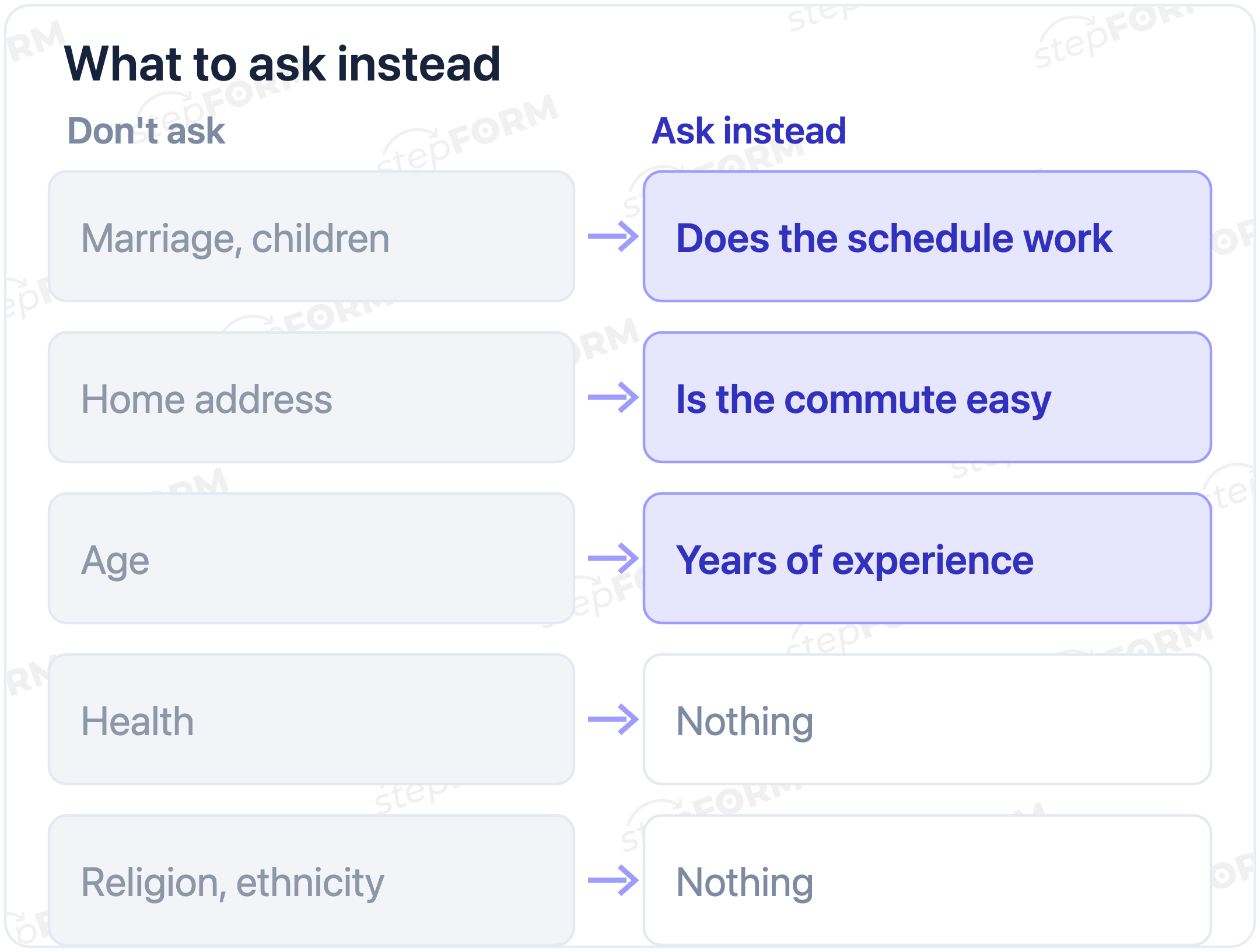
| Don't ask | Why | Ask instead |
|---|---|---|
| Are you married, do you have or plan children | Marriage, pregnancy and maternity are protected characteristics | "Does a schedule with two business trips a month work for you?" |
| Age, date of birth | Age is a protected characteristic | Experience: "How many years have you worked with Xero?" |
| Home address, neighbourhood | Not needed for the decision: what matters is whether the person can get to work | "Is our office near King's Cross easy for you to reach?" |
| Ethnicity, religion, political views | Protected characteristics and special category data | Nothing: they have no bearing on the job |
| Health, long-term conditions | Section 60 bars pre-offer health questions, and health is special category data | Nothing. If you need to make adjustments for the interview, ask whether the candidate needs any |
Candidate data: notice, retention and the talent pool
The form collects personal data: name, phone, email, work history. You tell candidates how you use it in a privacy notice. You do not need to ask them to agree to it: consent is only one of the lawful bases, and Article 6(1)(b) of the GDPR covers steps taken at a person's request before entering into a contract. Article 5 sets the principles you work within (the text is on EUR-Lex, and the UK GDPR keeps the same principles). Two of them shape a job application form directly:
- Data minimisation. Data must be "adequate, relevant and limited to what is necessary". Every field "just in case" breaks this.
- Storage limitation. Keep the data no longer than you need it. Decide in advance how long you keep forms from unsuccessful candidates, write it in the privacy notice, and delete them when the time is up.
If you want to keep a candidate's details for future vacancies, ask separately with an optional checkbox and say for how long. Making that box required defeats the point: the candidate should be able to apply without joining your talent pool. How to add a consent line and a checkbox to a form is covered in our article on the GDPR consent checkbox.
Tell candidates when they will hear back. A line such as "We reply to every application by Friday" at the top of the form costs nothing, and good people are less likely to take another offer while they wait.
A Word document or an online form
A Word template is familiar: print it, the candidate fills it in by hand at the office. That works while there are few candidates and they all come in person. Then the problems start: handwriting, paper you have to store and later destroy, and typing answers into a spreadsheet by hand.
An online form removes the retyping. Candidates fill it in through the link in the job ad before they meet you, the answers land in one list, and you can compare people before anyone travels to the office. One more small thing: an online form will not let a candidate skip a required field, while on paper you spot the empty boxes after the person has gone.
How to build the form in stepFORM
The sample form fits on three pages with about 20 elements, which is within the free plan. There is one limit: you cannot upload a CV file on it, see step 4.
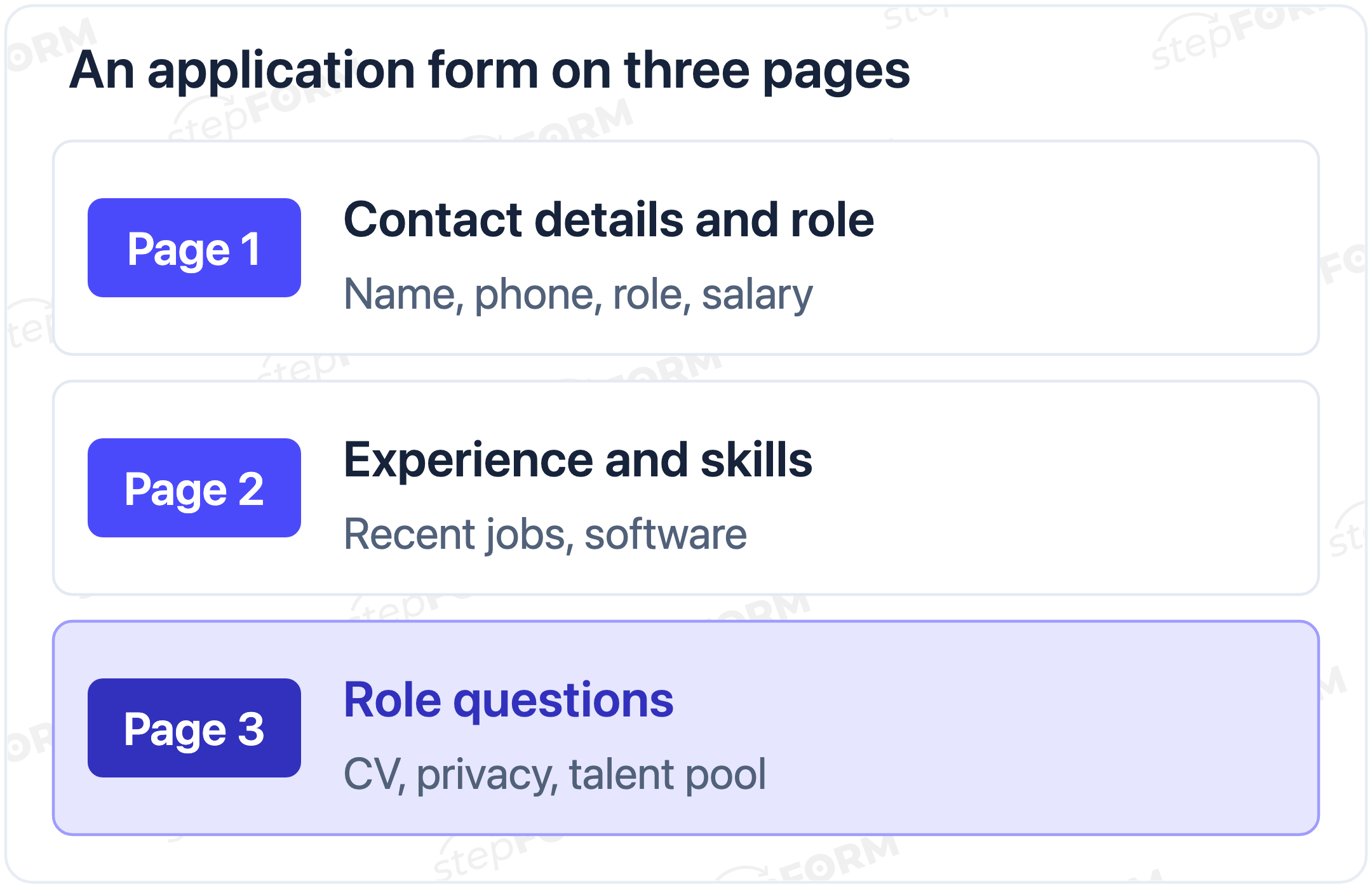
- Start. Create a form. In the general settings of the first question, turn on the description and write when the candidate will hear back: "We reply by Friday".
- Contact details and role. On the first page add Text input for the name, plus Mobile and Email: the last two already check the format. If you have several vacancies, make the role a Drop-down list. Expected salary works well as Digital input, the start date as Date and time.
- Experience and skills. On the second page add Text input with Large field turned on for experience, and Checkbox for software and tools. In validation, make required only what you cannot assess the application without.
- CV. The File Upload element is available only on paid plans: on Beginner up to 10 MB per file and 100 MB of disk space in total, on Pro up to 30 MB and 300 MB. Deleting files does not free the space, so if you hire all year round it is easier to ask for a link to the CV on LinkedIn or in cloud storage with an ordinary Text input. That way the form works on the free plan too.
- Privacy notice and talent pool. Open the settings of the submit button, find Privacy Policy in the Additional block and turn on Activate: a line with a link to the document appears under the button. Replace the document text with your privacy notice for candidates. The default line says that by clicking the button the person agrees to the processing of personal data, so reword it to something like "How we use your data: privacy notice" (see the help article on changing default labels). For the talent pool add a Checkbox with one option, "Keep my application for future vacancies for 12 months", and do not make it required.
- Different questions for different roles. If you have several vacancies, use Logic Jumps to send the candidate to the page with that role's questions after they pick it. Two roles with their own question pages already make four pages, and the free plan has three, so you will need Beginner.
- Notifications. In the Settings tab turn on email to your address: it works on every plan. Telegram notifications are only on Pro. An autoresponder to the candidate ("we have your application and will reply by Friday") starts on Beginner.
- Test and publish. Fill in the form on a phone and on a computer, and check nothing looks broken. Then copy the link in the Publish section for your job ad, social posts or emails, or embed the form on your careers page.
What to do with applications afterwards
All applications land in the Responses tab. You can set up your own statuses there, for example New, Interview, Rejected, Talent pool, and leave comments about who called the candidate and what was agreed. Filtering, sorting and CSV or XLSX export start on Beginner.
Every couple of weeks go through the Rejected status. Delete the applications of people who did not opt into the talent pool once your stated retention period is up. Do not forget CVs and exports you downloaded to your own computer: the same rules apply to them.
Which plan you need
| Plan | Price per month | What it gives your application form |
|---|---|---|
| Free | $0 | 3 pages, 30 elements, 50 responses a month, email notifications. CVs as links only |
| Beginner | $11.20 billed annually, $14 billed monthly | 10 pages, 200 responses, file upload up to 10 MB (100 MB disk), autoresponder, filters and export |
| Pro | $20.80 billed annually, $26 billed monthly | 50 pages, 1,000 responses, files up to 30 MB (300 MB disk), Telegram notifications |
Prices and limits were checked against the pricing page on 9 November 2026.
Common mistakes in job application forms
- Five screens long. A candidate with a strong CV gives up halfway. Put the long questions at the end, once the person has invested some effort.
- Questions "just in case". Hobbies, height, a photo. Every extra field is more data you have to store and later delete.
- A required talent pool box. The permission stops being a real choice.
- No reply date. The candidate does not know whether to wait, and a week later takes another offer.
- Old applications piling up for years. Delete rejected candidates who did not opt in once your retention period ends.
Checklist before you publish the form
- Every question helps you decide whether to invite the person to an interview.
- No questions about marriage, children, age, address, ethnicity, religion or health.
- A line under the button links to your privacy notice for candidates.
- The talent pool checkbox exists and is optional.
- The reply date is at the top of the form.
- CVs come as files on a paid plan or as links on the free one.
- The new application email arrives, checked with a test submission.
- Statuses are set up in Responses, and you clear out rejections every couple of weeks.
Frequently asked questions
What should a job application form include?
Contact details, the role, expected salary, working pattern and start date, recent work history, the education and skills the job needs, one to three questions on the core of the role, a CV, and a link to your privacy notice for candidates.
Can I ask a candidate about marital status or children?
In the UK, marriage or civil partnership and pregnancy or maternity are protected characteristics under the Equality Act 2010. Rejecting someone because of them is discrimination, so leave these questions out. If the schedule matters, ask about the schedule: "Do two business trips a month work for you?"
How long can I keep applications from unsuccessful candidates?
The GDPR does not set a fixed number of days. It requires you to keep data no longer than necessary. Choose a period, state it in your privacy notice and delete applications when it ends. To keep someone for future roles, ask with a separate optional checkbox.
Can candidates upload a CV on the free stepFORM plan?
No, the File Upload element starts on Beginner: up to 10 MB per file and 100 MB of disk in total. On the free plan ask for a link to the CV in an ordinary text field.
How do I get applications in Telegram?
Telegram notifications are available on the Pro plan. An email about each new application arrives on every plan, including the free one.
Should I use a Word template or an online form?
A Word template works for a handful of walk-in candidates. Once applications come through a job ad, an online form saves retyping, will not accept a blank required field and keeps every answer in one list.